
Appearance
Guide the performance
Use emotion, pauses, and notes to describe delivery before recording. Add guidance where it changes the performance, then listen rather than assuming every control affects every voice in the same way.
Emotion
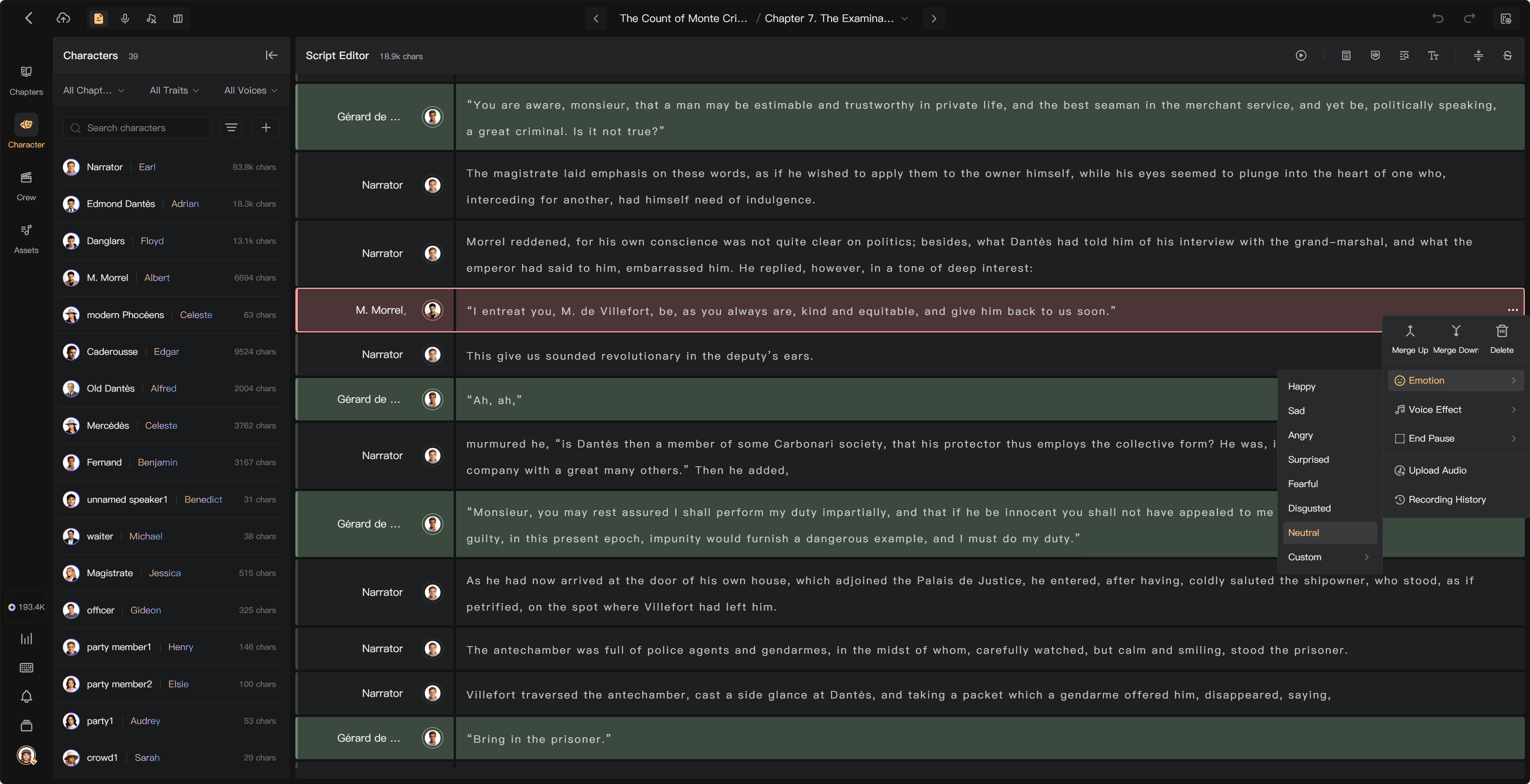
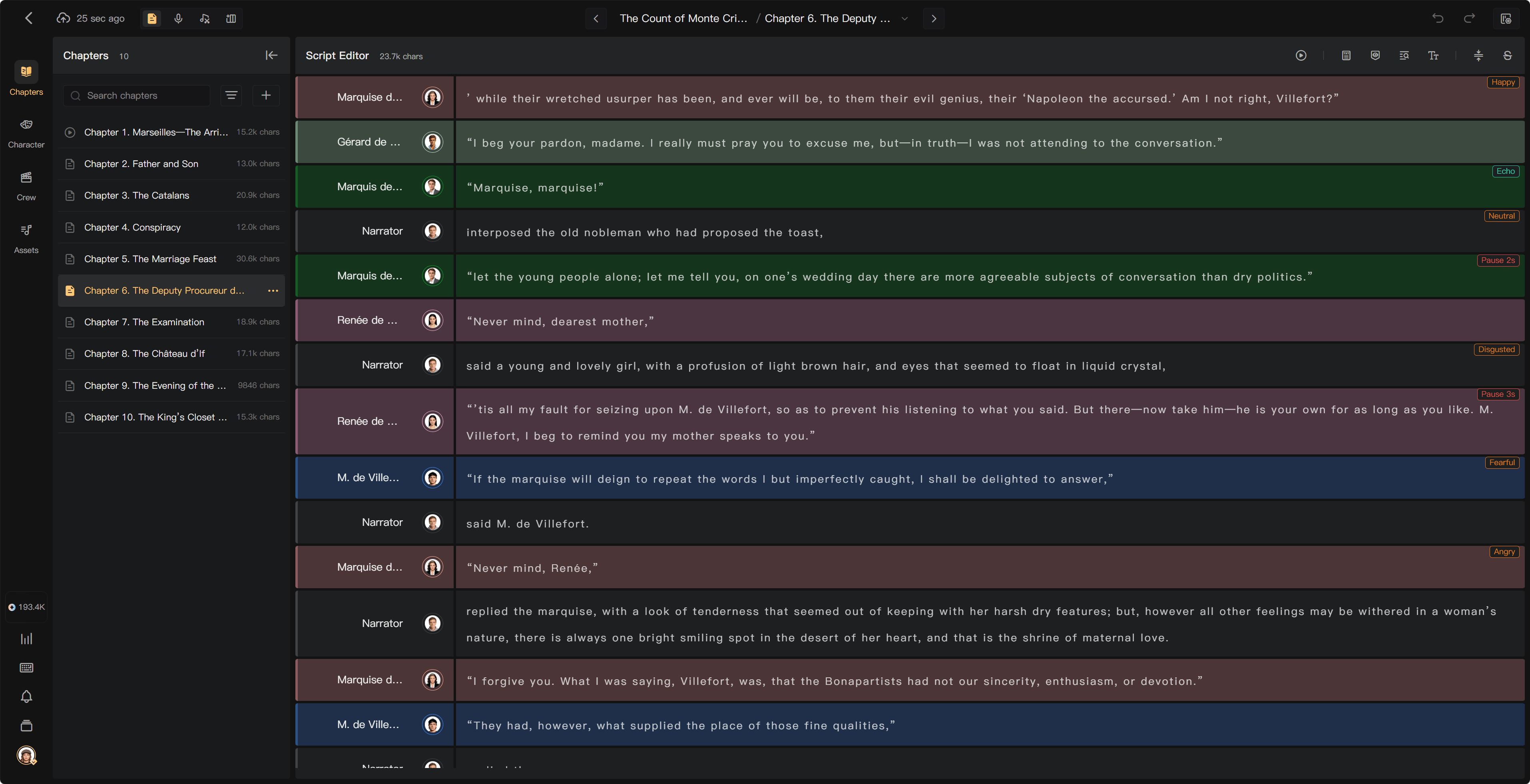
Open the segment menu and select Emotion. The Emotion menu includes Happy, Sad, Angry, Surprised, Fearful, Disgusted, Neutral, and Custom.
Choose a preset suited to the passage, then test a sample. AI voices can respond differently to emotion settings. Custom Emotions are for human performers and cannot be used for AI voice generation.
For an emotional change within one passage, consider splitting it into independently guided segments. Avoid labeling every line with an extreme emotion.
End Pause
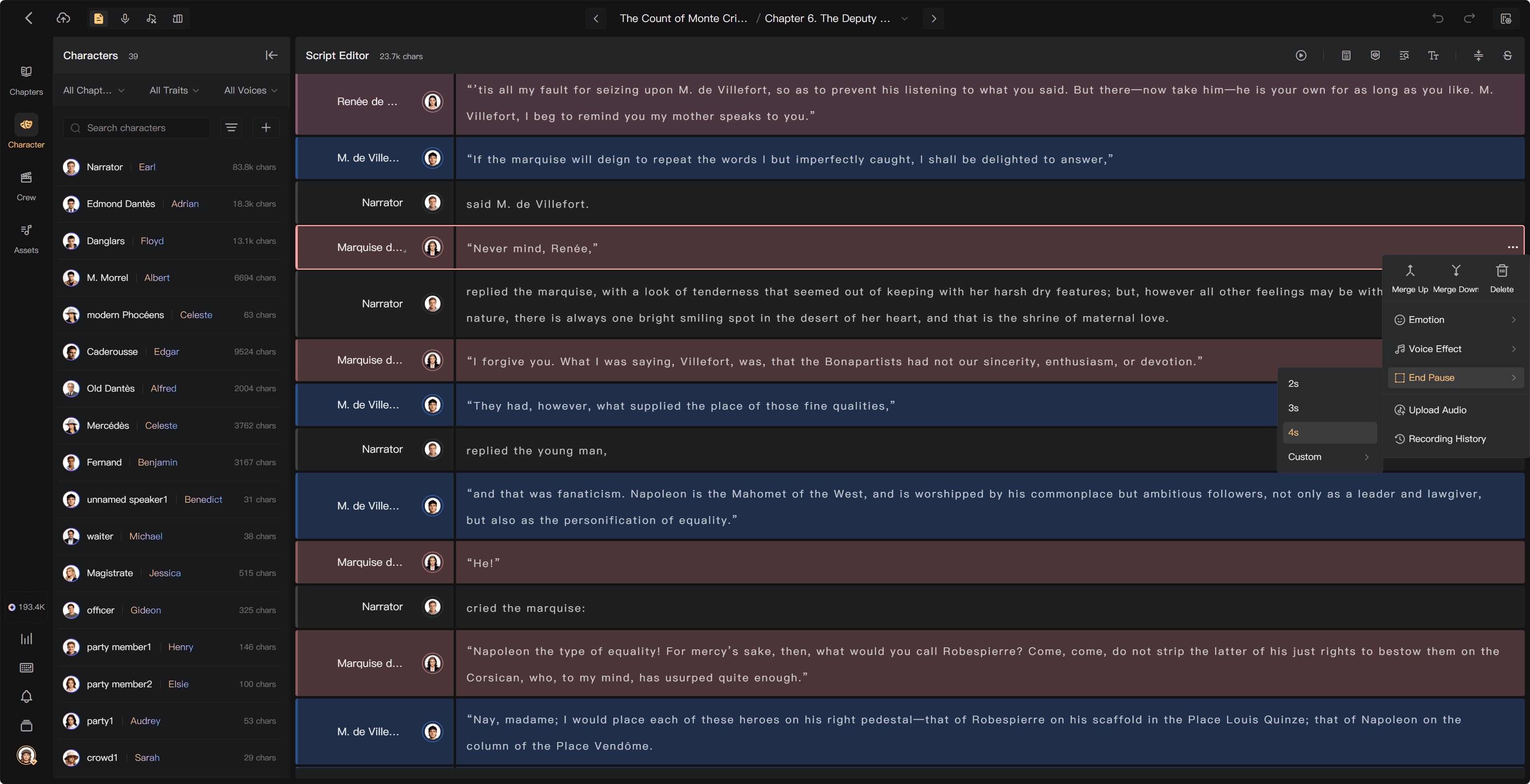
Open End Pause to set the silence following the segment. A brief pause can separate sentences; a longer pause can mark a scene change or give a significant line space.
Check the actual timing in chapter playback and Post-Production. A pause setting changes the rhythm, not the spoken text-character count. Adjust the timeline and re-mix when only spacing needs to change; it need not always require regenerating a performance.
Choose the pause in the segment menu, set the available duration, and inspect the resulting marker. As a starting point, a short pause can maintain conversational flow; a longer pause can separate scenes. Treat durations as editorial decisions and listen to them in context rather than assigning one value to every passage.
Prompts and performance notes
Use Add Prompt or the available performance-note control to record specific direction. For example:
Speak quietly, as though trying not to wake someone. Keep the final sentence steady rather than tearful.
Notes help human performers understand the scene. AI use of guidance depends on the selected voice and supported controls. Do not expect a general note to guarantee a particular generated result.
Select the relevant text or segment, open Add Prompt, enter the direction, and finish the entry. Keep the note separate from the words intended to be spoken. Give the performer the context that changes delivery, such as secrecy, irony, or a restrained emotional response.
Voice Effects
Voice Effect changes how the performance sounds, such as a phone or inner-monologue treatment. It is separate from emotion and from adding an environmental SFX file. See Voice Effects and sound cues.
Batch changes and existing audio
Select several eligible segments and use the available batch action for a shared setting. Check each passage afterward for exceptions.
If an emotion or generation setting changes, existing AI speech may need regeneration. Pure volume, timing, and mixing changes do not themselves use AI credits. Human performers need a new take when the spoken delivery must change.
See Preview audio and Post-Production.