
Appearance
AI Audio overview
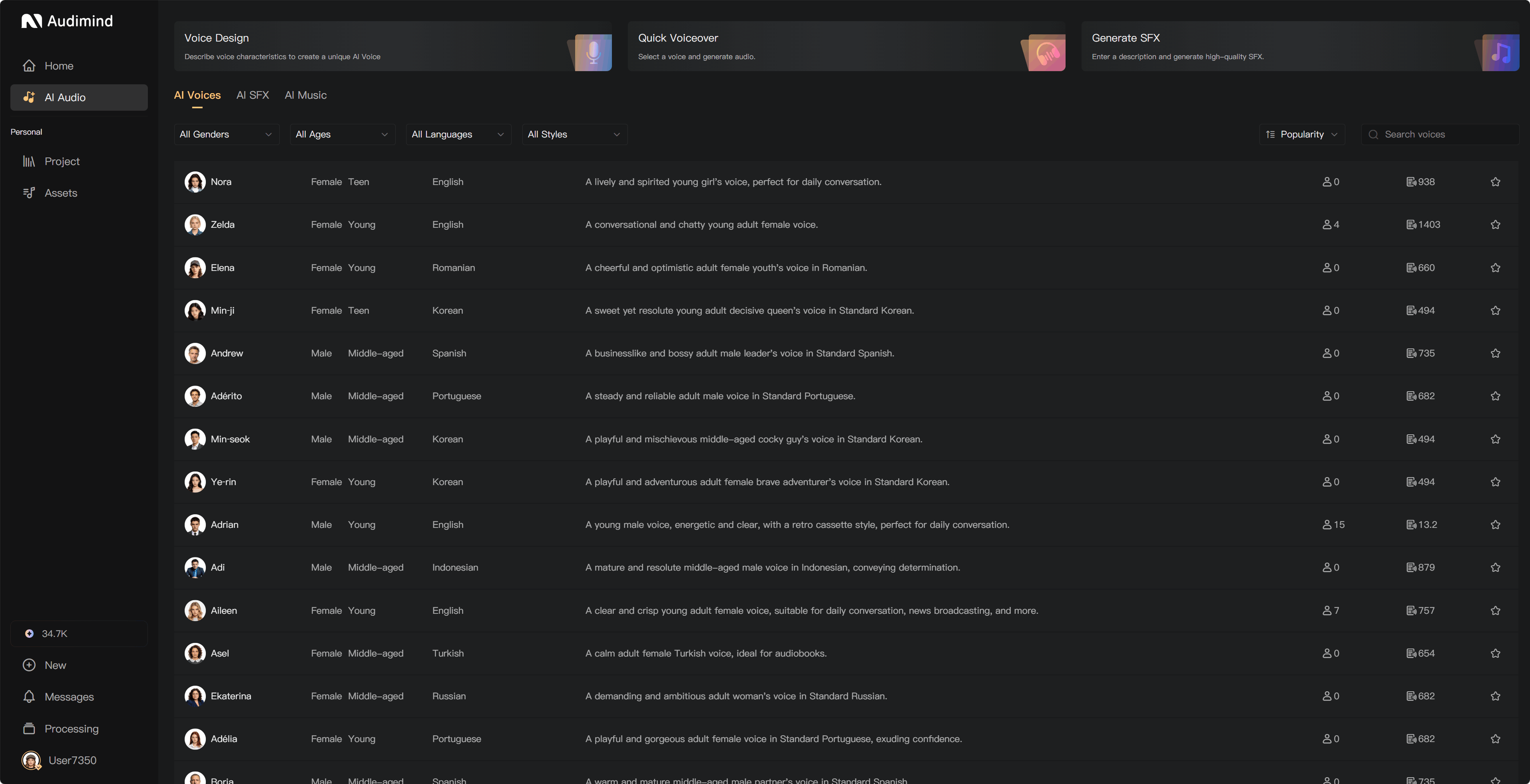
Use AI Audio to create voices and audio assets without starting a project. For chapter-based production with character assignments, review, and editing, use a project instead.
Choose a tool
| Tool | Use it for | Guide |
|---|---|---|
| Voice Design | A new AI voice described in words | Design a voice |
| Quick Voiceover | Audio from a short piece of text | Quick Voiceover |
| Generate SFX | A sound effect described in a prompt | Generate SFX |
| Generate Music | Instrumental background music, where available | Generate Music |
Open a tool from AI Audio or New. The interface shows which tools are available.
Credits and saved results
Check the displayed charge before generation. These personal tools use the operator's own credits, including when the result will later be used in a team project. Project AI narration is instead charged to the project creator.
Generated audio is saved to the relevant category in your personal Assets. For Voice Design, follow the voice-saving flow and choose the result you want to retain. Check the asset list before closing a session or generating another version.
Voice Design provides a retry allowance within its design session. Other AI Audio tools use their standard generation flow; check the displayed charge when starting a new generation.
Use results in a project
Open the project's Assets panel to find available audio. Assign a saved AI voice to a character, or add SFX and music during Post-Production. Access depends on the asset's source and your project permissions.