
Appearance
Alignment tasks and history
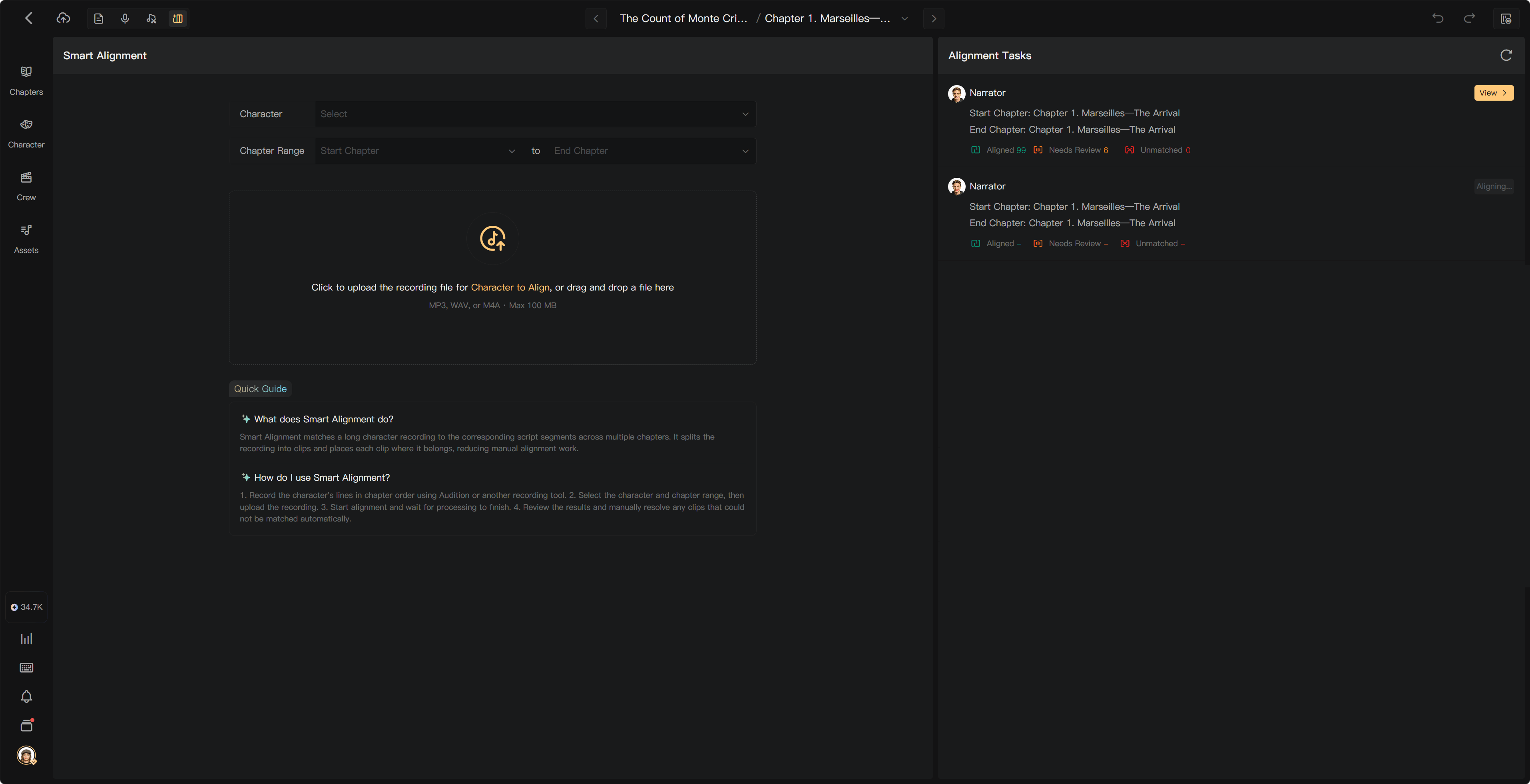
Use Alignment Tasks to find submitted recordings, check processing, and reopen a task's clips. The task record and the chapter's current audio associations are related but different.
Open a task
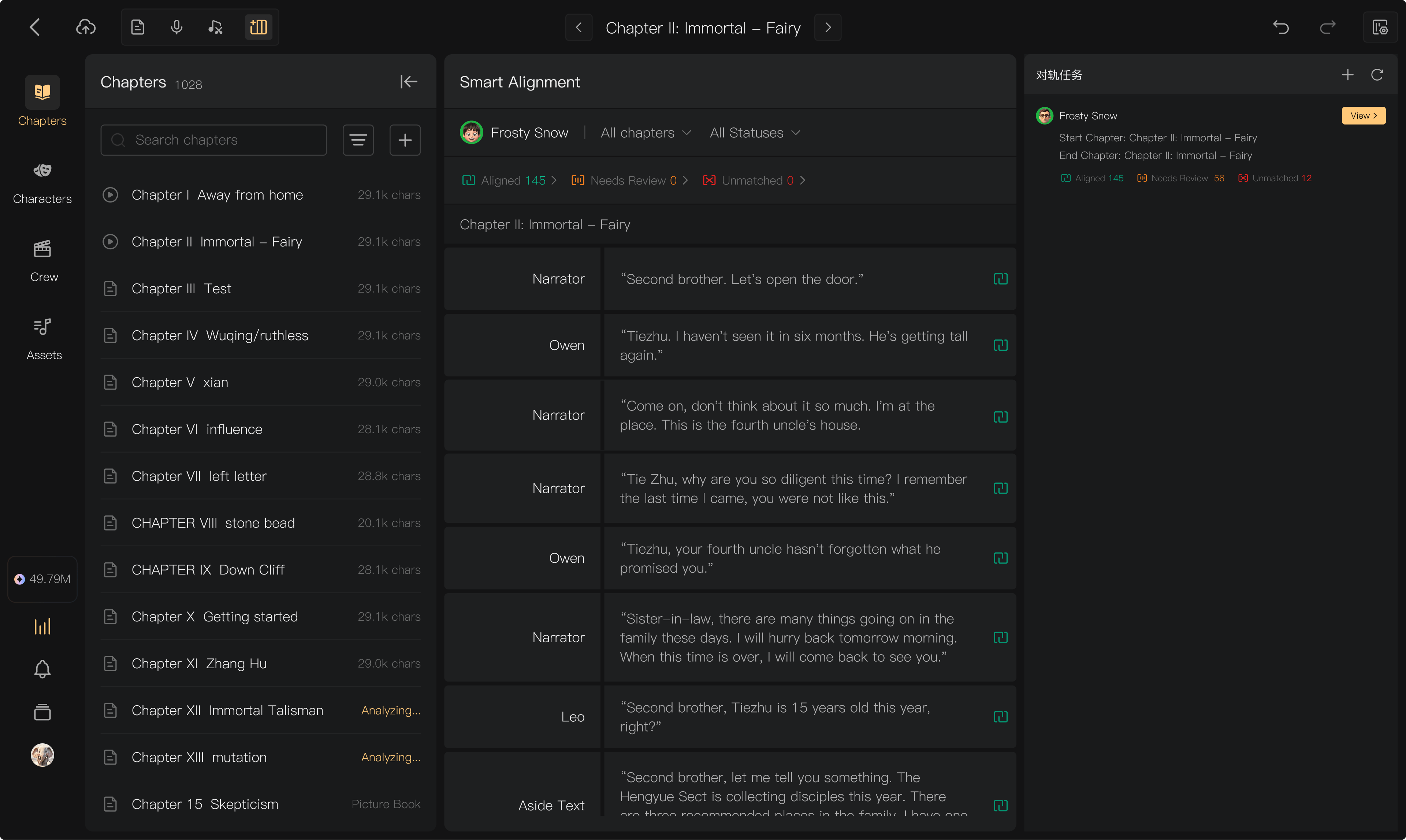
In Smart Alignment, the right panel switches between the task list and a selected task's Audio Clips. Use Back to Alignment Tasks to return. Open a completed task with its view action.
Check the submitter, character, chapter range, file, and status available in each record. The newest tasks appear first.
Processing states
| State | What it means | What to do |
|---|---|---|
| Processing / Aligning | The task is still running | Check Processing; avoid submitting a duplicate |
| Completed | Results are available | Open clips and handle Aligned, Needs Review, and Unmatched results |
| Failed | Processing did not finish successfully | Read the error and correct its cause before retrying |
Refresh the task list to check its latest status. For a task that remains in progress unexpectedly, contact support with its reference and submission time.
Failed processing
Check supported format, file integrity, credits, storage, and connection. A failed transcription is different from completed transcription with unmatched clips. Completed processing can be charged even when manual alignment is needed; use the usage record to check the final charge.
Previous tasks
Use history to compare submissions and locate their clips. A historic task's initial counts can differ from the current chapter after manual changes or later uploads. Verify the actual segment audio before deciding which recording is currently used.
Original recordings and alignment output can occupy storage. Review storage management rather than assuming that history is storage-free.
See Alignment charges, Review results, and Credits history.