
Appearance
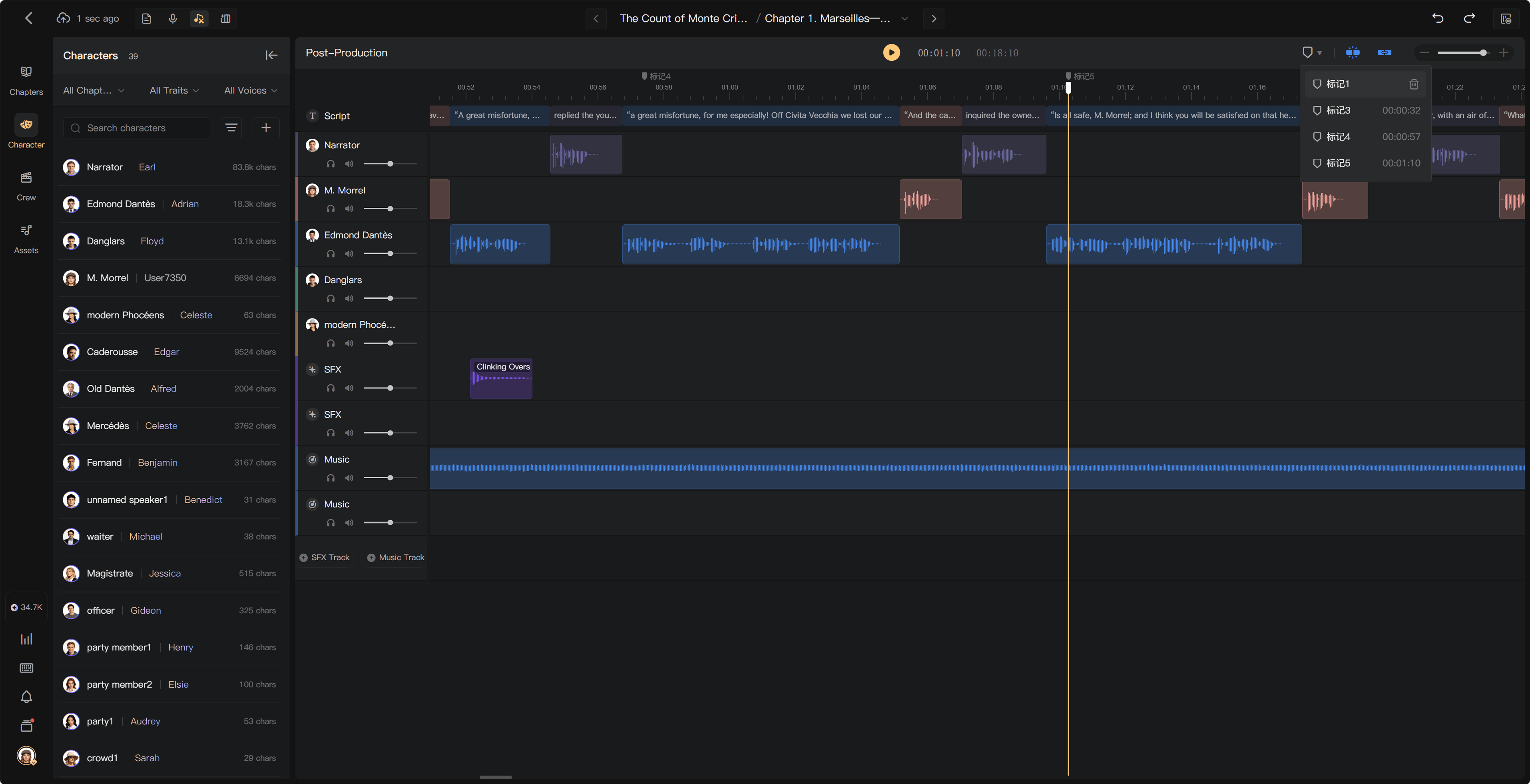
Use markers
Markers identify useful points in a chapter, such as a scene change, a pickup to check, or the position for an effect. They do not change the audio.
Add a marker
- Move the playhead to the desired position.
- Open the marker panel from the Post-Production toolbar.
- Add a marker at the playhead.
- Give it a descriptive name, such as “Scene 1 ends.”
The marker appears as a flag on the timeline.
Navigate and manage markers
The panel lists the current chapter's markers in time order. Click one to move the playhead there, then start playback.
- Rename: double-click the name, edit it, and press Enter.
- Move: drag the flag left or right on the timeline.
- Delete: use the delete icon beside the marker in the panel.
With Snap enabled, markers also provide alignment points when you move clips. For example, mark a door opening in the dialogue, then align the door sound with that marker.