
Appearance
Quick Voiceover
Use Quick Voiceover to turn a short piece of text into audio without creating a project. For long manuscripts, chapters, multiple characters, or a production workflow, create a project instead.
Generate audio
- Open Quick Voiceover from AI Audio or New.
- Enter an audio title and the text to be spoken.
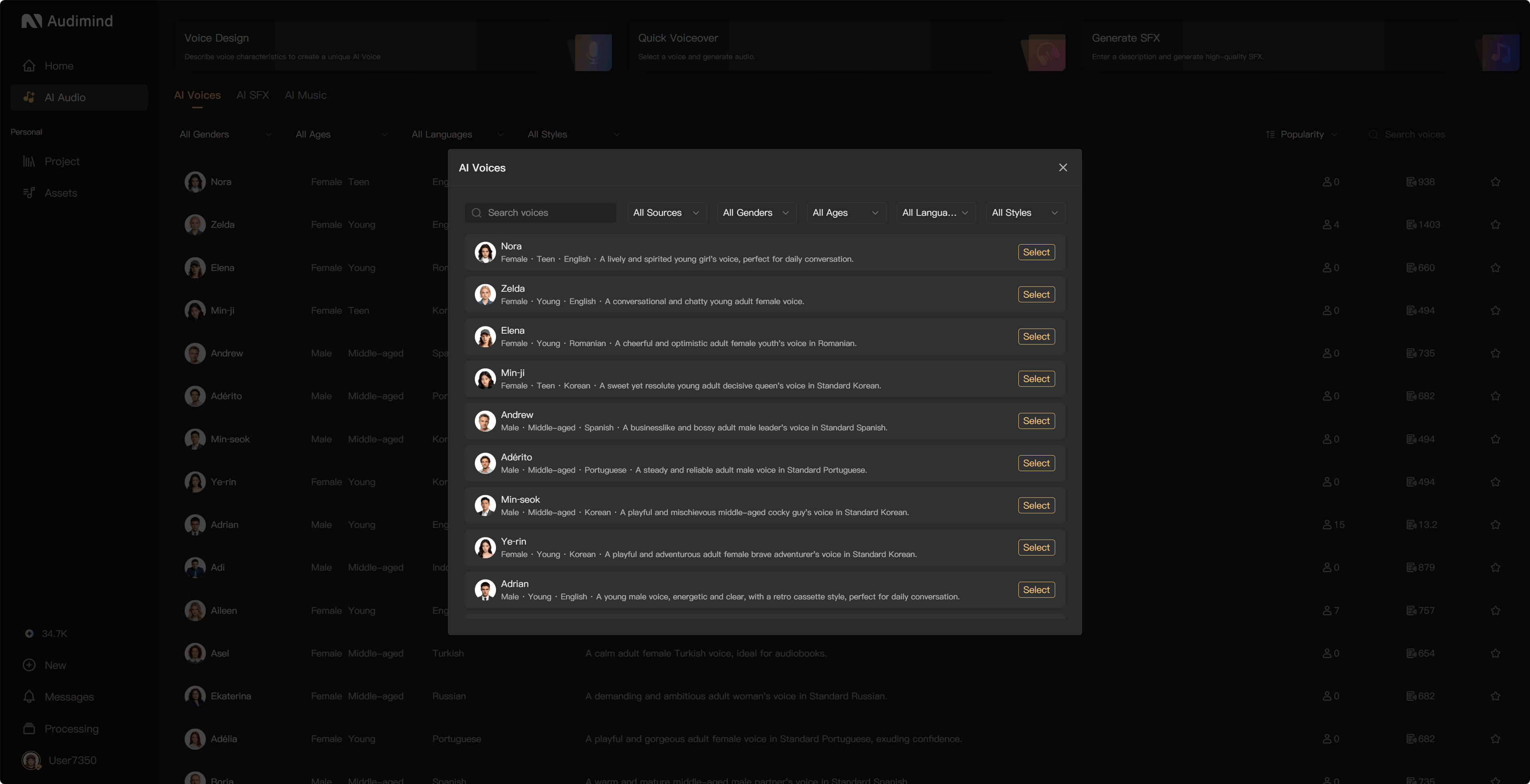
- Choose an AI voice. Filter or search by the available language, age, gender, and style options, and play a sample before selecting.
- Check the text, selected voice, and displayed credit charge.
- Start generation, then play the result.
All required fields must be complete before generation is available. Use a title of up to 50 characters and text of up to 10,000 characters. Follow the form validation before generating.
Save and download
Generated audio is saved in your personal Assets audio category. Find it there to play, download, or use it in a project you can edit.
Troubleshooting
- Generation is unavailable: complete the title, text, and voice selection, and check text limits.
- Insufficient credits: top up your own account before retrying.
- Text is too long: split it into shorter parts or use a project.
- Delivery needs work: check punctuation, choose a better-fitting voice, and test a short sample before generating the full text.
See AI Audio overview and Create a project.