
Appearance
Browse official assets
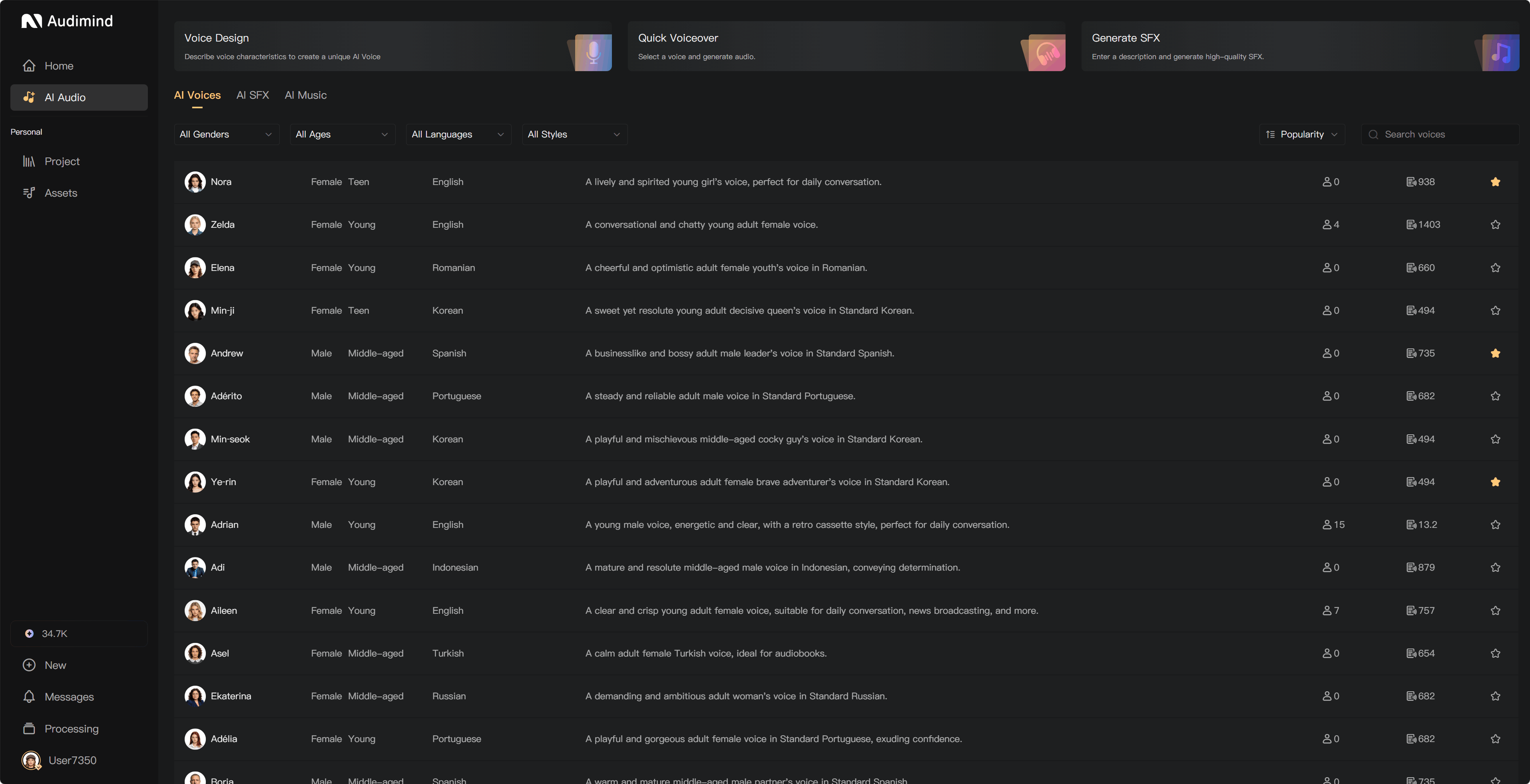
Use the official libraries to find AI voices, SFX, and music before creating your own assets. Open AI Audio and choose AI Voices, AI SFX, or AI Music.
Find an AI voice
Search by name or filter using the available gender, age group, style, language, and source options. Play a sample to hear the performance before selecting a voice for a character.
Use the favorite action to save a reference in your personal collection. You can select official voices directly when assigning a character; favoriting first is optional.
Find SFX and music
Browse the relevant tab, use its filters or sorting, and listen before adding audio to a project. Available actions include favorites, downloads, and prompt reuse. Downloads may require a qualifying membership; check the interface prompt.
Use Prompt opens the corresponding generation tool with the asset's description as a starting point. Review or revise it and check the generation charge. A new generation can sound different even with the same prompt.
Save to a team
Use the team favorite or synchronization action provided for the asset and select the destination. If the asset already exists in that team, find the existing entry instead of adding another copy.
Use in production
Assign an AI voice to a character in Characters. Add music and SFX from the project's Assets panel to the relevant track in Post-Production.
See Assign characters and voices, Personal assets, and Team assets.