
Appearance
Post-Production
Use Post-Production to shape the chapter's sound after recording: edit performances, adjust timing, add music and SFX, and mix the tracks into chapter audio.
Open the workspace
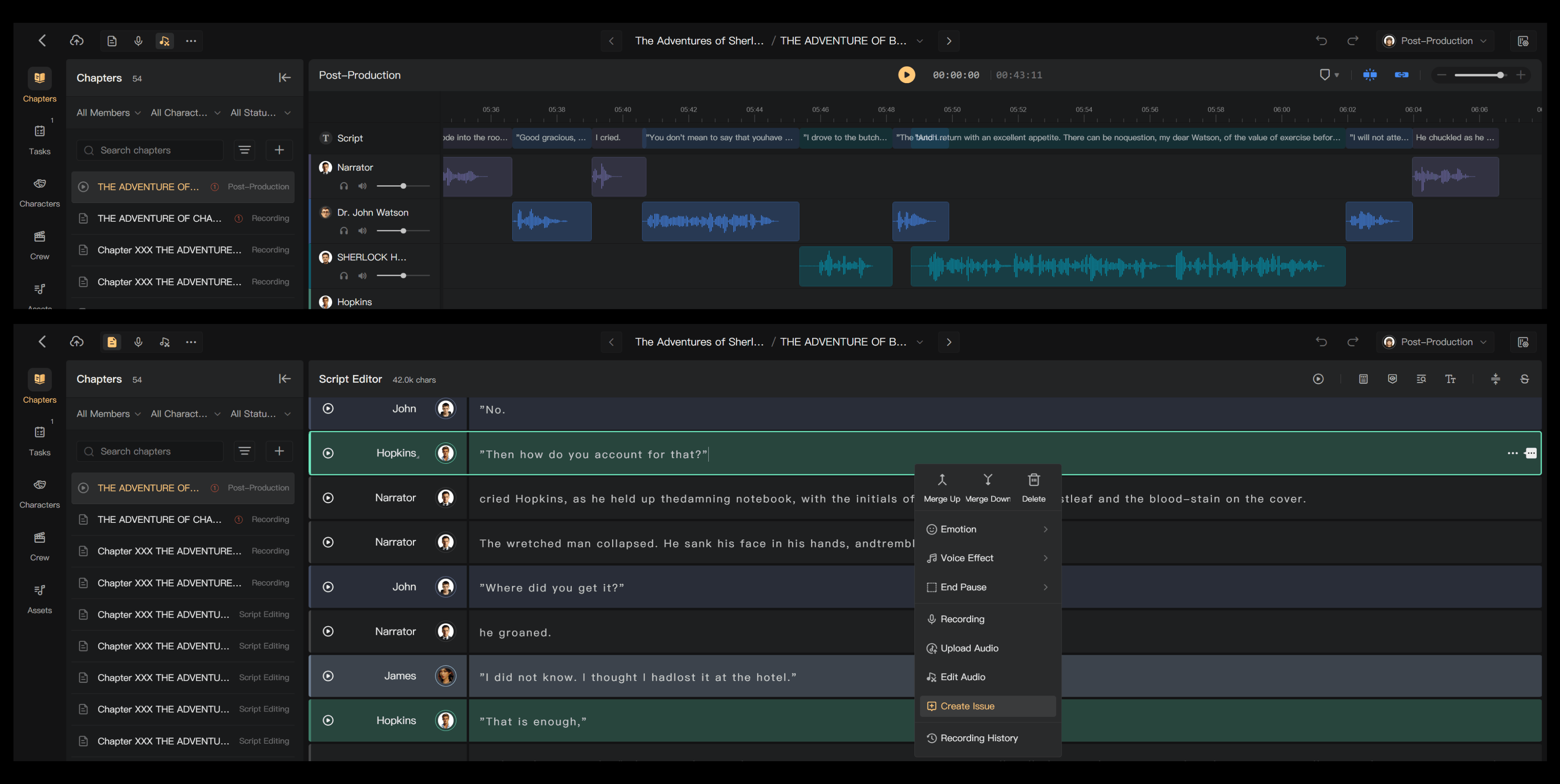
On the creation page, select Post-Production in the view selector. You can also open a recorded segment's menu in Script Editor and select Audio Editing to locate its audio.
Find your way around
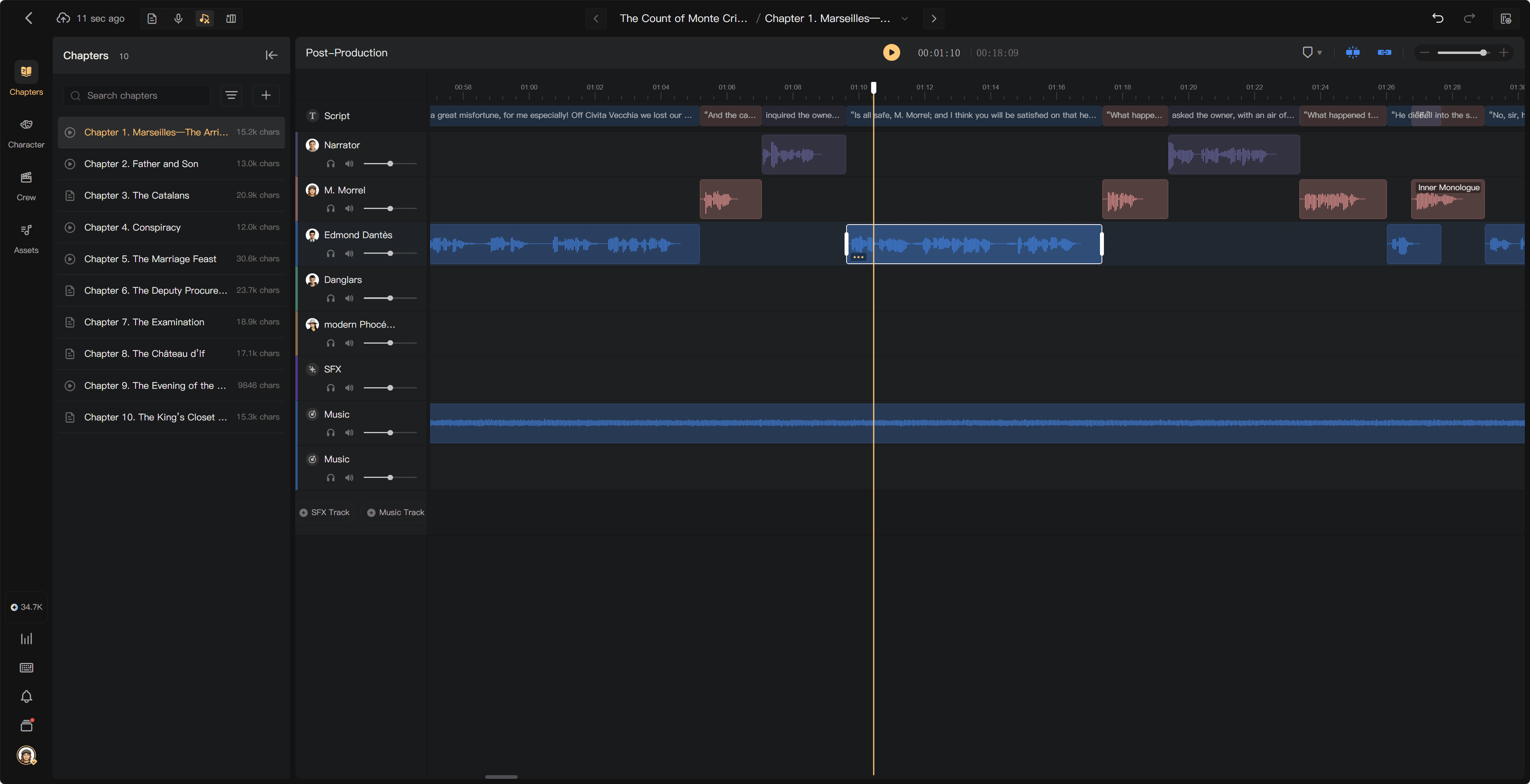
| Area | Purpose |
|---|---|
| Toolbar | Playback, markers, Snap, Ripple, and timeline zoom |
| Timeline | Shows time; the playhead marks where playback starts |
| Script Track | Displays script text as a reference for the recordings |
| Voice Tracks | Contain narration and character recordings |
| SFX Tracks and Music Tracks | Contain effects and background music |
| Track controls | Solo, Mute, and Volume for audio tracks |
Tracks appear in that order. Voice Tracks follow the characters' order of appearance. You can use up to three SFX Tracks and three Music Tracks.
Adjust the panel height to show more tracks, and scroll vertically through the track area. The panel fits the available space as you open or close sidebars.
Understand clips, Snap, and Ripple
A clip is a piece of audio on the timeline. A recorded script segment appears as a clip on its speaker's Voice Track. Click the timeline to move the playhead to the point you want to hear.
Snap helps align clip edges with nearby edges and markers. Ripple moves later clips when you adjust a voice clip, helping preserve the timing of subsequent material. Both are enabled by default. Disabling Ripple lets you reposition a clip independently, but check the surrounding voices, music, and effects afterward.
Moving an SFX or music clip does not shift the voice recordings. Preview the surrounding passage after timing changes.
A practical editing order
- Check the voices against the script and replace missing or unsuitable recordings.
- Adjust clip timing and edit unwanted pauses, mistakes, or noise.
- Add music and SFX, then balance their volume against the voices.
- Preview transitions and important passages.
- Run Mixing to update the chapter audio before review or export.
See multitrack editing, editing an individual recording, and mixing for the detailed steps.