
Appearance
Edit an individual recording
Open an individual clip to remove a cough, shorten a pause, split a performance, or adjust its sound without rearranging the whole chapter.
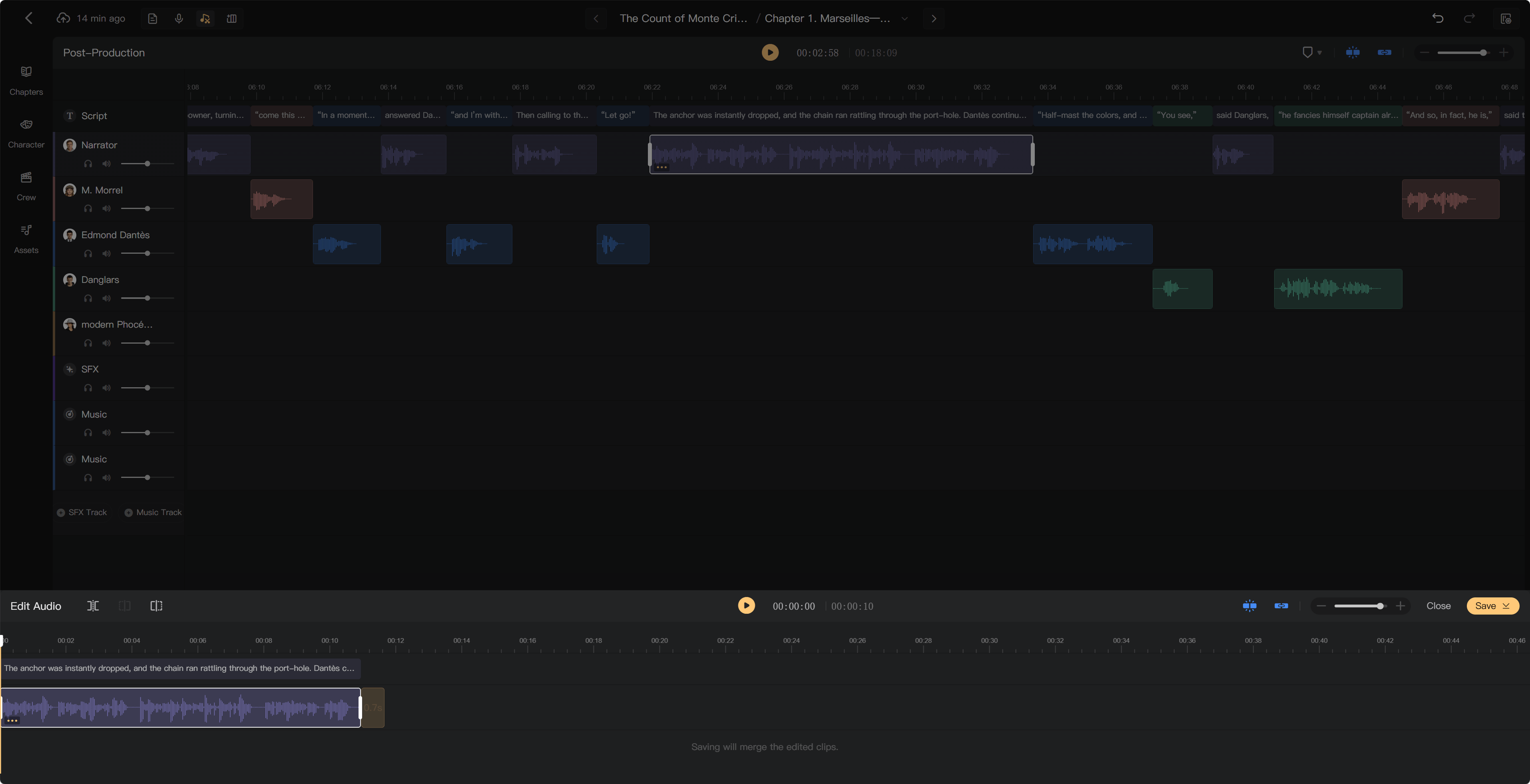
Open the clip editor
In Post-Production, open the clip's … menu and select Edit.
Choose the right tool
| Tool | Use |
|---|---|
| Clip selection | Select or move a clip and use its edge handles to trim it |
| Audio content selection | Select a range within the waveform and delete it |
| Split | Divide audio at the playhead |
| Split and keep right | Divide audio and remove the part to the left |
| Split and keep left | Divide audio and remove the part to the right |
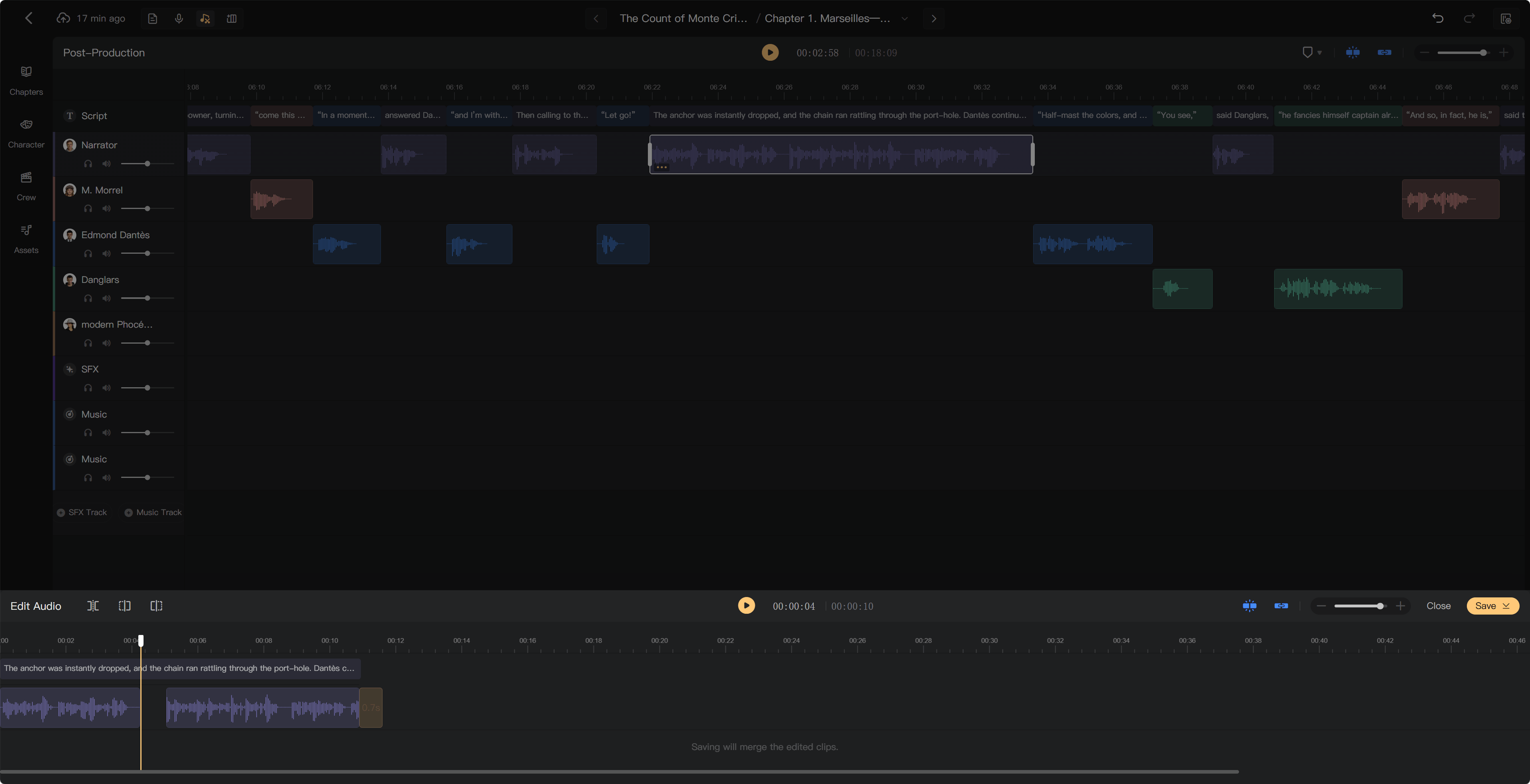
Remove unwanted audio
- Choose the audio content selection tool.
- Drag across the waveform to select the cough, mistake, or pause.
- Press Delete. The following audio moves forward to close the gap.
- Listen across the edit to check that the words and pacing still sound natural.
Selecting a whole clip and deleting it is a different operation. To leave a pause after removing content, split and move the following piece to the right.
Split and reposition audio
Move the playhead over the clip at the desired cut, then use Split. The resulting pieces can be moved and processed separately. The playhead must be inside the audio you want to split.
In this editor, dragging a piece to the right adds space before it; moving it left reduces that space.
Adjust the sound
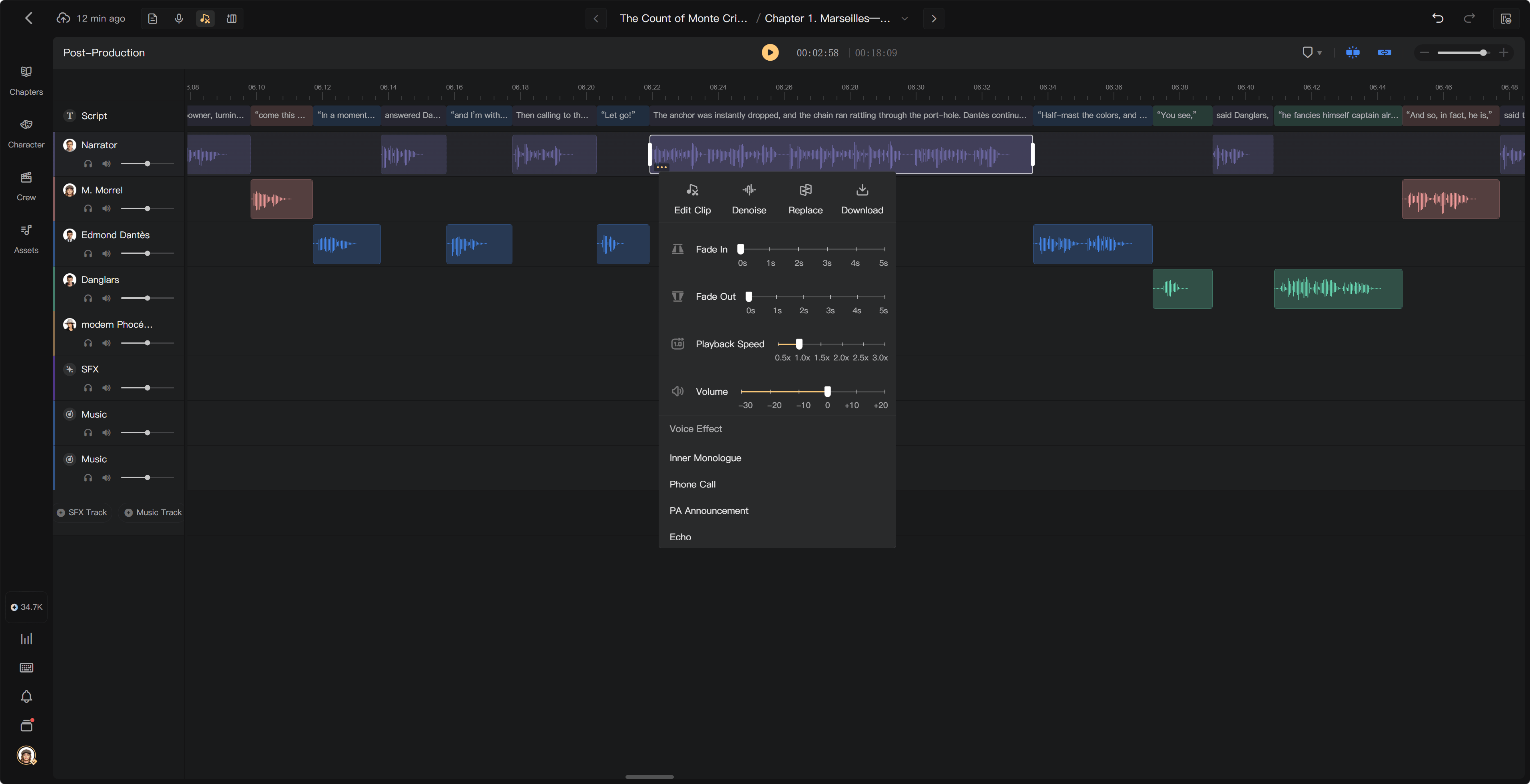
Use a piece's menu to apply Denoise, Fade In, Fade Out, Volume, or Voice Effect.
- Use Denoise for unwanted background noise, then compare the result with the original voice.
- Adjust fade duration for smoother entrances and endings.
- Use Volume to balance the recording; avoid raising it so far that the sound distorts.
- Use Voice Effect for a scene treatment, such as a telephone voice. Each clip uses one Voice Effect at a time; select None to remove it.
Voice Effects change the sound of the performance. Add separate environmental sounds on an SFX Track.
How edits appear in the chapter
The multitrack view still shows the recording as one clip, even when you split it into several pieces in the clip editor. Playback follows those internal edits. Changes to the total duration update the outer clip and can shift later material through Ripple.
Volume adjustments on internal pieces combine with adjustments on the outer clip. Reopen Edit to continue from the saved editing state, and run Mixing when the chapter is ready to update its mixed audio.