
Appearance
Create your first audiobook
Start with a short manuscript so you can learn the workflow before tackling a longer production. This guide follows the same process you will use for a full audiobook: prepare the script, create the voices, edit, review, and export.
1. Prepare the manuscript and chapters
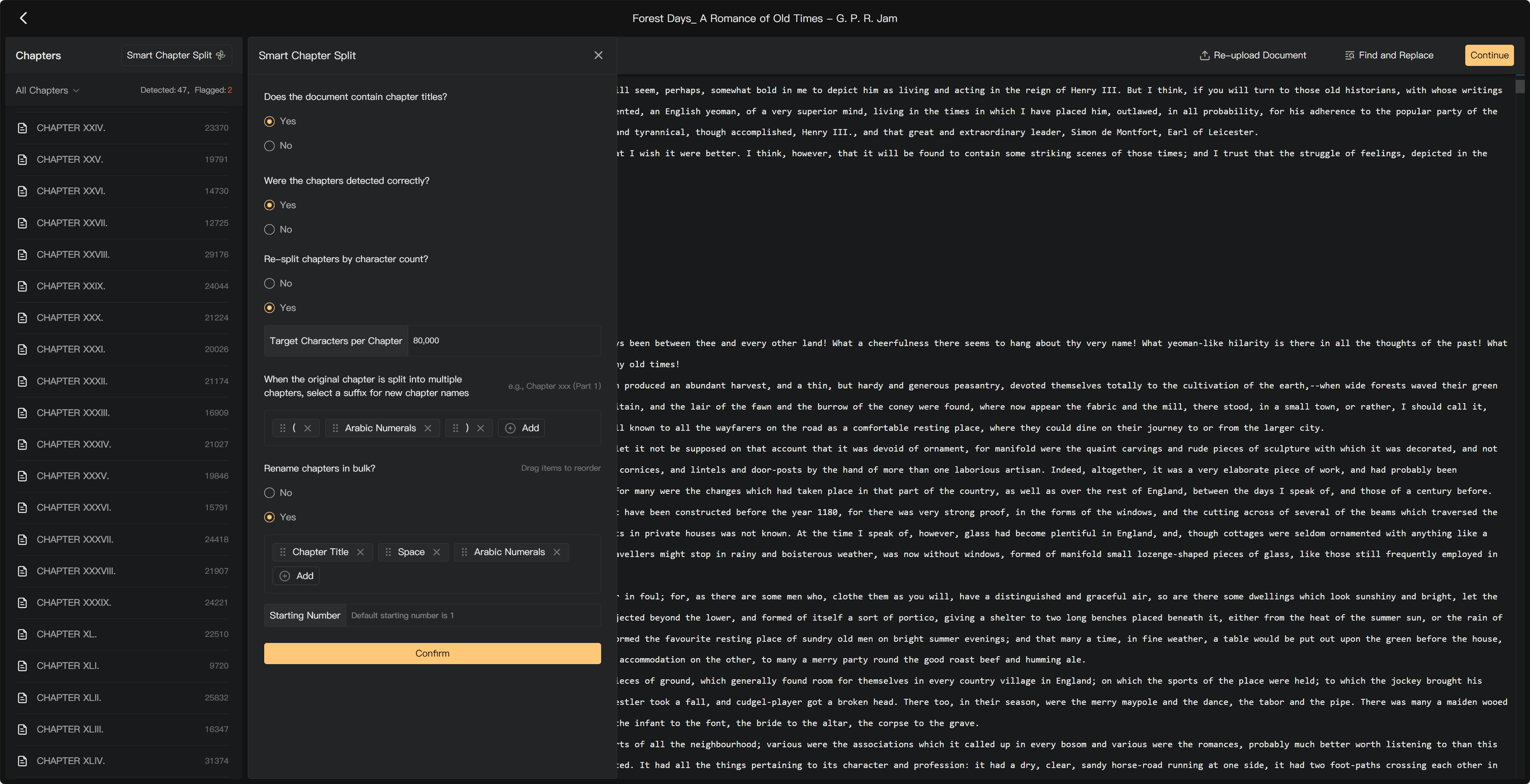
Select New Project, enter the project information, and upload a manuscript. Review the detected chapter titles and boundaries. Use Smart Chapter Split to correct the structure, split by text-character count, or rename chapters in a batch.
Check that no preface, heading, or passage has been lost or included twice before continuing.
2. Review the production script
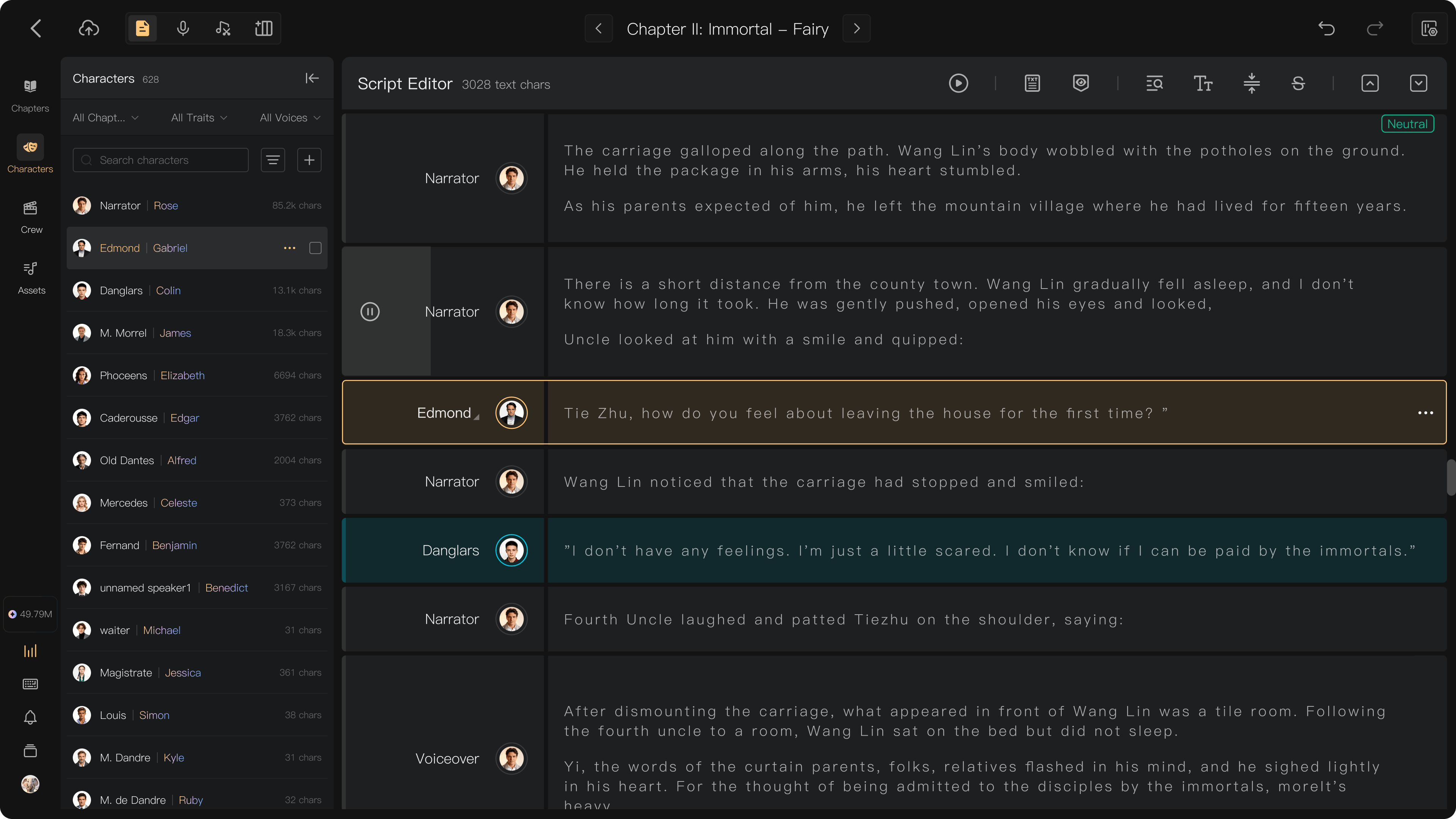
Smart Scripting prepares narration, dialogue, and character information. Open Script Editor and check the first draft against the manuscript.
- Correct segment boundaries and character assignments.
- Open Characters to inspect profiles, merge aliases, and assign human performers or AI voices.
- Use voice recommendations as a starting point, then listen before accepting a voice.
- Add Emotion, End Pause, or a Prompt where the performance needs guidance.
- Mark directions as reference when they should remain visible without being spoken. If the text already has audio, check that audio separately.
3. Create or import the voices
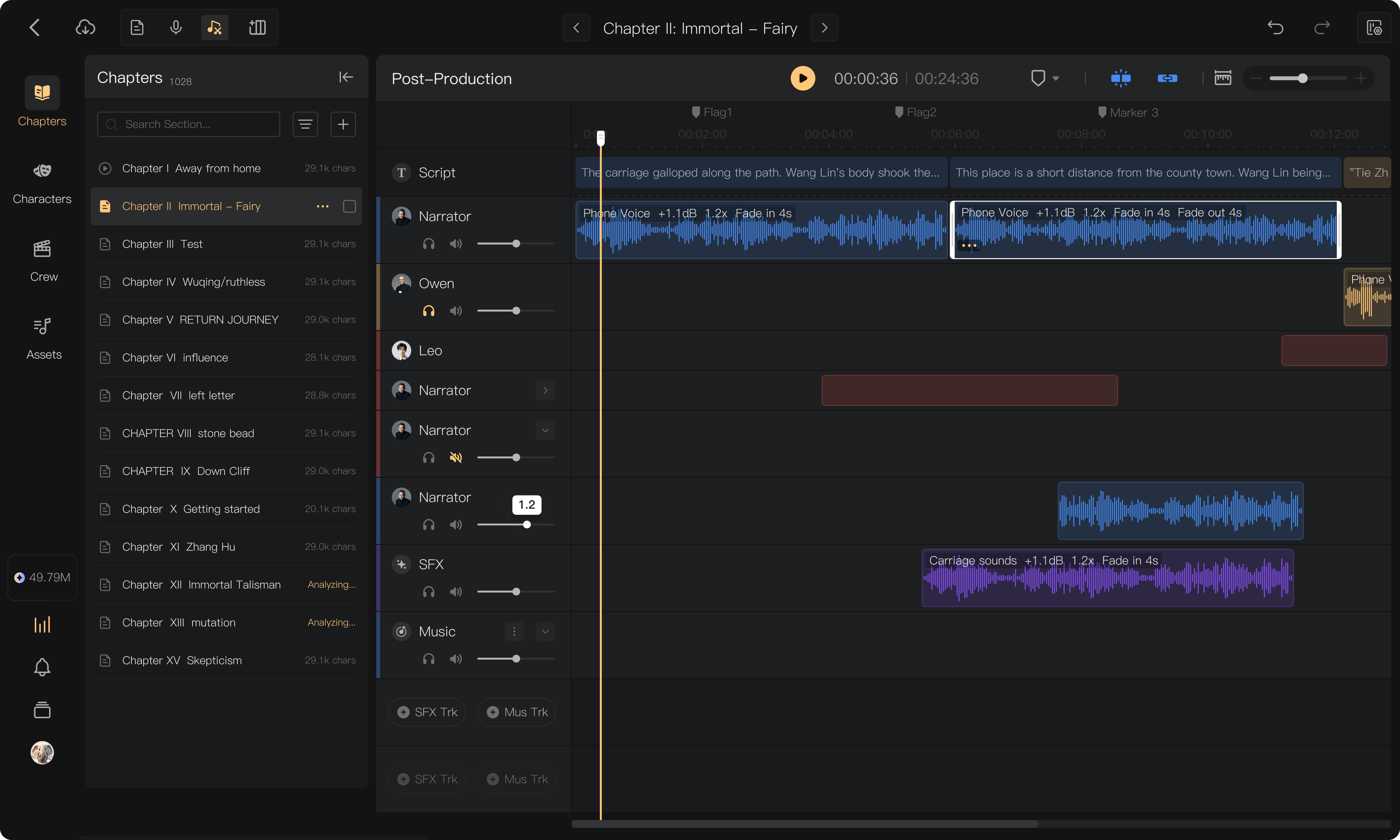
Choose AI voices, human recordings, or a combination:
| Method | How to use it |
|---|---|
| AI audio | Assign an AI voice and generate the required passages; check the charge first |
| Online Recording | Record against the script segment, listen, and submit the take |
| Segment upload | Upload an existing audio file to the corresponding segment |
| Smart Alignment | Upload one character's long recording and choose its chapter range; review the resulting matches |
Audio recorded or generated against a segment does not need another alignment step. Use Smart Alignment for external recordings that still need to be connected to the script.
4. Edit and mix the chapter
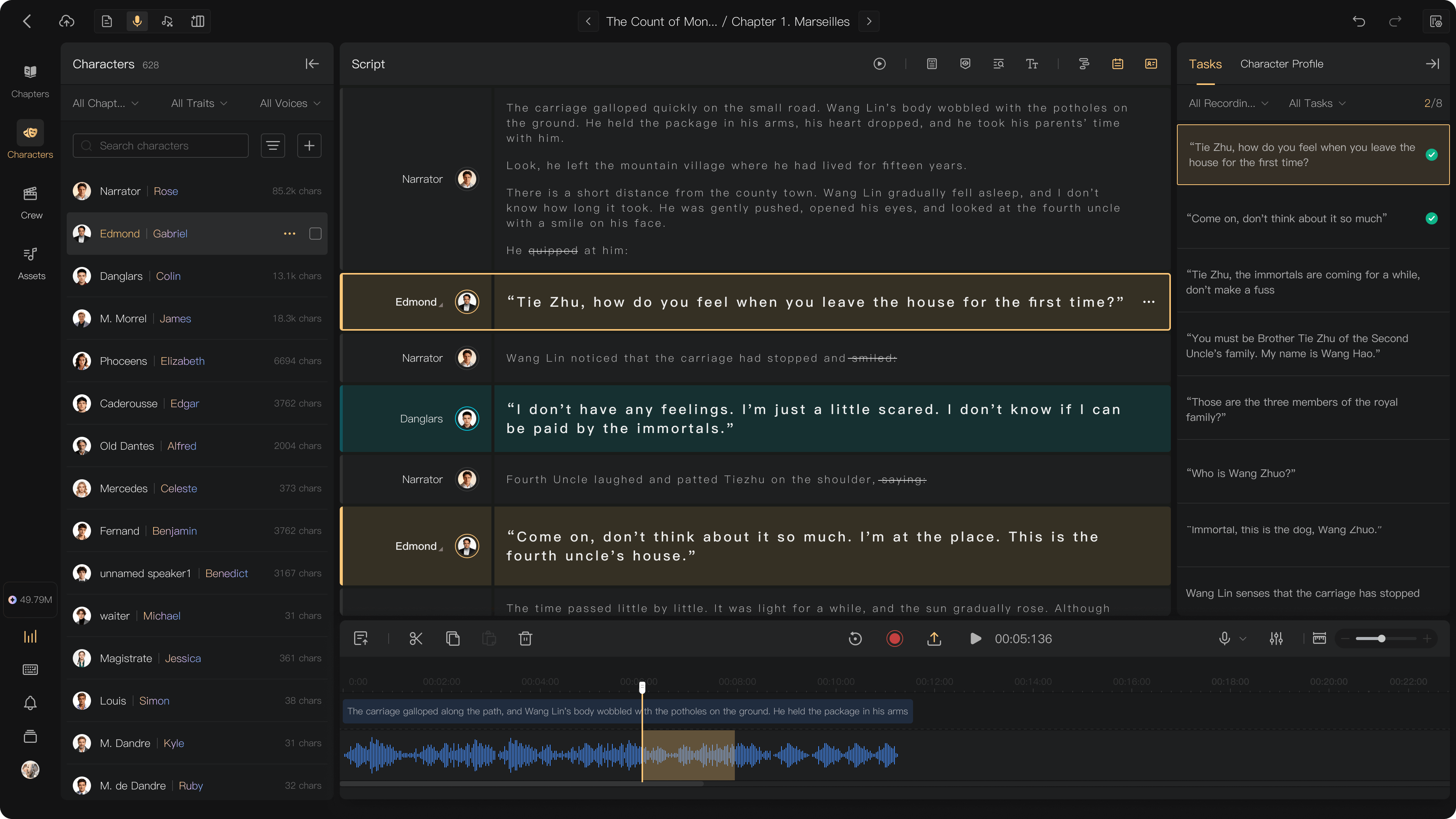
Open Post-Production to adjust clip timing, trim recordings, remove unwanted noise, balance volume, and add fades or Voice Effects. Drag music and SFX from Assets onto the appropriate tracks.
Listen across edits and scene changes. Run Mixing to create or update the chapter audio; timeline edits do not update an existing mixed file by themselves.
5. Review the recording
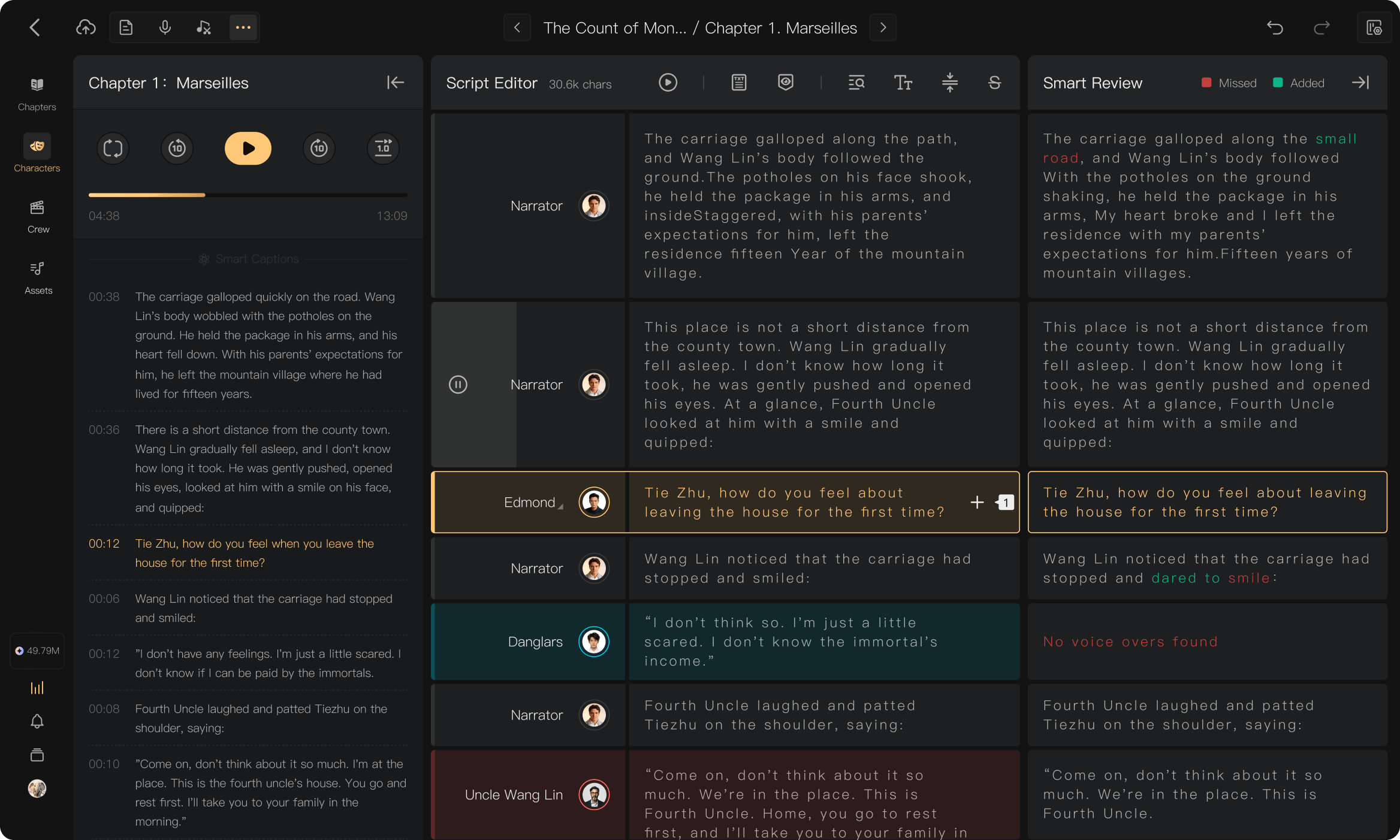
Enable Review in the project's workflow when you need transcript-based checking. Smart Review compares recognized human speech with the script and helps you locate missing, added, unrecognized, or changed passages.
Listen to a flagged passage before choosing Ignore or creating an Issue. Verify corrected audio and update stale transcripts. An Issue that has been submitted is not yet a resolved correction.
6. Export the result
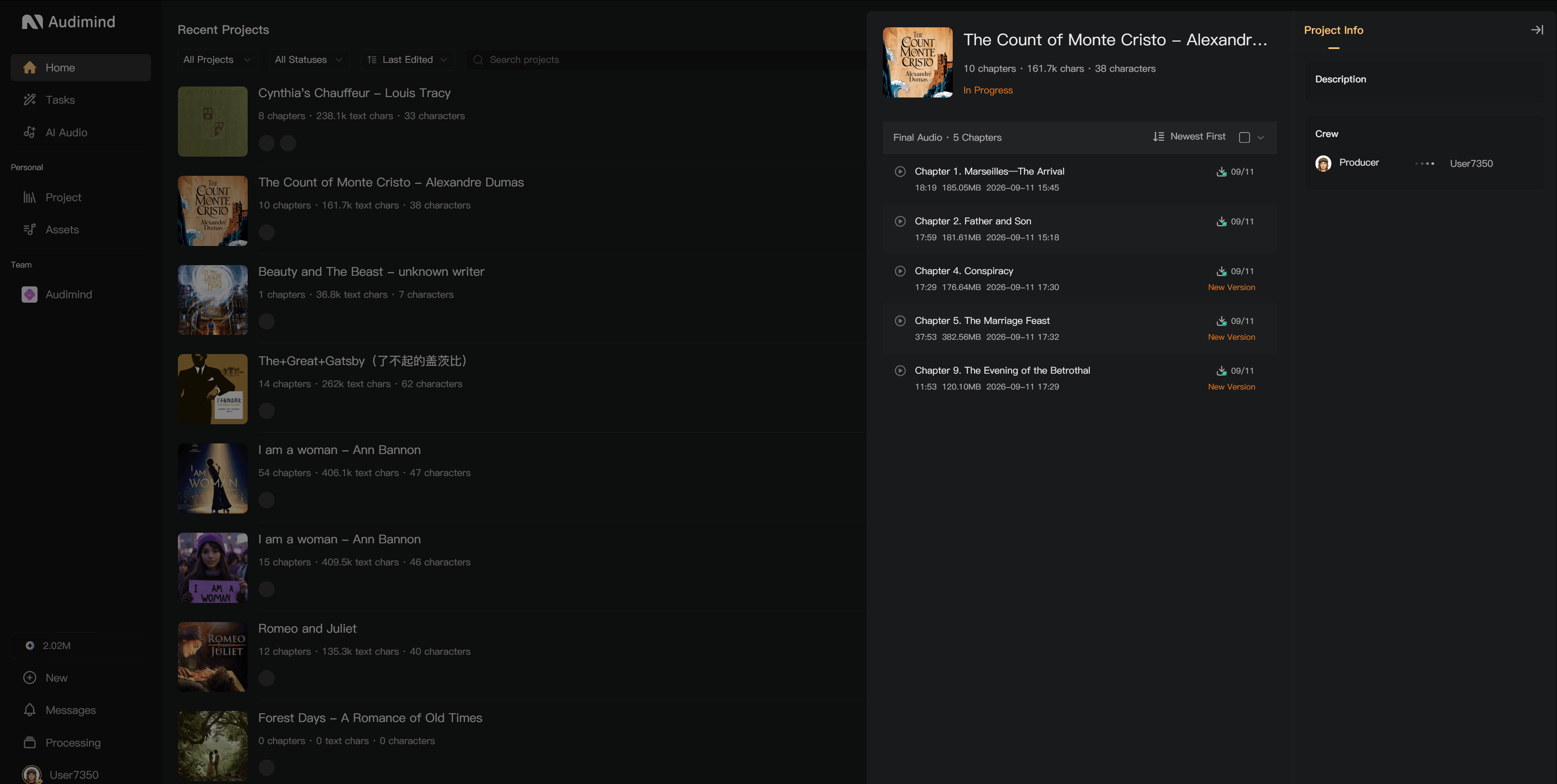
Check the project settings for intro/outro audio and production requirements. From Projects, open the project's … menu and select Export.
Download the finished chapter or select several for batch download. If prompted to mix first, return to the chapter and complete Mixing; downloading does not automatically regenerate audio. Listen to the downloaded version before delivery.
Work with a crew
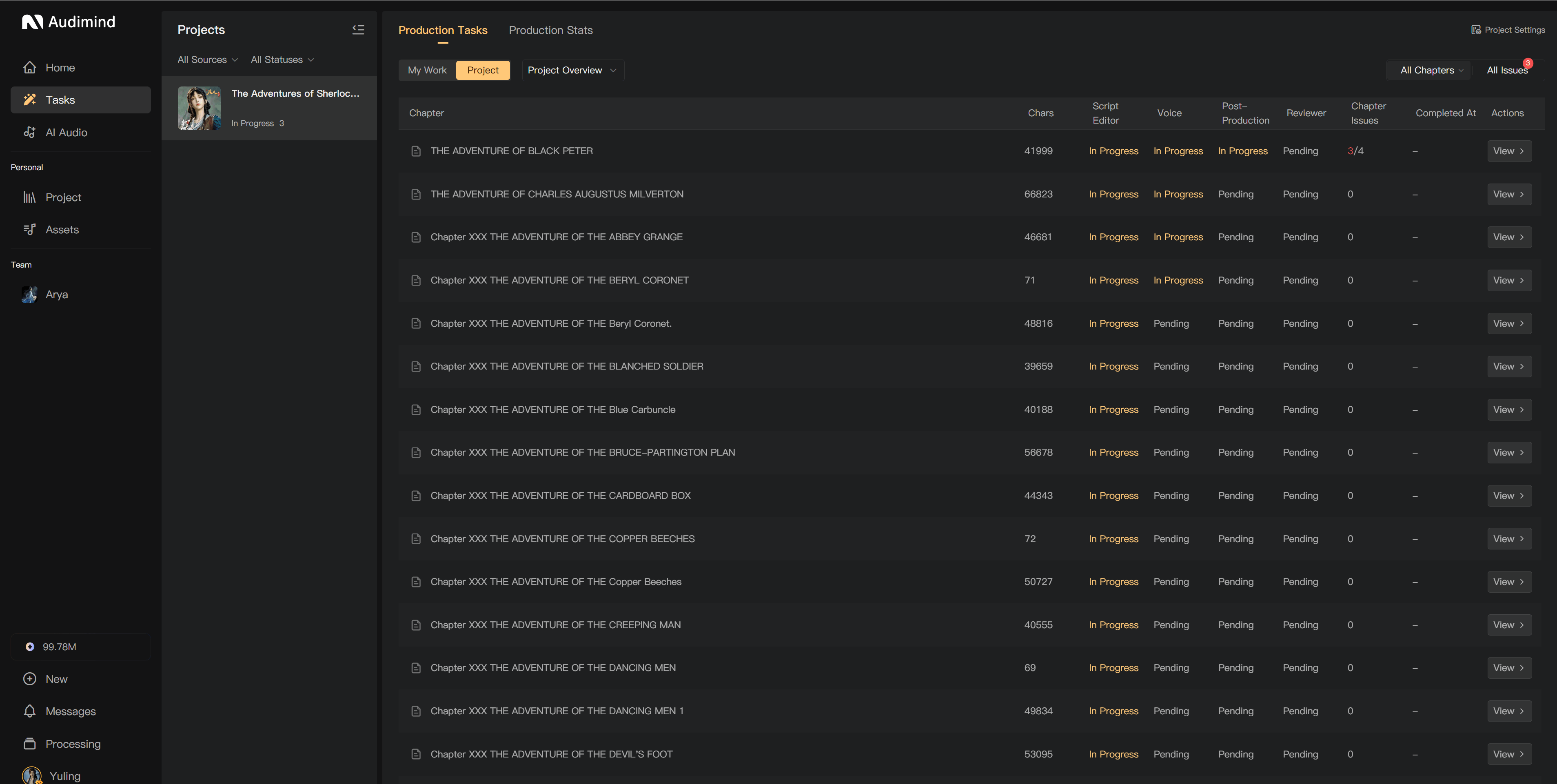
For a collaborative production, create or join a Team and add the project's Crew. Team and Business memberships support collaboration; project seats limit the number of participants in each project.
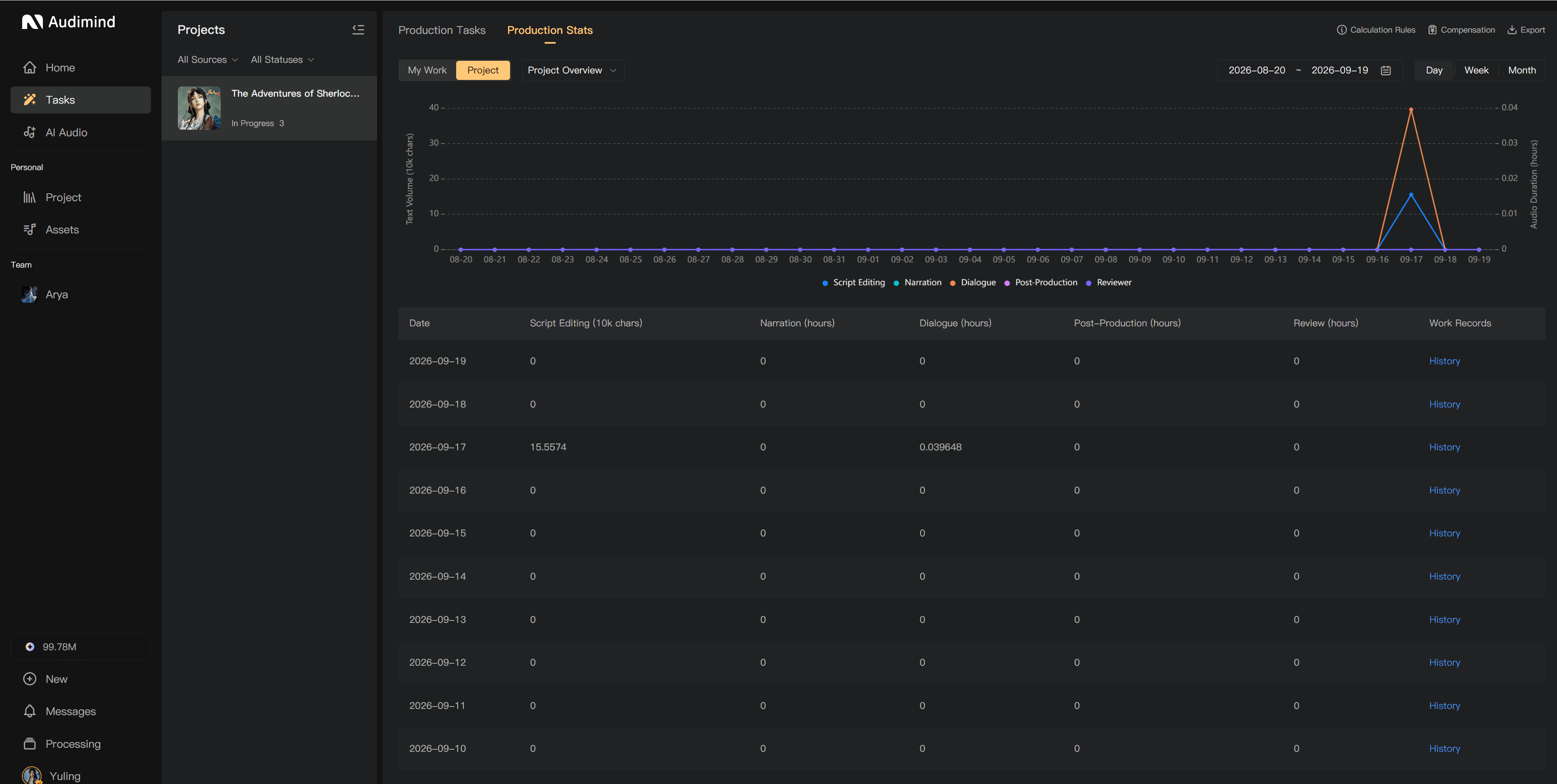
Assign production duties and permissions, then use Tasks to follow chapter progress. Members mark their active assignments complete; directors manage handoffs and returned work. Use comments and Issues for corrections, and project statistics and work records to review production activity.
Continue learning
For a longer production, follow Creation workflow. Open the detailed guides for Script Editor, Recording, Smart Alignment, Post-Production, and Export as you need them.