
Appearance
Voice Effects and sound cues
A Voice Effect processes a character's speech. An SFX file adds a separate sound, and music creates a background layer. Choose the right tool for the sound you need.
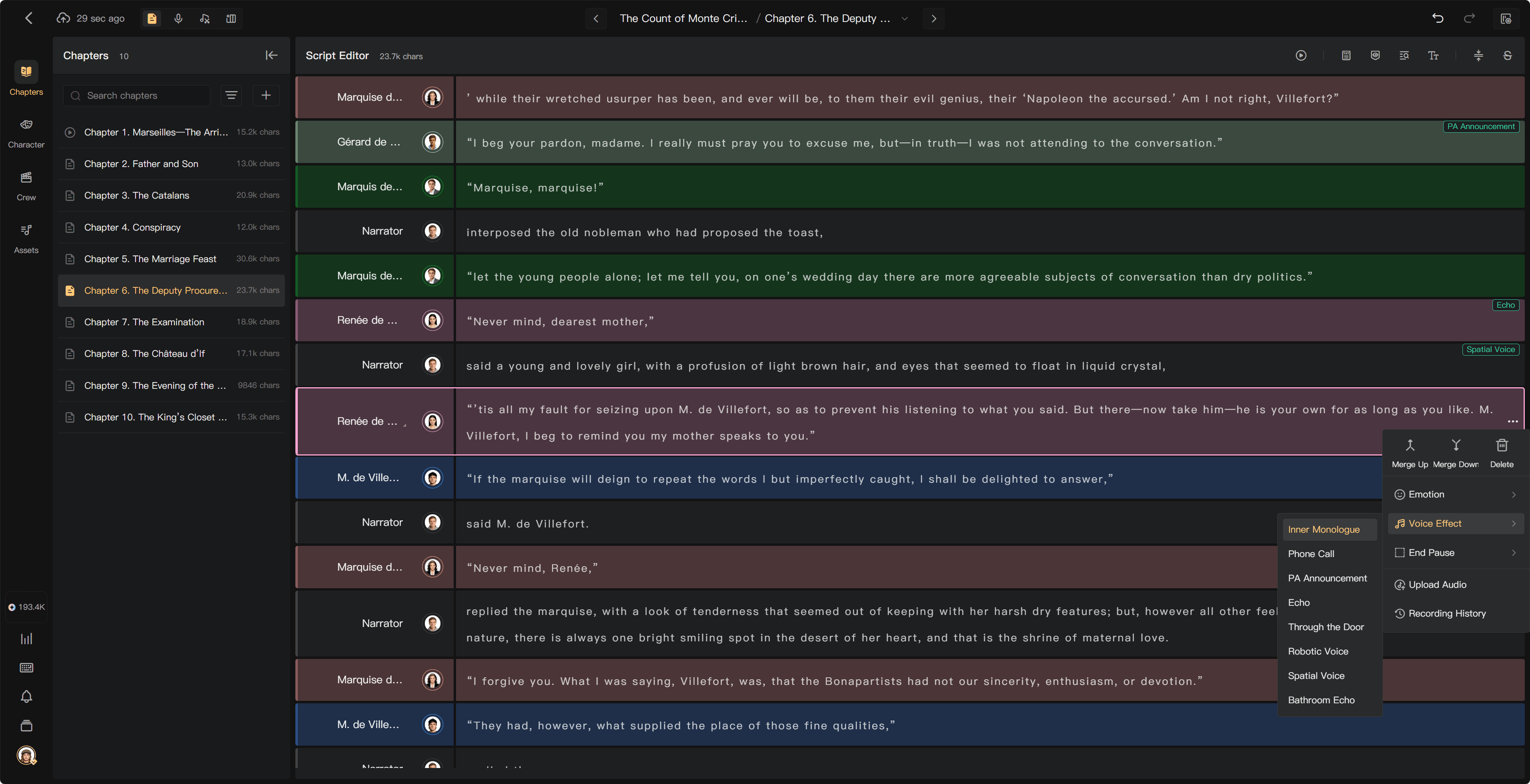
Apply a Voice Effect
- In Script Editor, open the segment's more menu.
- Select Voice Effect.
- Choose the treatment and play the result when audio is available.
- Check it again in Post-Production and the final mix.
The Voice Effect menu includes Inner Monologue, Phone Call, PA Announcement, Echo, Through the Door, Robotic Voice, Spatial Voice, and Bathroom Echo. Use the choices available in the current interface.
Inner Monologue is an internal voice treatment; it does not mean all off-screen speech. Use a performance note if you also need the performer to change delivery.
Plan environmental sounds
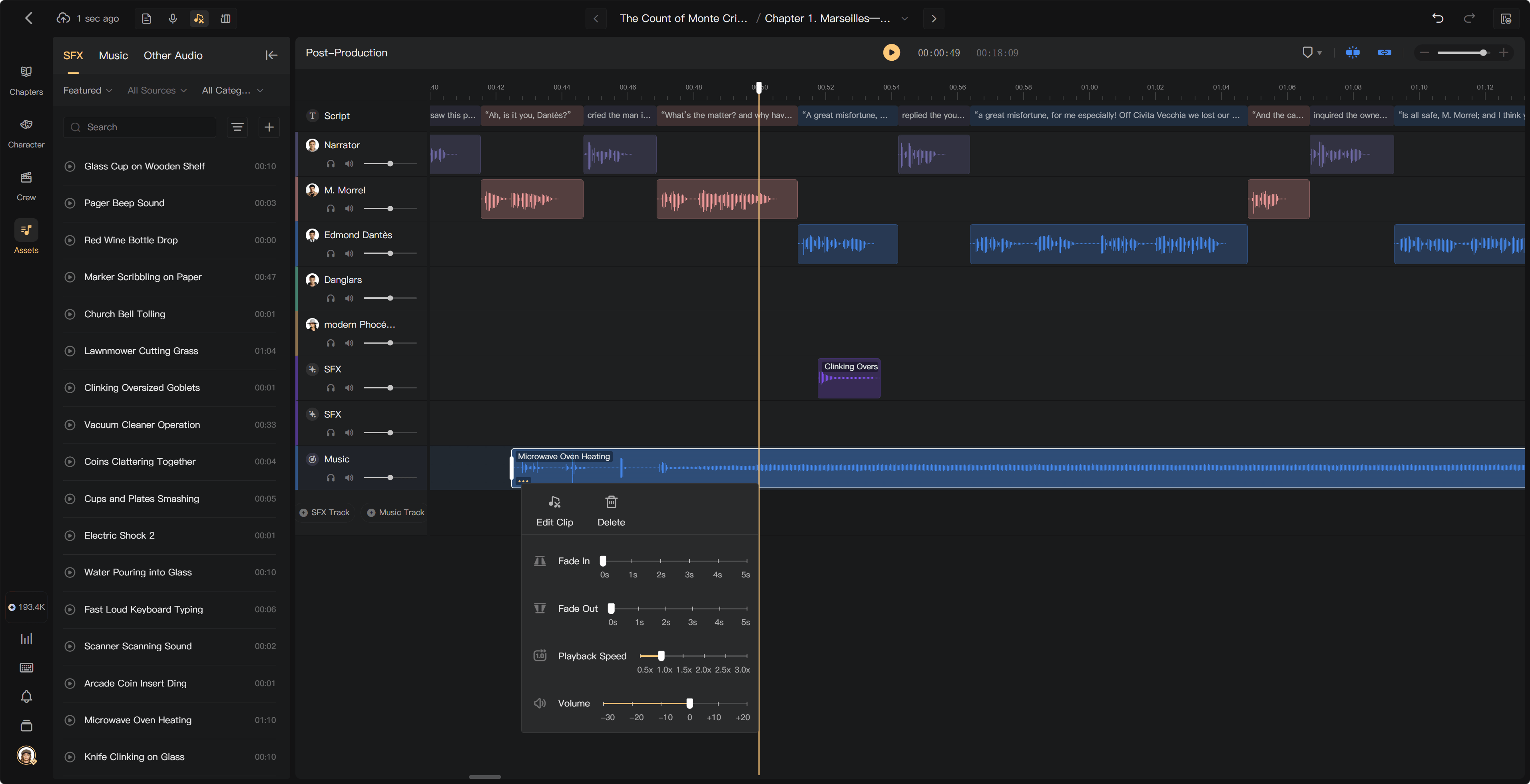
For footsteps, rain, a door slam, or another separate sound, write a specific production cue if needed, then add the audio from Assets to an SFX Track in Post-Production.
For example: “Door slam after the final line; leave a short silence before the next speaker.” This identifies timing without asking the narrator to read the instruction.
Add music
Find or generate appropriate music, then drag it onto a Music Track. Set its timing, duration, volume, and fades in Post-Production. Keep speech intelligible and check each chapter's beginning and ending.
Adding a Voice Effect tag is not a promise that a rain or music file will be automatically added to the timeline. Inspect actual tracks and add the assets needed for the scene.
Existing audio and changes
Check whether the effect change is reflected in the current clip and mix. Re-mix after changes affecting the deliverable. A separately placed SFX or music clip is edited independently from the spoken voice treatment.
See Add music and SFX, Performance guidance, and AI Audio.