
Appearance
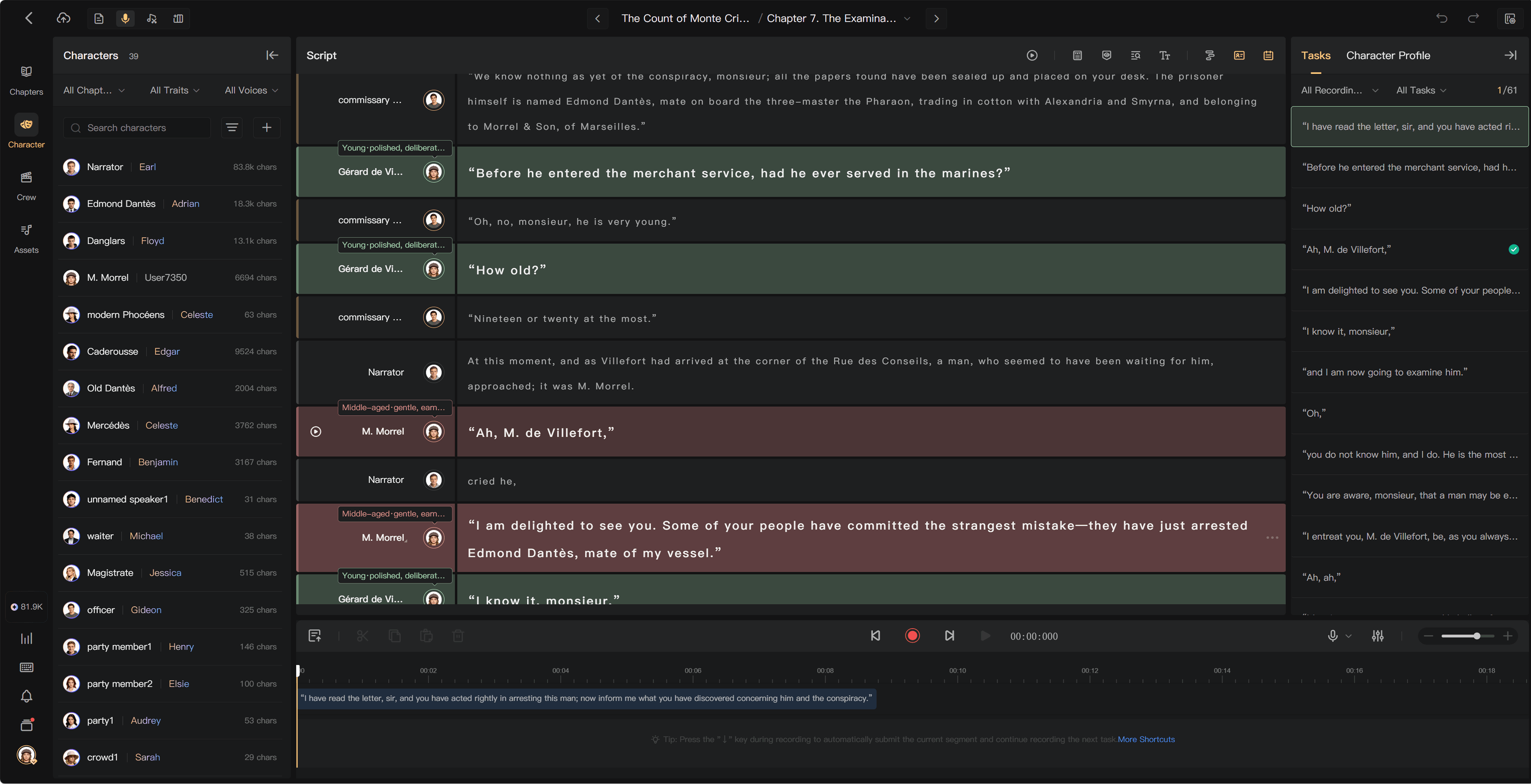
Filter Recording tasks by character
Use task filters when you perform several characters or share a chapter with other voice actors. Character filtering does not change the project's AI generation mode.
Select a character
In the Recording task area, select all assigned characters or one character. The task list and script highlight the matching lines. A recorded/total count helps you see what remains.
Select recording status
Use the available filters for all tasks, unrecorded tasks, or recorded tasks. Start with unrecorded tasks to avoid missing lines or replacing a finished take unnecessarily.
Navigation shortcuts follow the available filtered tasks. Check your current assignments under My before using continuous recording across segments or chapters.
Read the character profile
Open Character Profile to check the character's name, type, age, personality, and voice description. Missing information can be completed in character management by an authorized member.
Several performers in one chapter
Record only the lines assigned to you. Other crew members can work on their own assignments. Completing your character's lines does not mean every human recording in the chapter is ready for mixing.
If recording is disabled, check the tooltip or prompt. Common causes include another performer owning the task, unfinished Script Editing, or missing recording permission.
See Online Recording, Manage characters, and Recording handoff.