
Appearance
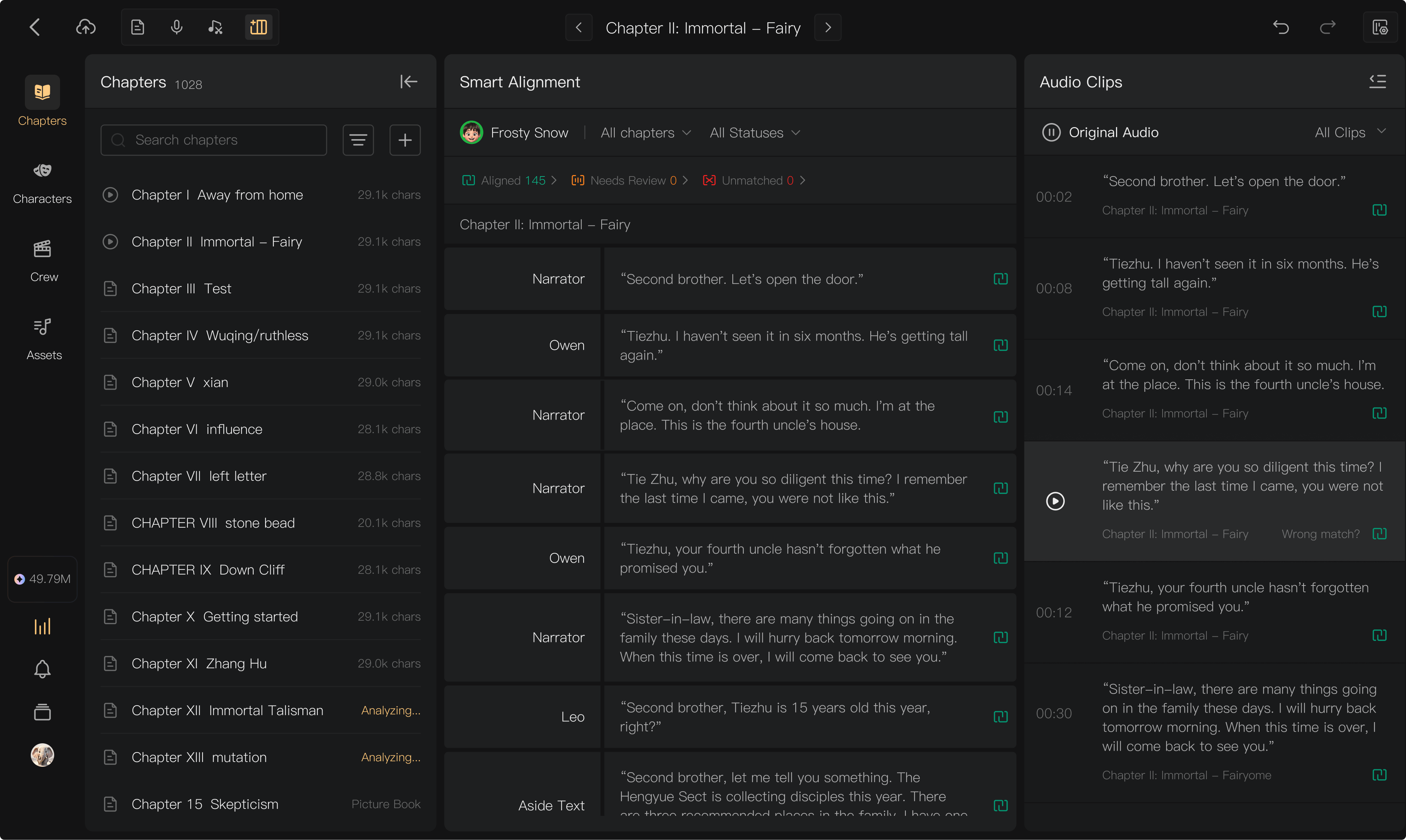
Play Original Audio and clips
Use playback to verify what a clip contains and whether it belongs to the selected script segment. Reading the recognized text alone is not enough.
Choose the right playback
| Playback | Use it for |
|---|---|
| Original Audio | Hearing the full recording and surrounding context |
| Clip playback | Checking a specific extracted passage |
| Script-segment playback | Checking the audio currently associated with a line |
Open the task's clip list. Play Original Audio and seek using its playback controls. Clip entries show their location in the original recording; use the available timestamp navigation to locate context.
Compare with the script
- Read the intended line.
- Play its assigned audio or candidate clip.
- Check the spoken words, complete beginning and ending, and any retake.
- If incorrect, remove or change the association through the alignment controls.
Play a few neighboring passages when a clip boundary sounds wrong. A clip can have the right words but still omit a syllable or include an unwanted retake.
If playback fails
Check the player state, system volume, and connection. Refresh only after checking whether your work is saved. If possible, compare with the original file locally to distinguish an upload problem from a playback problem.
Playing existing audio does not itself require a new AI generation. If a different control proposes generating missing audio, review its charge separately.
See Review alignment results and Manual alignment.