
Appearance
Upload recordings
Upload a short file directly to its script segment, or use Smart Alignment for a long recording covering many lines. Choose the route that matches how the audio was recorded.
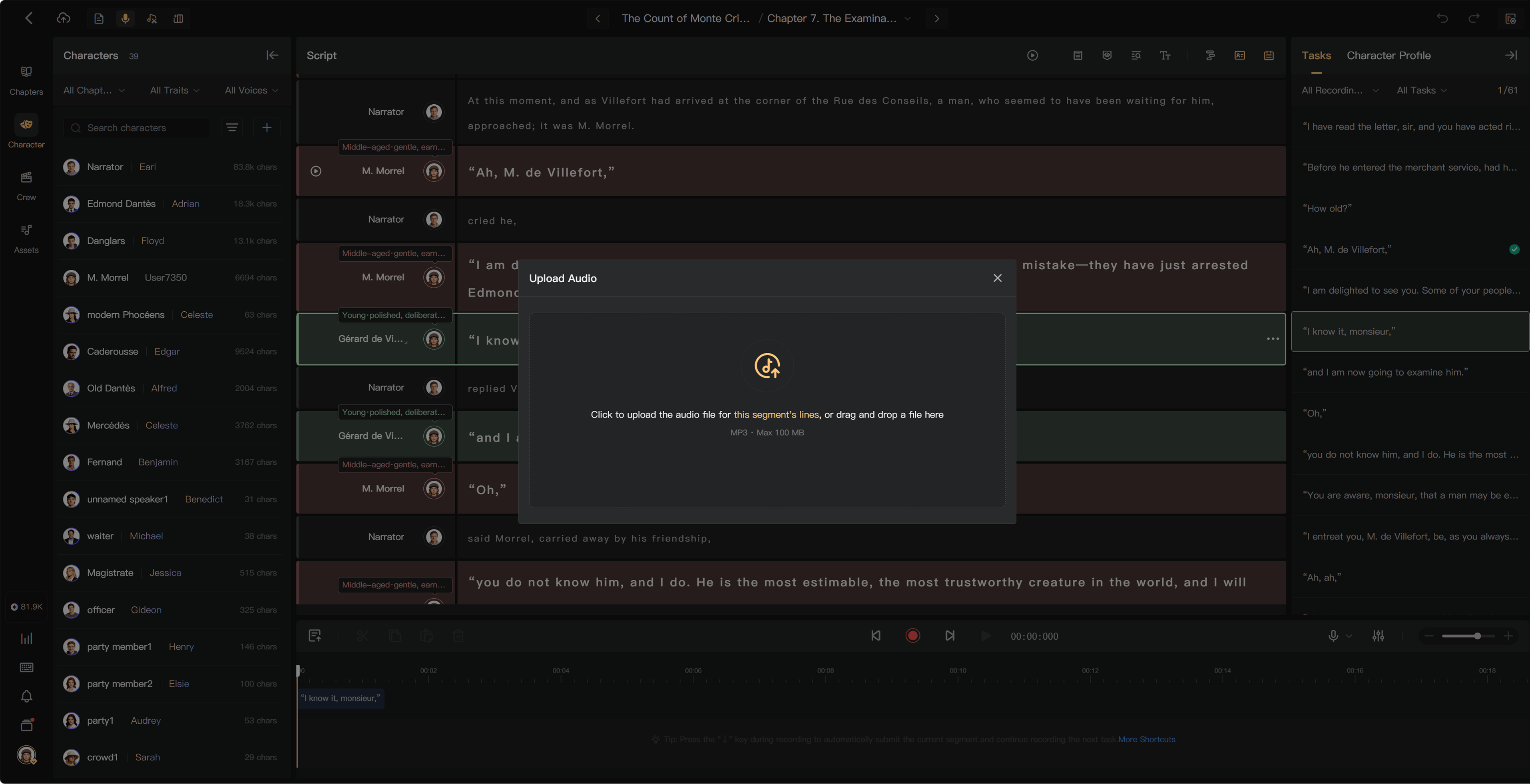
Upload segment audio
- Open Script Editor or Recording and locate the segment.
- Open its more menu and select Upload Audio.
- Choose the local recording and follow the file-format and size validation in the dialog.
- Review any replacement confirmation.
- Wait for upload to finish, then play the segment and check the complete line.
A segment file should contain only the material intended for that segment. Check character assignment, beginning and ending, and recording level.
Upload a long recording
For audio covering many lines, open Smart Alignment, select the character and chapter range, and upload Original Audio. Review the resulting clips and resolve matches before editing.
See Start alignment.
After a replacement
Changing source audio can make a transcript or mix stale. Regenerate the relevant review transcript and prepare a new mix before delivery.
Editing text does not automatically correct what a human performer said. If a segment remains assigned to an AI voice, review any proposed regeneration before confirming so that the uploaded take is not replaced unintentionally.
Recording History
Open Recording History from the segment's action menu to inspect available previous recordings. Play a version before restoring it. Keep a local source copy; history is not a promise of unlimited retention.
If upload is blocked
Check format, size, storage, permissions, and the selected segment. For a corrupt file, export a new copy from the recording tool. An audio-upload limit and the Smart Alignment upload limit may differ; use the validation for the operation you selected.
See Preview audio, Manage full storage, and Review results.