
Appearance
Online Recording
Use Recording to perform a script segment, listen back, and submit the take directly to that segment. Prepare the microphone and task selection before starting.
Open the view
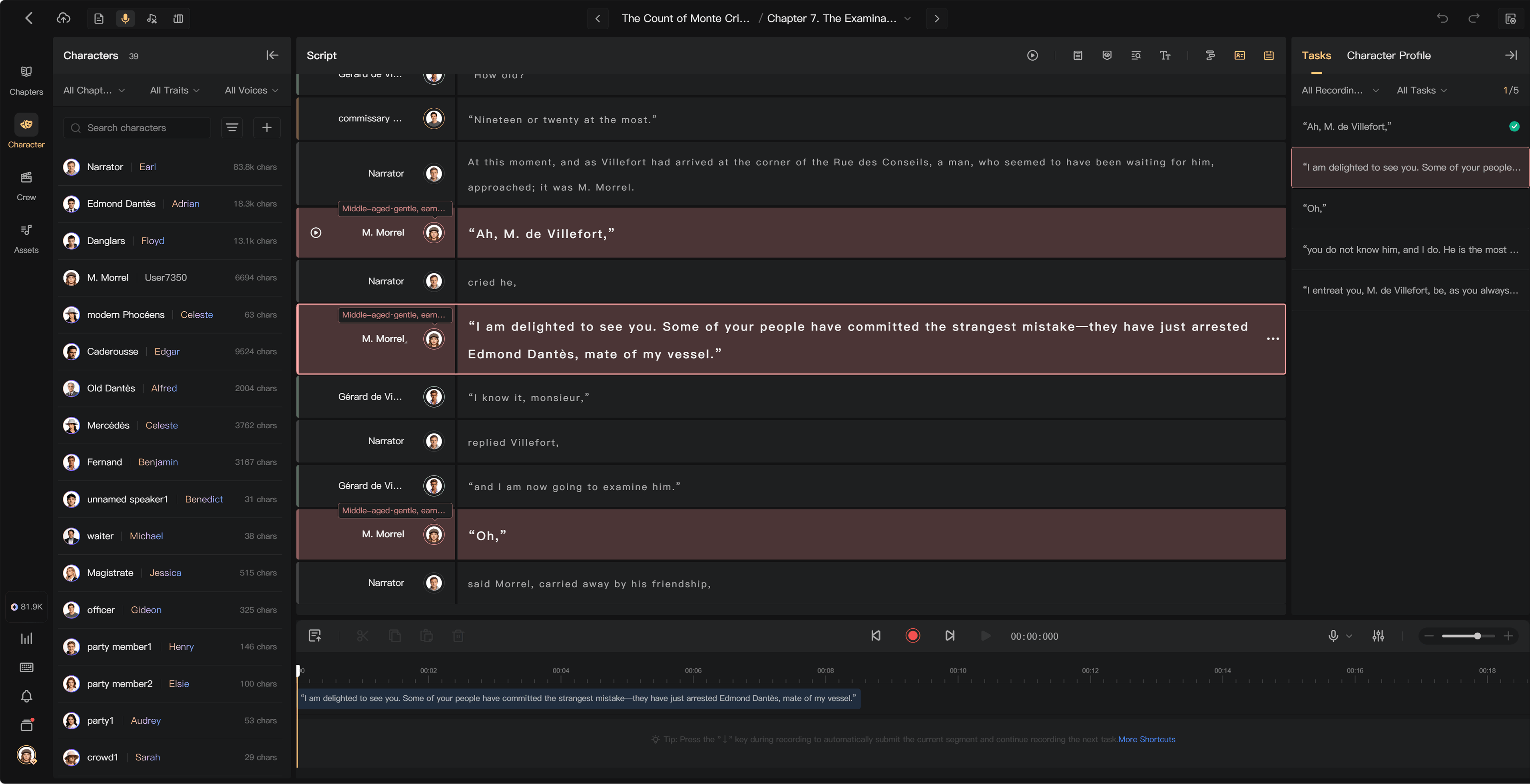
Use the creation page's view controls to open Recording. The view has a script area, a task/character area, and a recording panel with waveform and recording controls.
Select your character and task filters to focus on the lines assigned to you. Other script content can provide context without being part of your recording task.
Prepare
Open Recording Settings and select the correct microphone. Allow microphone access in your browser. If no recording device is found, check both permission and the connected device.
Enable 3-Second Countdown if you want preparation time before a take. Make a short test and listen for noise, distortion, and recording level before a long session.
Record and submit
- Select the target segment or Recording task.
- Read its line and performance guidance.
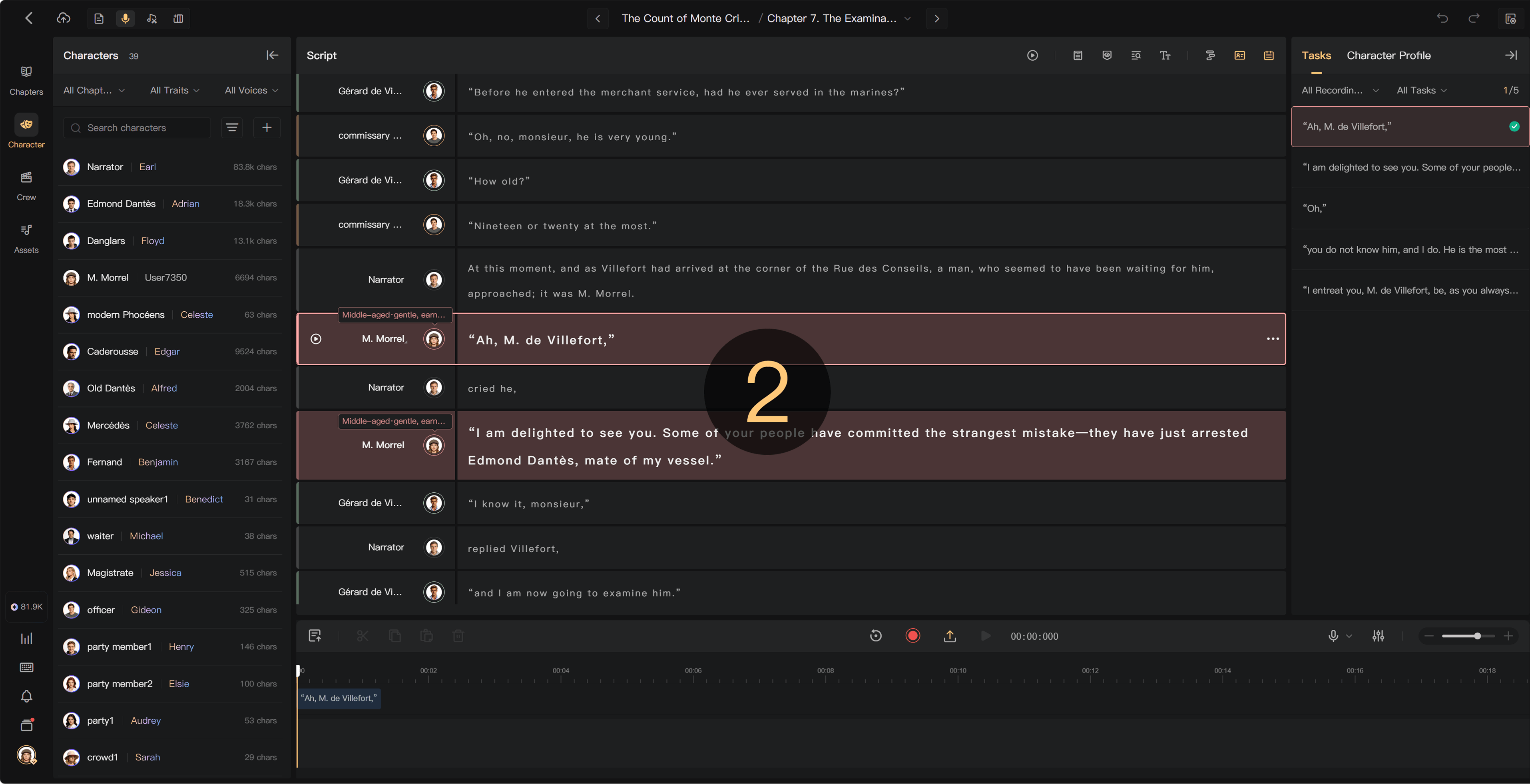
- Start recording using the record control.
- Stop or pause as provided, then listen to the take.
- Continue recording, edit the paused take, or re-record as needed.
- Select Submit to save the recording to the segment.
- Play the saved segment before moving on.
Edit a take
When paused, use the available region selection, cut, copy, paste, delete, Undo, and Redo controls. Check the result after trimming so that no syllable is cut off. Confirm or submit the take before leaving the segment.
Recording completion and chapter task completion are separate. After finishing your assigned recordings, check the chapter's Recording task and handoff.
Continuous recording and shortcuts
Audimind supports moving through tasks with recording shortcuts. The continuous-recording flow uses the down-arrow key to submit the current take and continue to the next task during recording.
Open My in the creation page to view or customize current shortcuts. Check the assigned keys before relying on them; filter settings determine which task comes next.
Replace an existing take
Re-recording a segment with audio shows a replacement warning. Review it before continuing. A session option can suppress later warnings, but subsequent takes still replace the audio according to that setting.
Use Recording History to review available older takes. Keep source copies where needed.
Leaving or losing connection
Submit the recording before switching chapters, leaving the view, or closing the page. If Audimind warns that recording is unsaved, leaving can discard it. Do not rely on a network interruption or a locally visible waveform as proof that the take was uploaded.
See Filter Recording tasks, Upload recordings, and Recording handoff.