
Appearance
Add music and SFX
Add background music for atmosphere and effects for specific actions or scene details. Keep them balanced so the narration and dialogue remain clear.
Choose a track
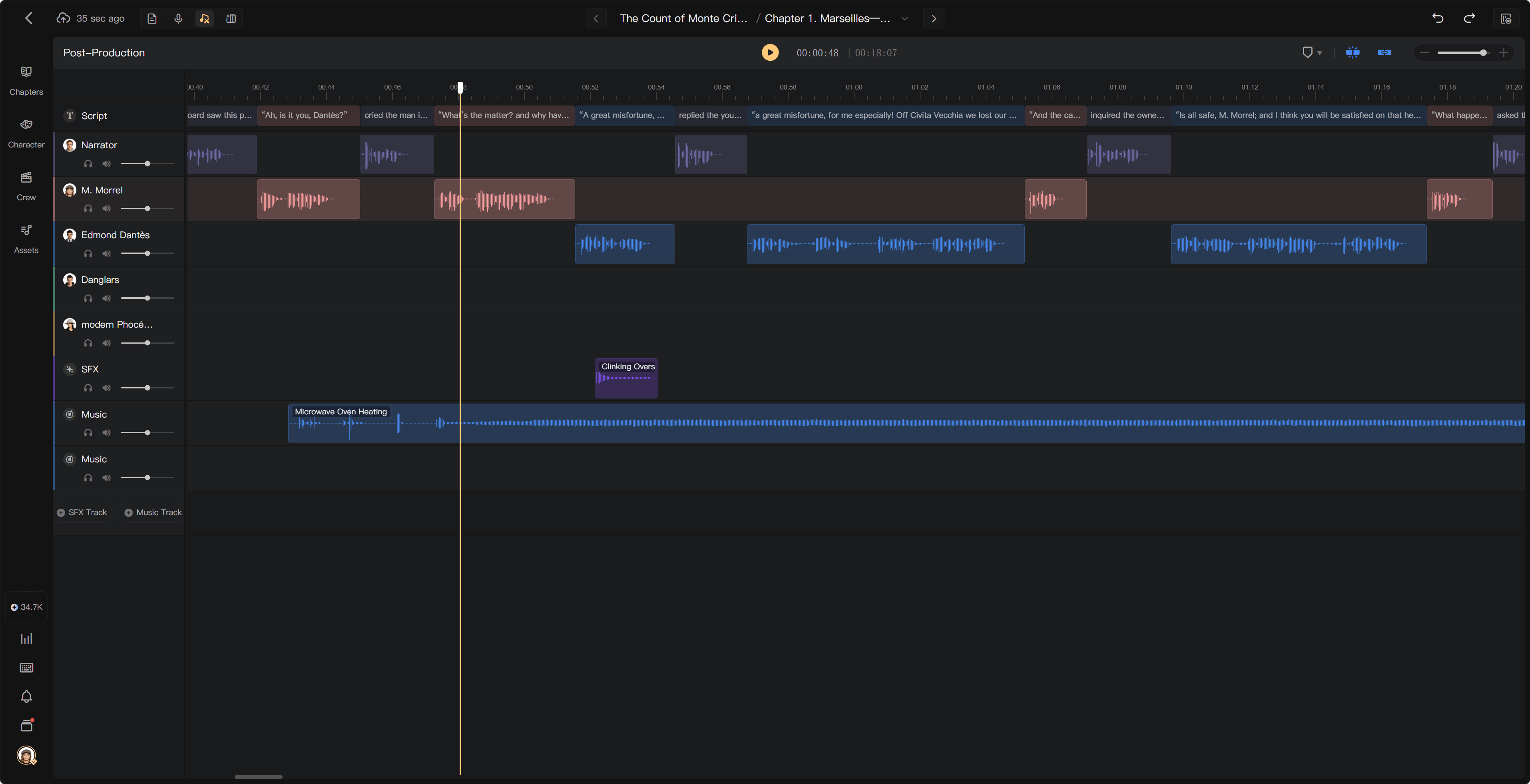
Post-Production starts with one SFX Track and one Music Track. You can add up to three of each. SFX Tracks appear below Voice Tracks, followed by Music Tracks.
You can add either kind of audio asset to either kind of sound track. Use the track names to keep the arrangement easy to follow.
Add an asset
- Open Assets on the left of the creation page.
- Browse the SFX or music assets and preview the one you need.
- Drag it to the desired position on an SFX Track or Music Track.
- Play the surrounding passage to check the timing.
Position and trim the clip
Drag the clip left or right to change its start time. Drag its edge handles inward to shorten playback, or outward to restore trimmed content. Trimming hides audio rather than deleting the source content.
Clips cannot overlap on the same track or be dragged between tracks. Use another sound track when two effects or music passages need to play together. Moving a sound clip does not move the voice clips.
Add or delete a track
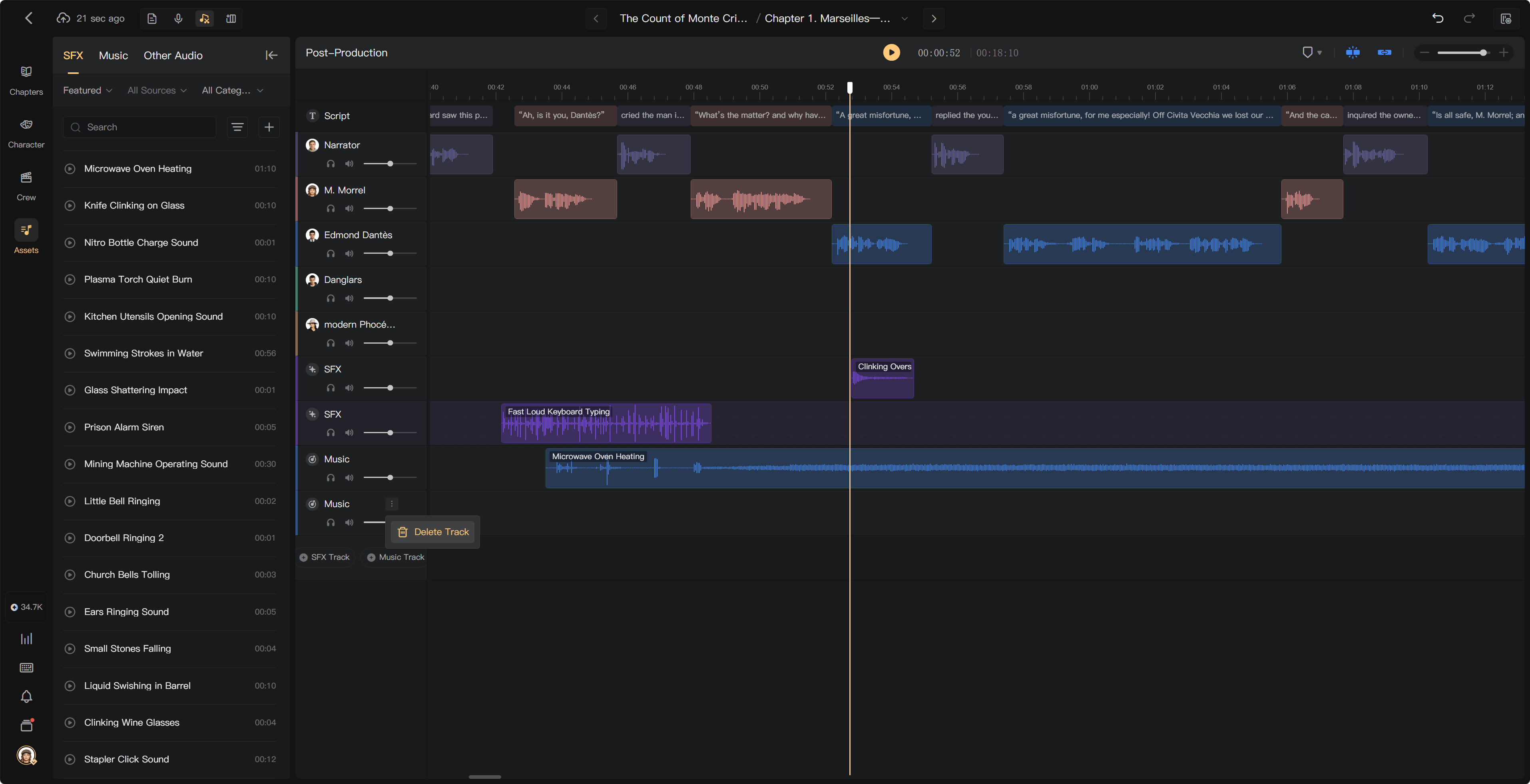
Use + SFX Track or + Music Track below the tracks to add another track of that type. At the three-track limit, you cannot add more.
To remove an extra track, open its … menu, select Delete Track, and confirm. This removes the track and its clips. You cannot delete the last track of either type. Use Ctrl/Cmd + Z to undo a track deletion.
Balance and blend the sound
Use the track's Volume slider to adjust all its audio together. Track and individual clip gain combine: a track at −10 dB and a clip at −5 dB produce a combined gain adjustment of −15 dB.
Open a clip's editor to add Fade In or Fade Out. For a music transition, place the outgoing and incoming music on separate Music Tracks and fade between them.
Use timeline zoom and Snap to place an effect precisely. After changing the arrangement, preview it and run Mixing to update the chapter audio.