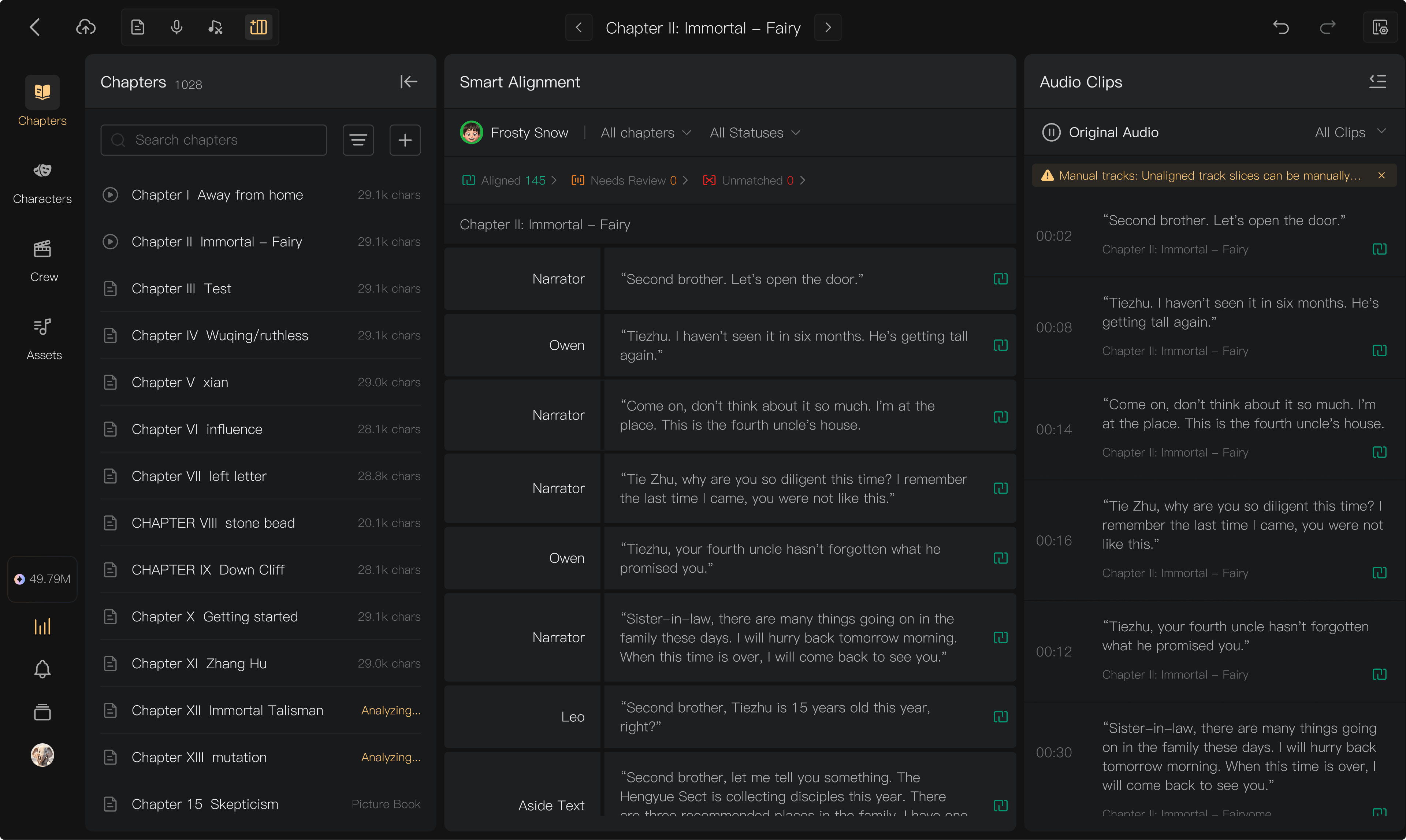
Appearance
Adjust alignment manually
Listen before matching a clip. Similar or repeated lines can look convincing in a transcript while belonging to different parts of the recording.
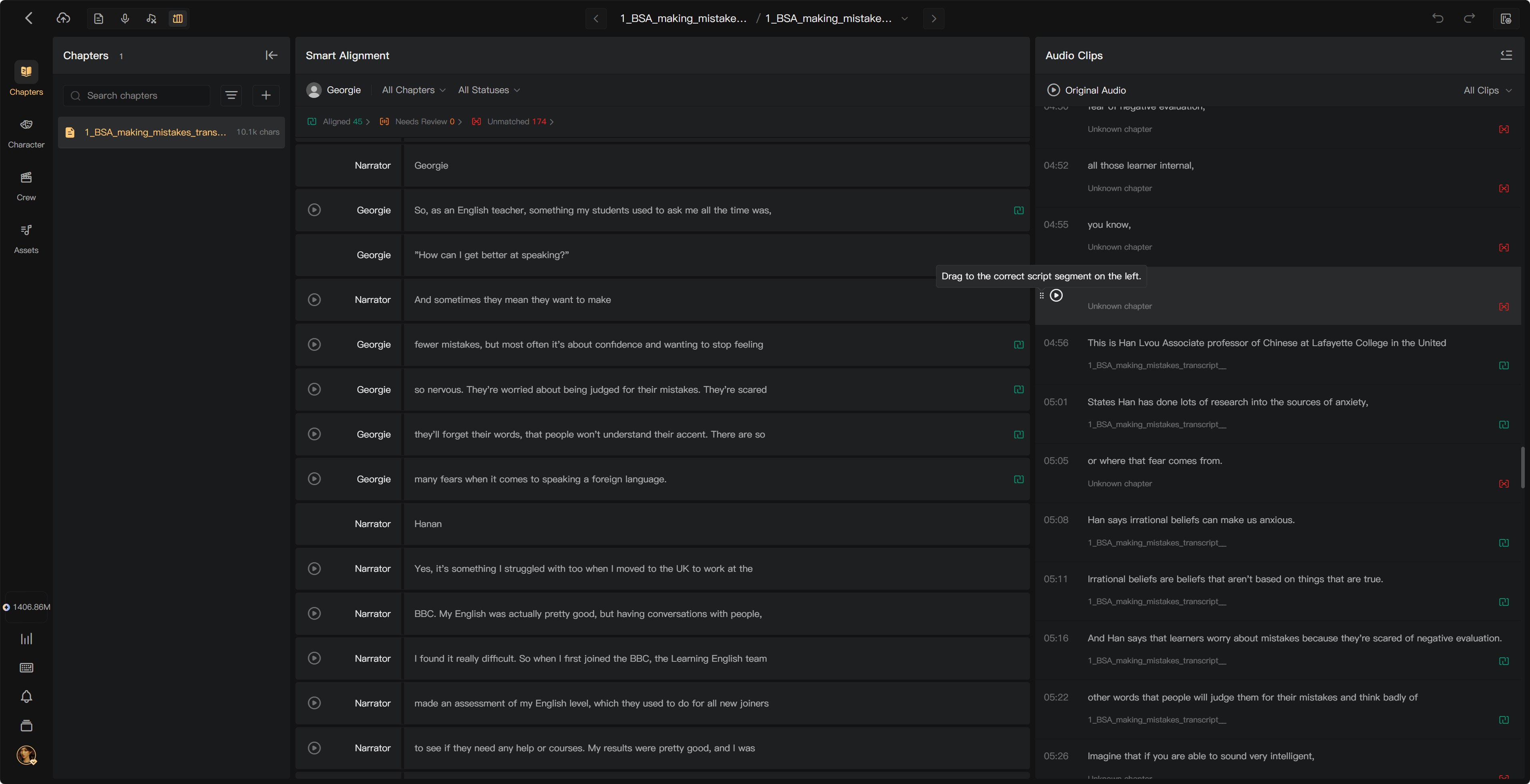
Match an unmatched clip
- Open the task's Audio Clips list and locate the clip.
- Play it and compare its speech with the script.
- Drag it onto the correct script segment, or use Match to Line and select the line.
- Complete any confirmation and play the matched segment to verify it.
Use neighboring matches, transcript wording, and Original Audio timestamps to narrow the search. Retakes may not follow the script's order exactly.
The manual-matching workspace lets you inspect the script and clips together. Drag-and-drop establishes an association; it does not correct what was spoken. After matching, play the segment and check that its full text is covered.
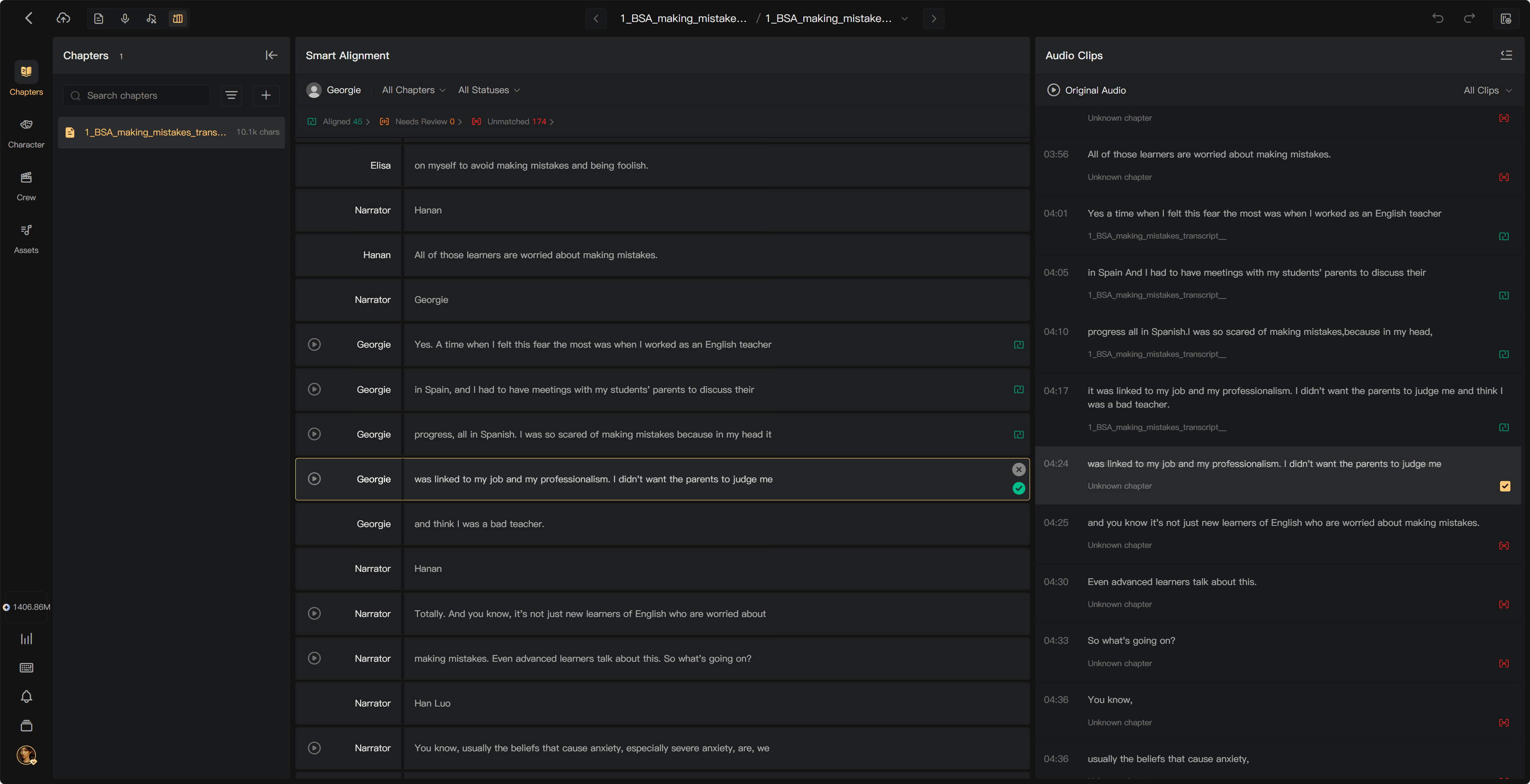
Combine clips for one segment
When a segment's performance is split across clips, use the selection flow to choose all the clips it needs, then confirm the match. Check their order and listen to the complete passage.
A segment using several clips is different from assigning the same full clip to several segments. Check the available controls rather than duplicating a passage across multiple lines.
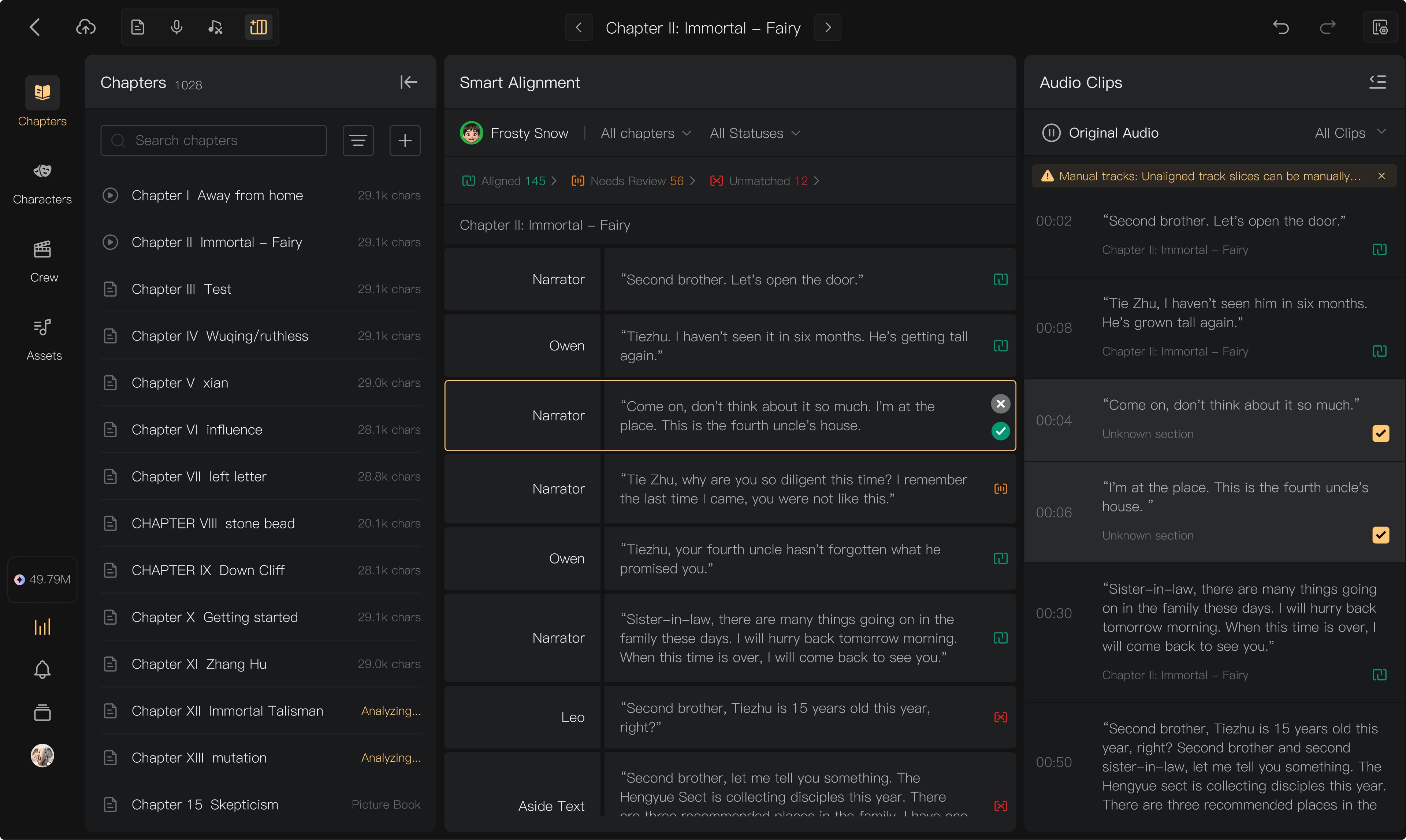
Correct a wrong match
Use Wrong match? or Remove Alignment on an incorrect association, then match the clip to the correct line. Verify the resulting segment audio and any affected neighboring lines.
If the segment already has audio, choose deliberately between keeping it and replacing it. Use Discard only for clips you do not want to use; read its confirmation before proceeding.
Missing or poorly split speech
Listen to nearby clips and the Original Audio. If the line was never recorded, request a pickup or upload the missing recording. If a clip contains too much material, use the supported clip-selection and audio-editing tools to isolate the needed speech.
Batch actions and final checks
Use batch Keep, Replace, Match to Line, or Discard only after reviewing the selected scope. Check:
- Required lines have the correct audio.
- Retakes and unrelated material have not been used accidentally.
- Multi-clip passages are in order and complete.
- No speech is cut off at a boundary.
Before realigning a chapter, read the warning about existing results and manual work. See Alignment charges and Audio playback.