
Appearance
Invite members
Invite people to the relevant team or project, then assign the permissions and duties they need. Check the destination before sharing an invitation.
Before inviting
Confirm that the responsible account has active collaboration benefits and the project has enough seats. Have the invitee's Audimind user ID or display name ready if you are using account search.
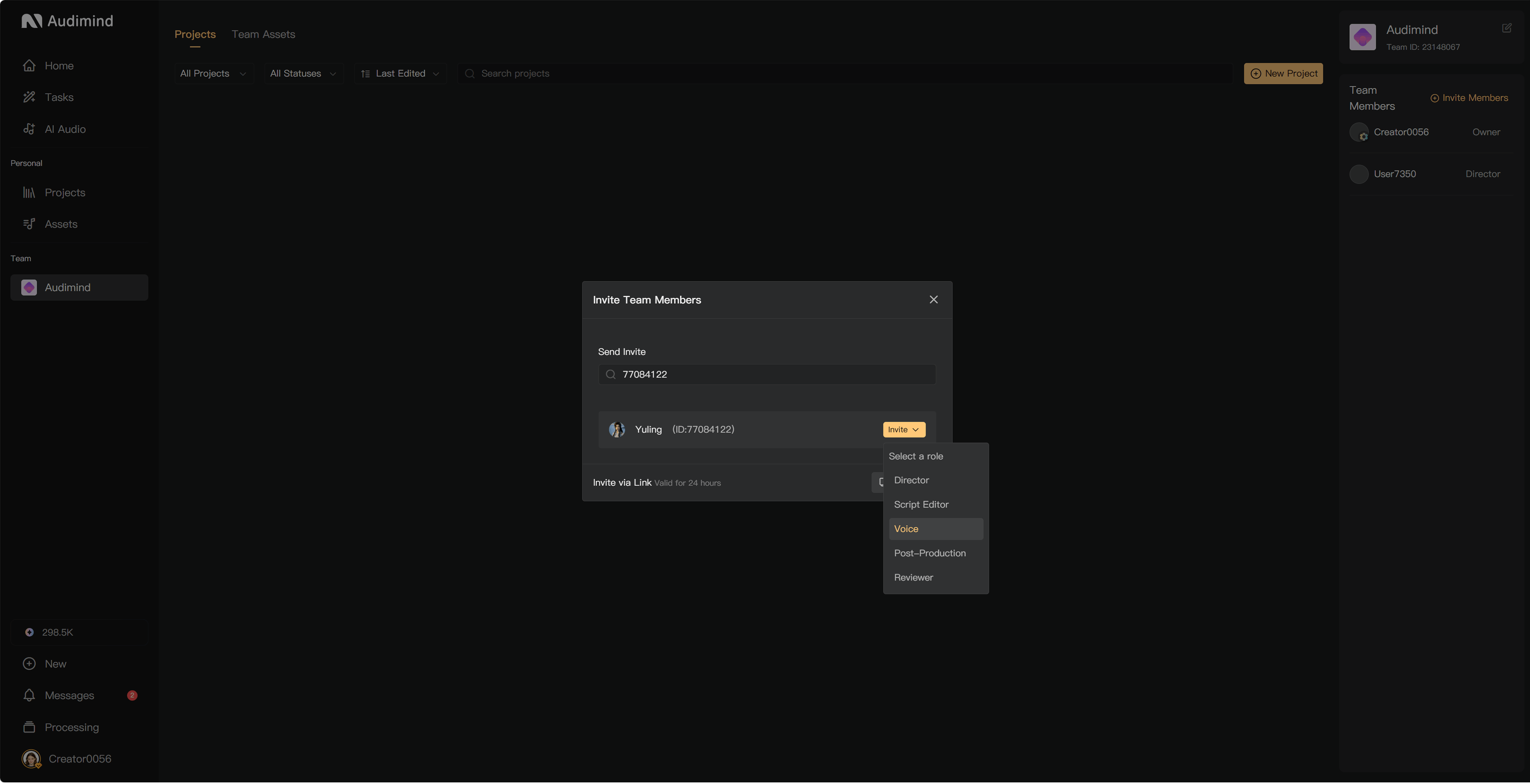
Send an invitation
- Open the team member area or the project's Crew panel.
- Select the invitation or add-member action available there.
- Find the account using its user ID or display name, or generate an invitation link.
- Check the team or project and any proposed role or duty.
- Send the invitation or share the link with the intended person.
Use the invitation fields offered by the current dialog. When sharing a link, include enough context for the invitee to recognize the production.
Accept an invitation
The invitee opens the link or in-app invitation, signs in or creates an account with email, checks the destination, and follows the acceptance prompts. If the link expires, generate a new one.
After acceptance, check that the person appears in the correct member list. Team access and project Crew participation are separate; add them to the relevant project if the flow has not already done so.
Assign a duty
Non-recording duties can assign currently unassigned chapter tasks automatically. Recording duties also need character-to-performer assignments before recording tasks can be created. Existing chapter assignees are not automatically replaced simply because another member receives the same duty.
If an invitation is blocked
Check project-seat capacity, active Team or Business benefits, storage, and your invitation permissions. A member joining an organizational team should not be confused with consuming a project seat in every project.
See Assign duties and tasks, Project seats, and Create an account.