
Appearance
Start an alignment task
Prepare the character's recording and script before submission. The selected character and chapter range determine which lines Audimind tries to match.
Prepare the recording
Use clear audio without music or overlapping speech. Check that its content belongs to the selected character and falls within the chapter range. Complete Script Editing and move the relevant chapters into an eligible production stage before submitting.
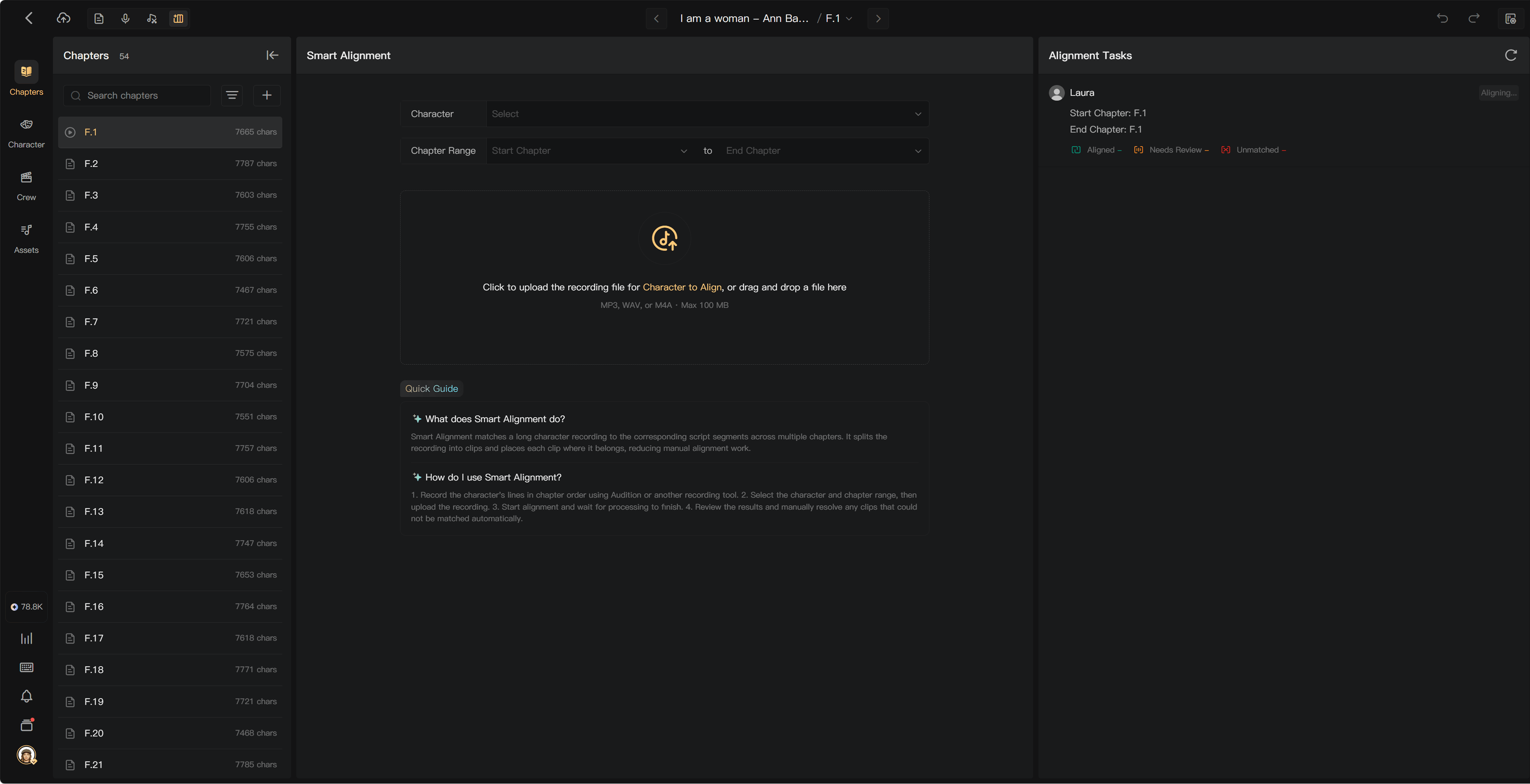
Submit
- Open Smart Alignment using the creation page's view controls.
- Select Character.
- Choose the start and end of Chapter Range.
- Upload or drag the Original Audio into the upload area.
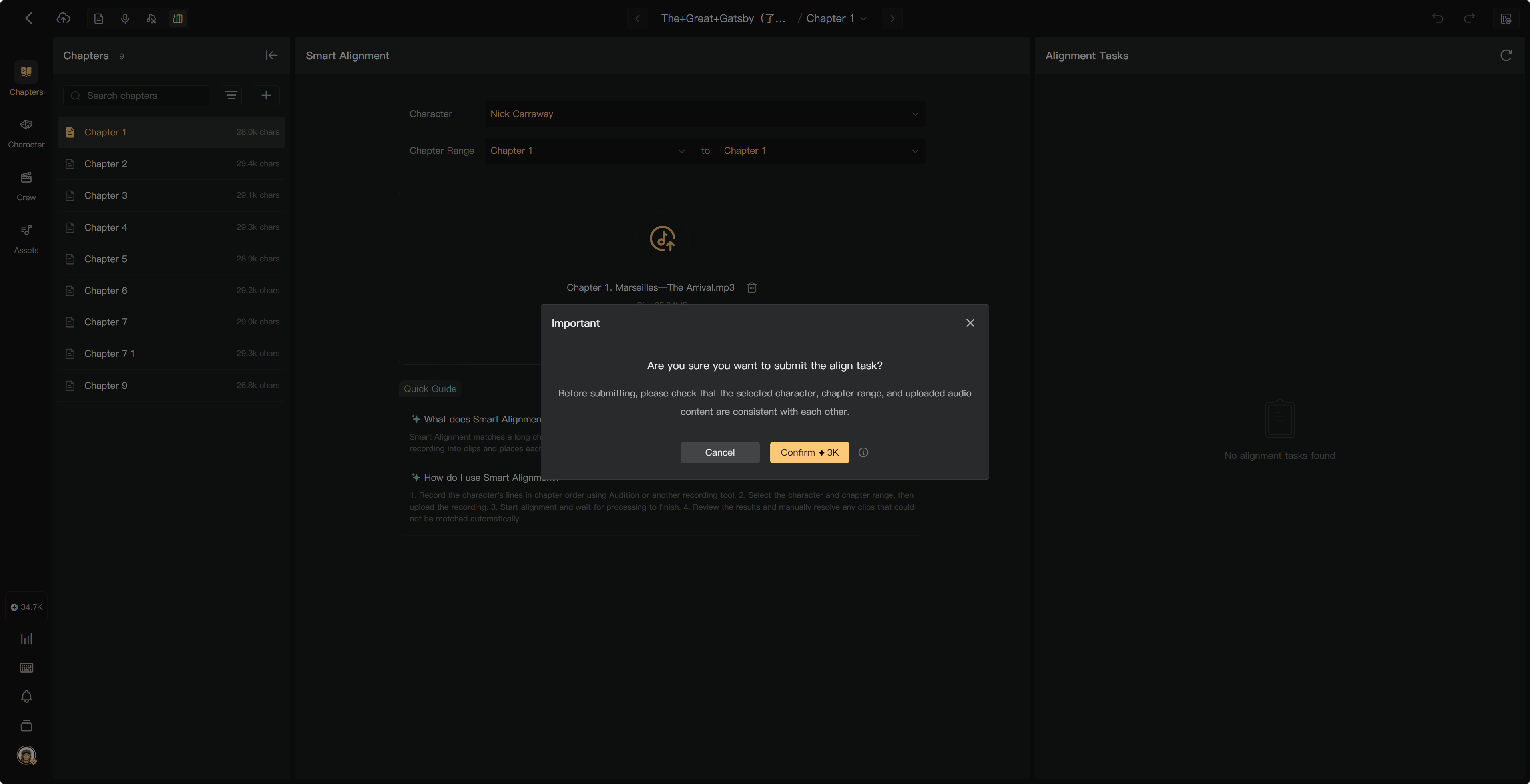
- Check the selected character, range, uploaded file, and displayed credit charge.
- Select Start Alignment and confirm the operation.
The upload form accepts MP3, WAV, or M4A up to 100 MB. Follow the current upload validation if its limits differ. For larger files, prepare files that each fit the supported size and correspond to a clear chapter range.
Upload one recording for the selected character and chapter range. Submit separate recordings through the available task flow rather than assuming files will be automatically concatenated.
Check the chapter range in its selection dialog, then upload the file and verify its identity before submitting. A range that includes unfinished Script Editing needs adjustment or an earlier-stage handoff; it does not become eligible simply because a recording exists.
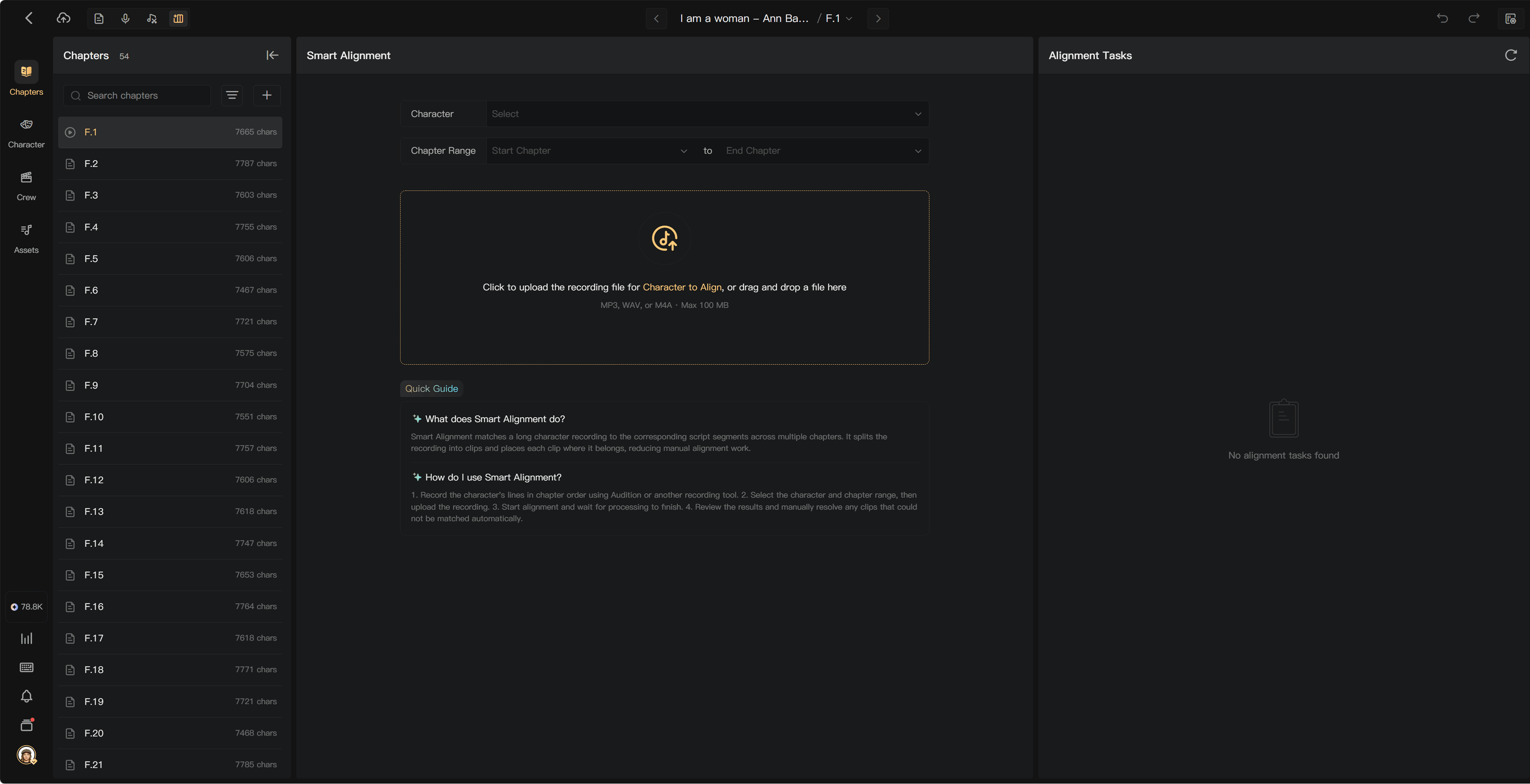
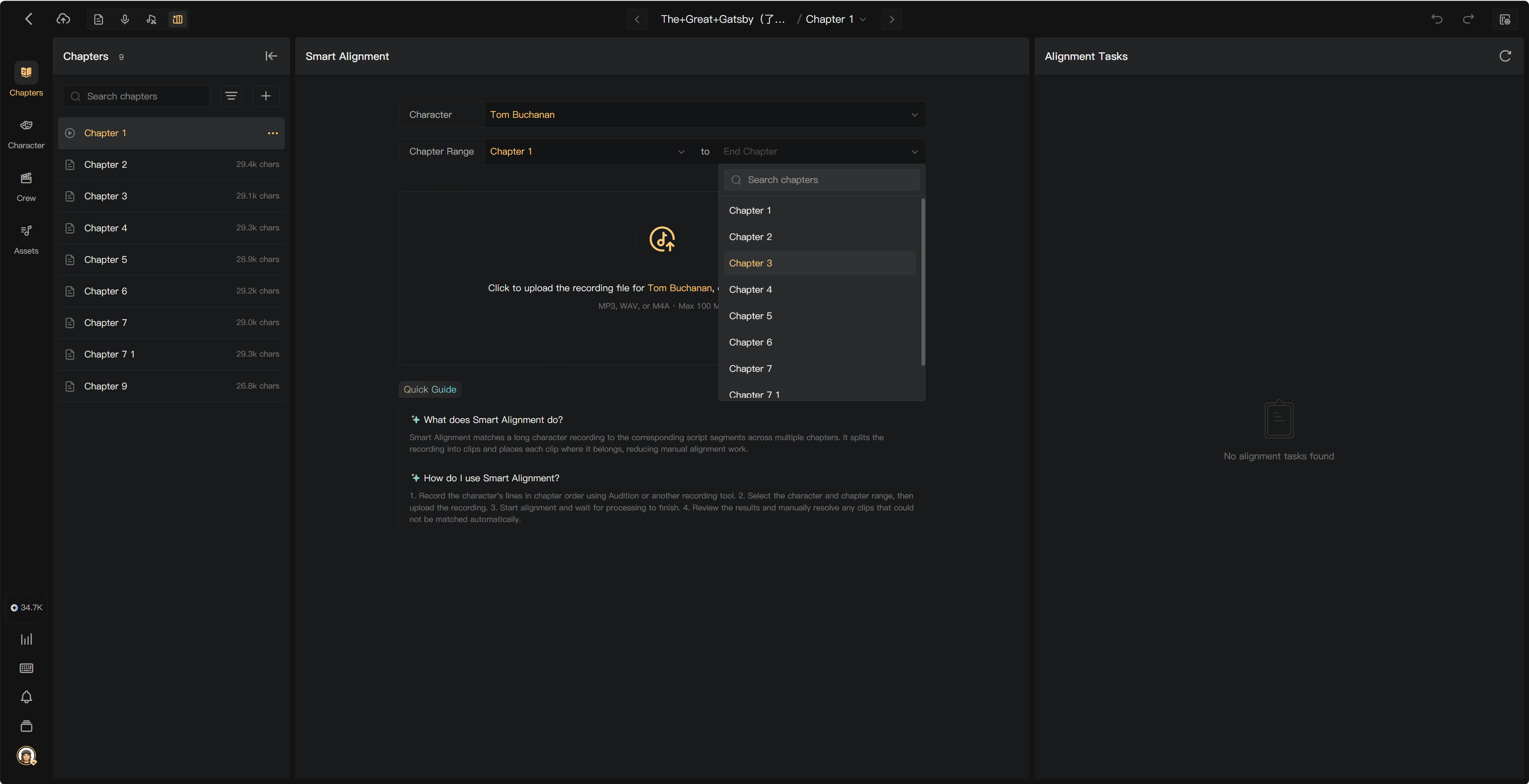
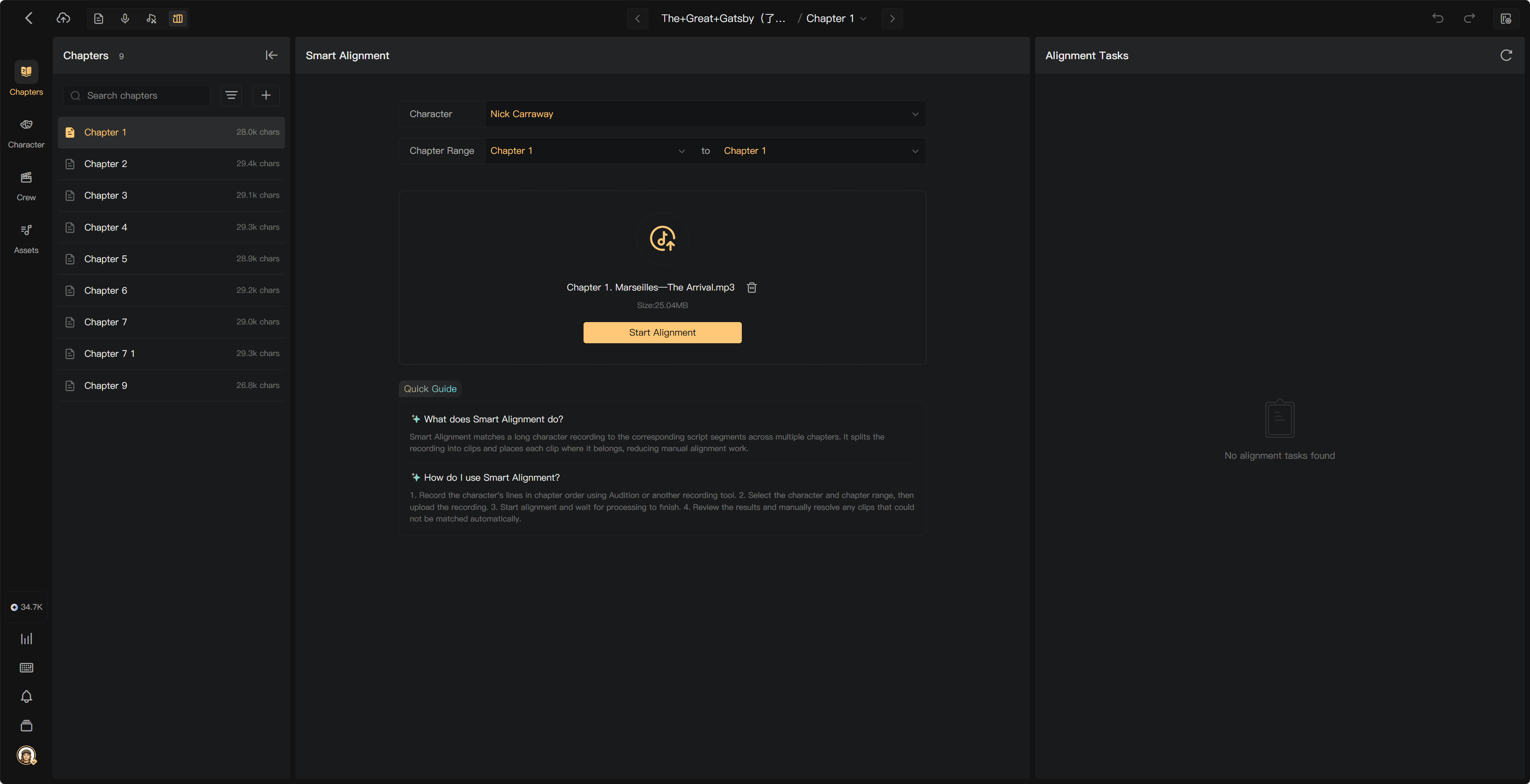
Eligibility and credit checks
If the range includes chapters that have not reached an eligible stage, correct the range or complete the preceding work. Directors and Audio Editors can align for available performers; a performer may be limited to their own recordings.
The project creator's account pays for alignment. If credits are insufficient, ask the creator to top up. Check storage as well as credits when an upload or generation is blocked.
After submission
The task runs in the background. Track it in Processing and Alignment Tasks. When complete, open its clips and review Aligned, Needs Review, and Unmatched results.
For upload failures, check the file, connection, format, and size before retrying. For processing failures, read the task error and check usage history before submitting another copy.
See Alignment tasks and history, Review results, and Alignment charges.