
Appearance
Script Editor basics
Use Script Editor to turn the prepared manuscript into instructions for production: who speaks each line, which voice performs it, and how the audio should sound.
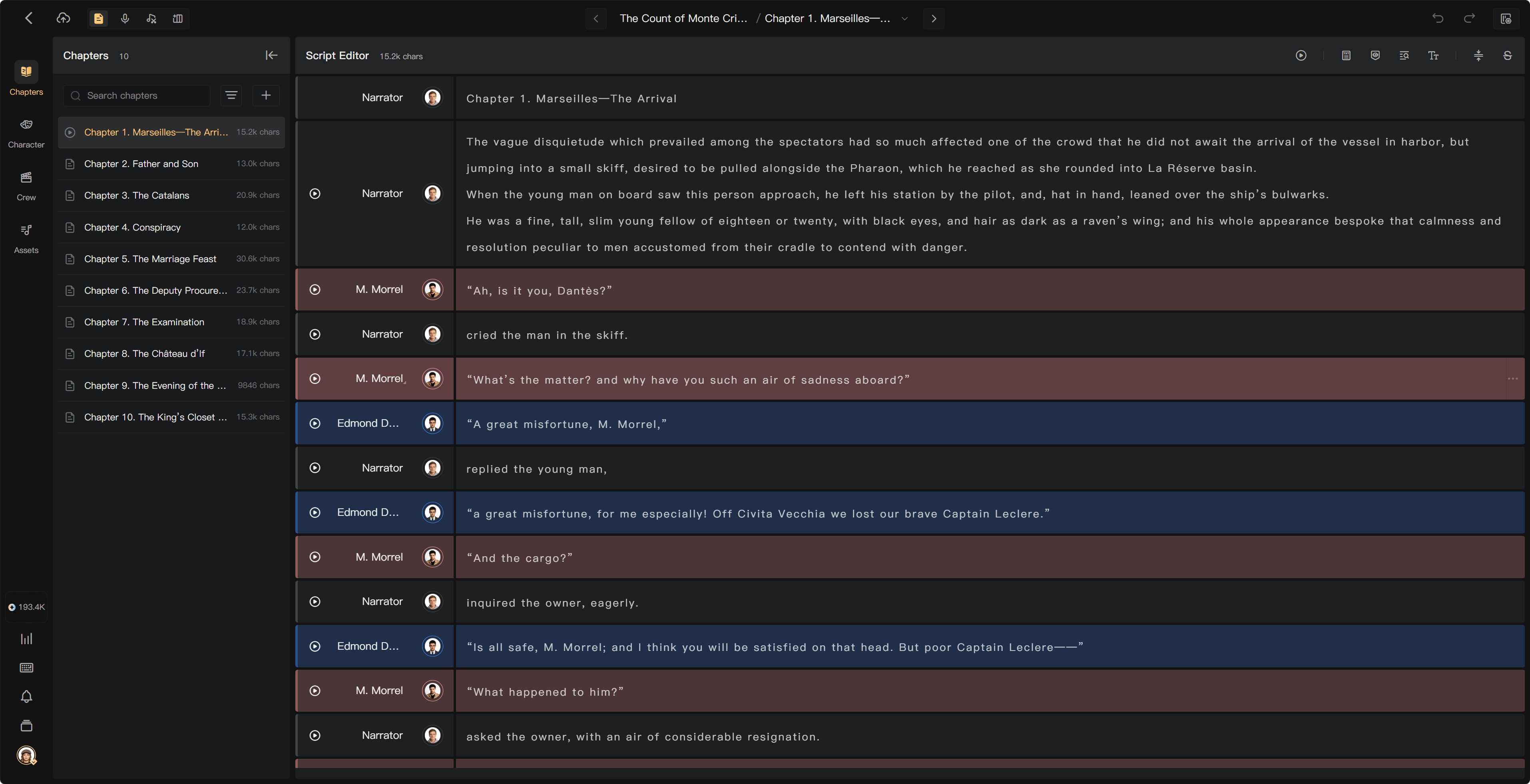
Understand the workspace
- Chapters: select a chapter and check its progress.
- Script segments: edit text, character assignments, and performance guidance.
- Characters: manage story characters and their assigned performers or AI voices.
- Crew and Tasks: review production participants and assignments in collaborative projects.
- Assets: find audio and voices available to the project.
- Toolbar: access chapter playback, Original Document, Find and Replace, labels, font size, and batch tools.
Work with a segment
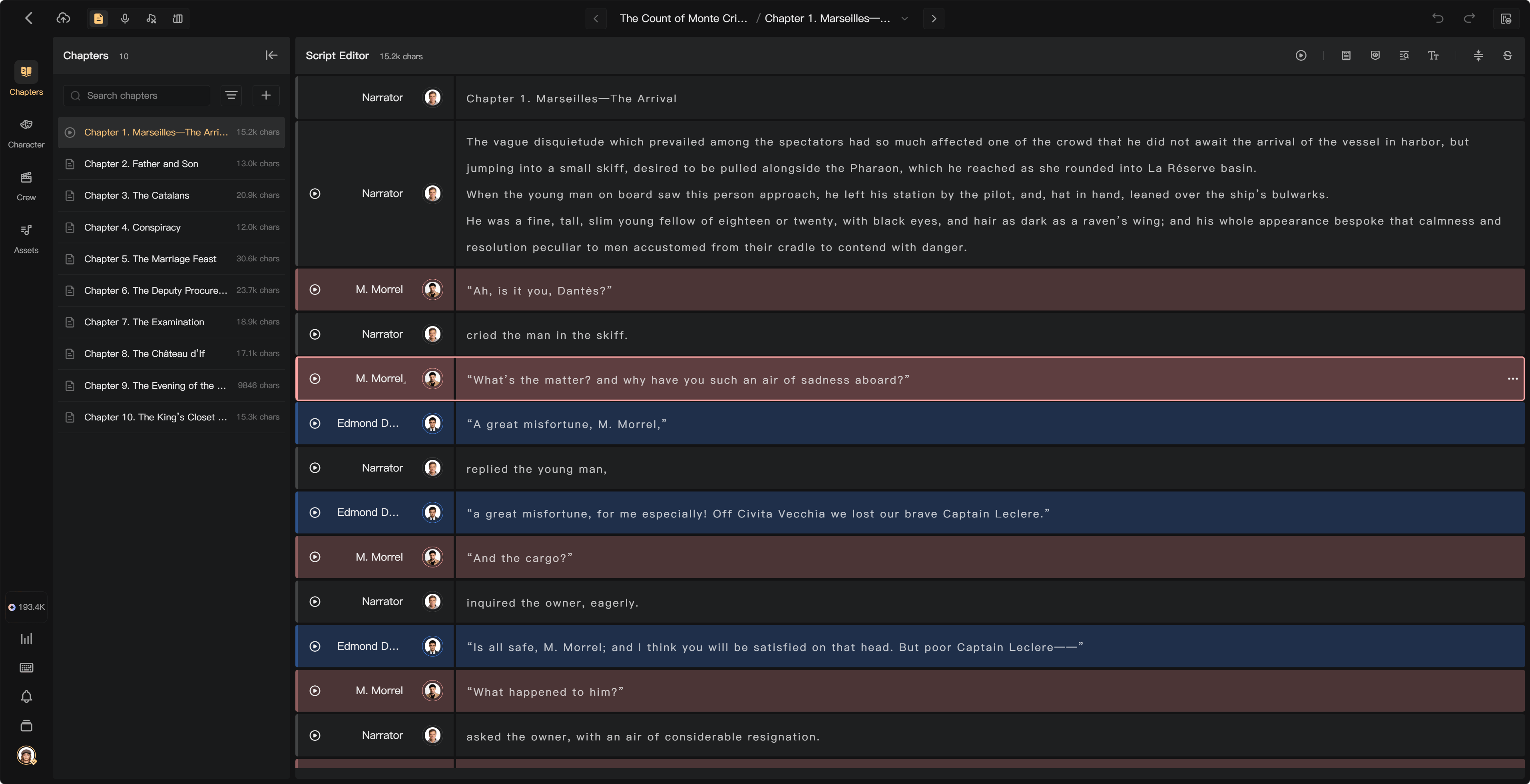
Select its text or character area to open the available actions. A segment generally contains one speaker's passage or a piece of narration. Split mixed-speaker text where it needs independent voices; merge accidental breaks where the passage should stay together.
A Character identifies the speaker in the story. Its assigned human performer or AI voice supplies the performance. These are different from Crew membership and permission Roles.
Check the first draft
Smart Scripting separates narration and dialogue and prepares character information. Review the result for missed speakers, duplicate character names, incorrect dialogue assignments, and unwanted manuscript material.
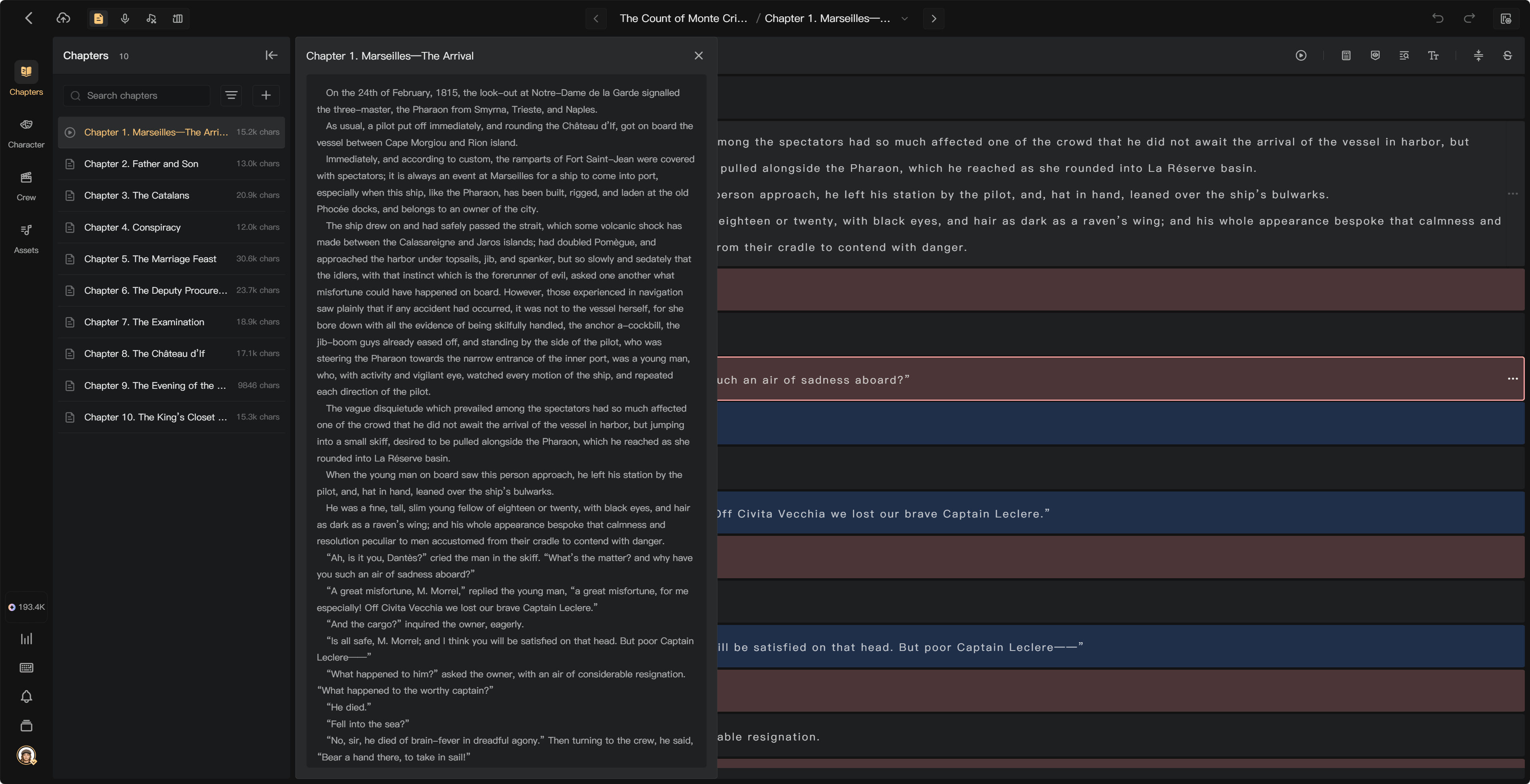
Use View Original Document to compare with the source. The production script can have different segment boundaries, but check that required text and meaning have been retained.
Prepare the performance
Use the segment menu for Emotion, Voice Effect, and End Pause. Add a Prompt or performance note to explain context. Mark selected direction text as reference when it should remain visible but not be spoken.
For narration cleanup, use Merge Narration. For likely dialogue directions, use Smart Mark as Reference and review its selected scope and warning. These actions affect different parts of the script.
For Merge Narration, choose the scope and target character count, then review the confirmation. It merges adjacent narration while preserving natural text boundaries. Segments that already have audio are skipped, and the batch action cannot be undone. It is intended for longer human-recorded takes rather than AI voice generation.
Playback and saving
Use segment playback or Play Entire Chapter (Mixed) to listen. Missing AI audio can require paid generation, so check the prompt before confirming.
Watch the save state after large edits. If saving fails, check the connection and preserve unsaved text before refreshing. Open My in the creation page for shortcut settings.
Before the next stage
Check text, segment boundaries, character and voice assignments, reference marks, and key performance guidance. In a collaborative project, complete your active Script Editing task when the work is ready for handoff.
See Manage characters, Assign characters and voices, Reference text, and Complete Script Editing.