
Appearance
Generate SFX
Describe a sound effect and generate an audio asset for your production. Review the result before using it; a prompt may produce different interpretations.
Generate a sound effect
- Open Generate SFX from AI Audio or New.
- Describe the sound, environment, and any movement or timing that matters.
- Set the optional duration and prompt-following controls.
- Review the required agreement and displayed credit charge.
- Start generation, then play the result.
For example:
A heavy wooden door creaks open in a quiet stone hallway, followed by three slow footsteps with a short echo. No music or speech.
Follow the form's prompt limit.
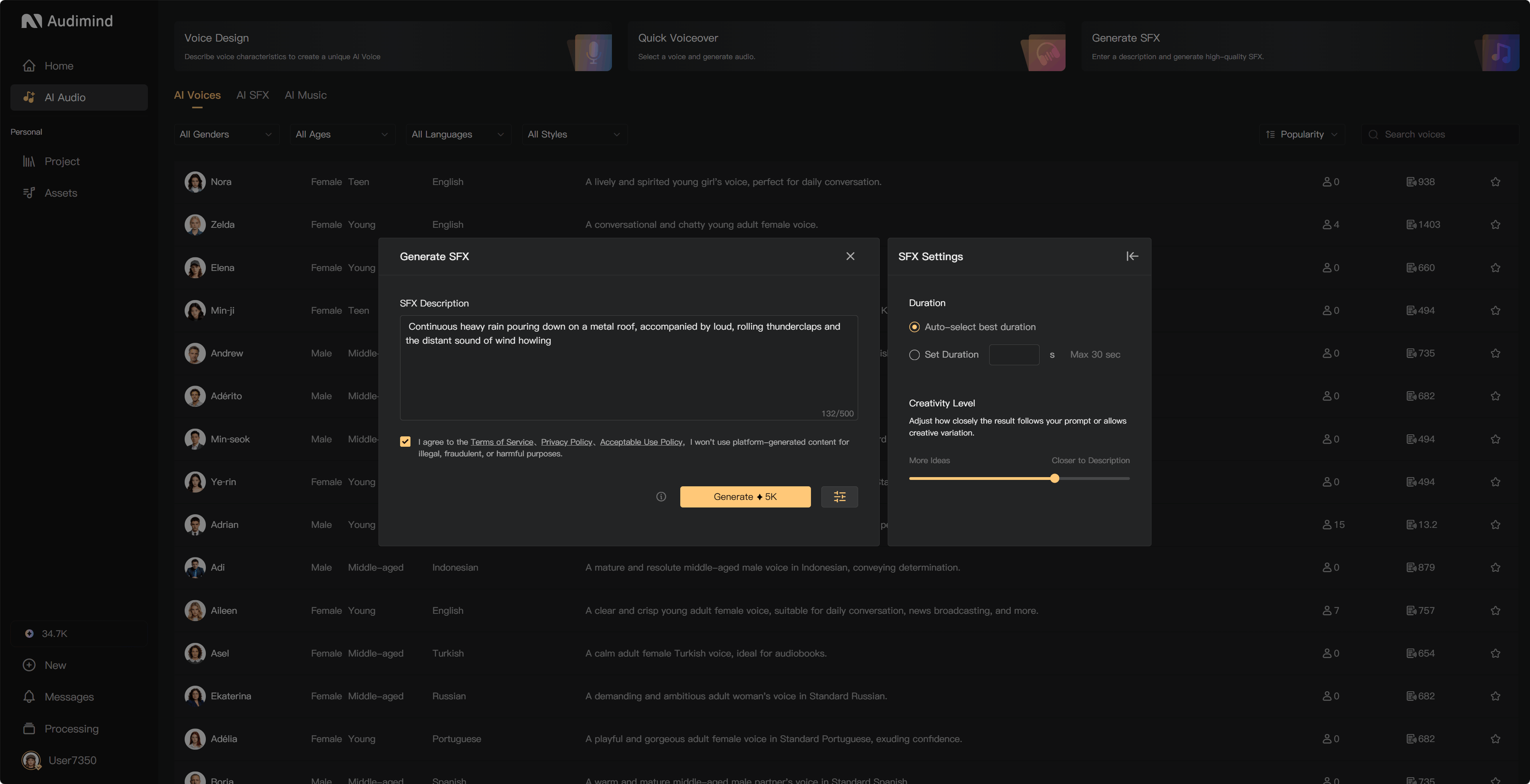
Duration and flexibility
Auto lets the model choose a suitable duration. Use a custom duration when you need a specific length, up to 30 seconds.
The flexibility control changes how closely the result follows the prompt. Use the current control labels to choose between a closer interpretation and a more creative result; do not assume slider direction from a different interface.
Save and use
Generated effects are saved in personal Assets under AI SFX. Use the download action beside the playback bar where available. In a project, open Assets and add the effect to an SFX Track during Post-Production.
If generation is unavailable, check the prompt, required agreement, and credits. If the length or effect is wrong, revise the prompt or settings before generating again.
See Add music and SFX and Credit usage rules.