
Appearance
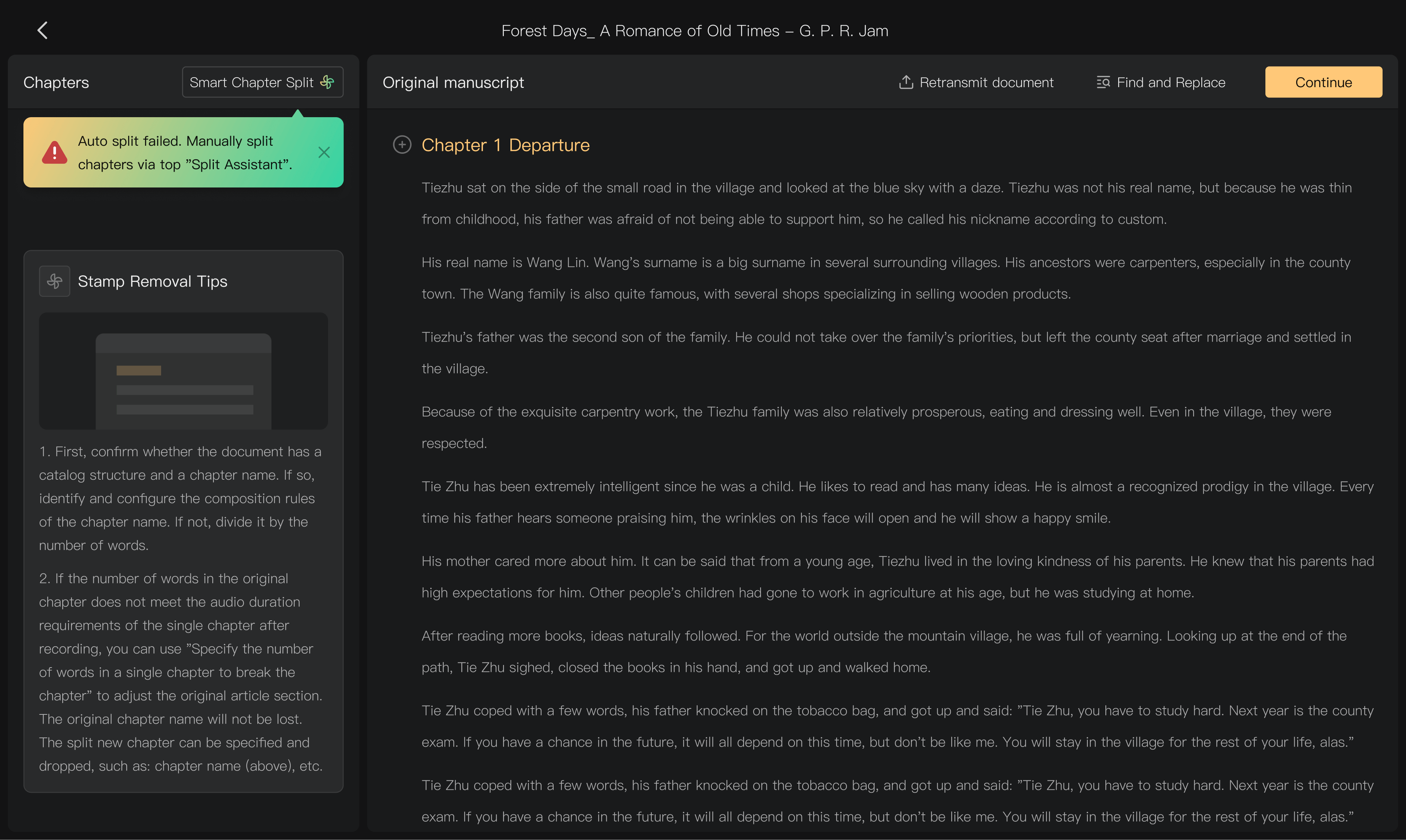
Use Smart Chapter Split
Use Smart Chapter Split when detected chapters are missing, headings use mixed formats, or your manuscript needs a different chapter length. Open it in the chapter-analysis screen.
Match chapter title patterns
- Indicate that the document contains chapter titles.
- Configure the title format or patterns that match the manuscript.
- Add another pattern if the document uses more than one format.
- Preview the detected chapters and inspect their boundaries.
For example, a document containing both “Part One” and “Chapter 1” may need separate title patterns. Headings should be separate lines. Remove false chapter markers in the document pane by changing them back to body text.
Split by text length
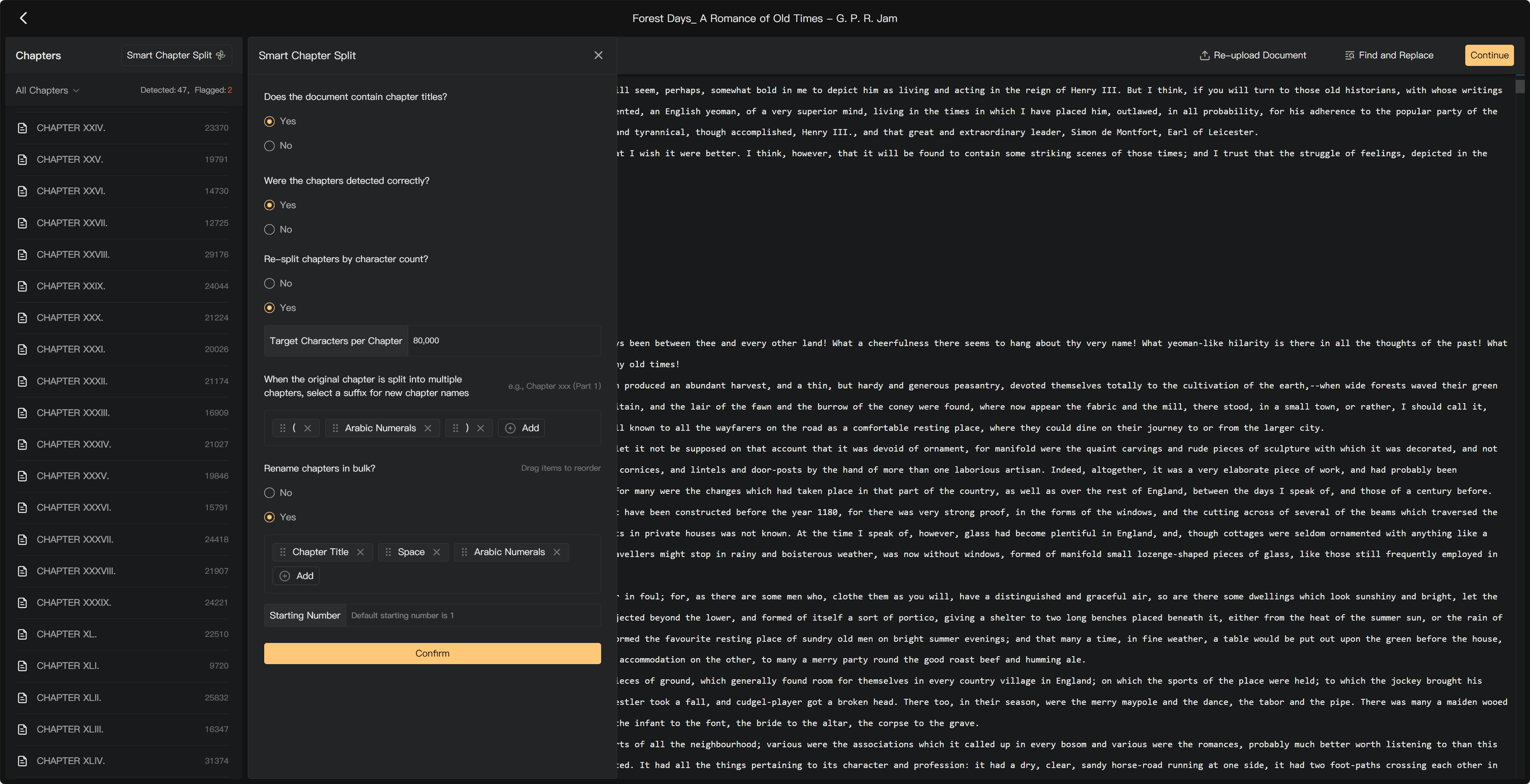
For text without headings, use Create Chapters by Length or the re-split-by-length option. Set Desired Character Count and preview the result.
The count is text characters, not English words. A target of 5,000 characters does not mean 5,000 words or guarantee a fixed recording duration. Inspect the chosen paragraph boundaries and remaining final chapter.
For a short manuscript, keep one chapter if the resulting length is within the current limit. A chapter supports up to 80,000 text characters.
Rename chapters in a batch
Use the chapter-renaming option to set the desired format and numbering. Check the start number, title template, and any original title retained. For example, standardize “Chapter One: Leaving Home” to “Chapter 1: Leaving Home.”
Select the intended chapter scope, enter the naming pattern and starting number, and preview the resulting titles before applying. Renaming should keep the chapter order and content intact; check both after confirmation.
Before continuing
Check the chapter count, title order, boundaries, and unusually long or short chapters. Correct duplicated headings or missing body text before selecting Continue.
Structural changes after recording can affect segment audio and tasks. Read the confirmation for an operation before applying it to chapters already in production.
See Check detected chapters, Edit text, and Upload and add documents.