
Appearance
Create a project
A project holds one production's manuscript, chapters, characters, recordings, editing, and final audio. For a short voiceover without chapter management, use Quick Voiceover instead.
Start the project
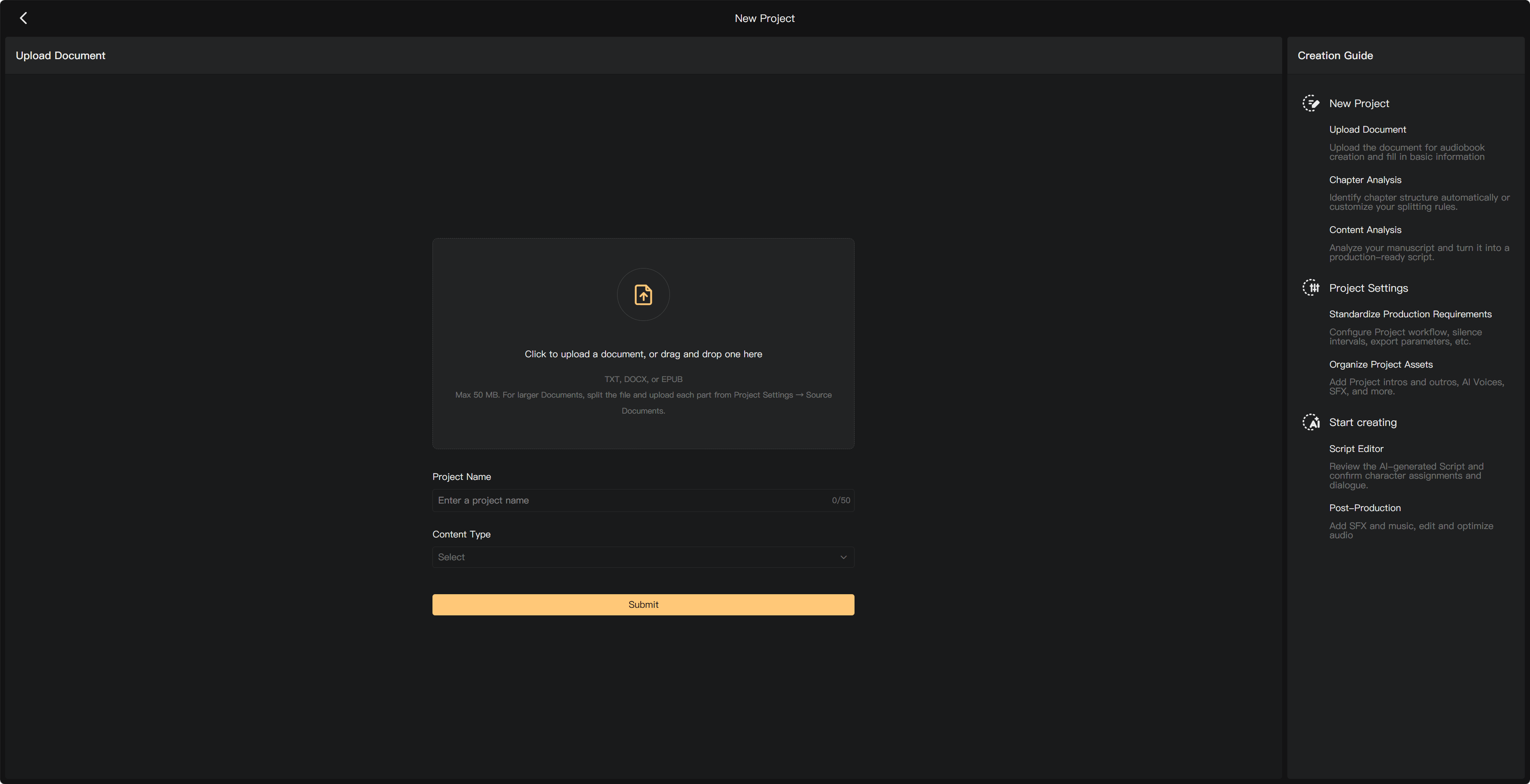
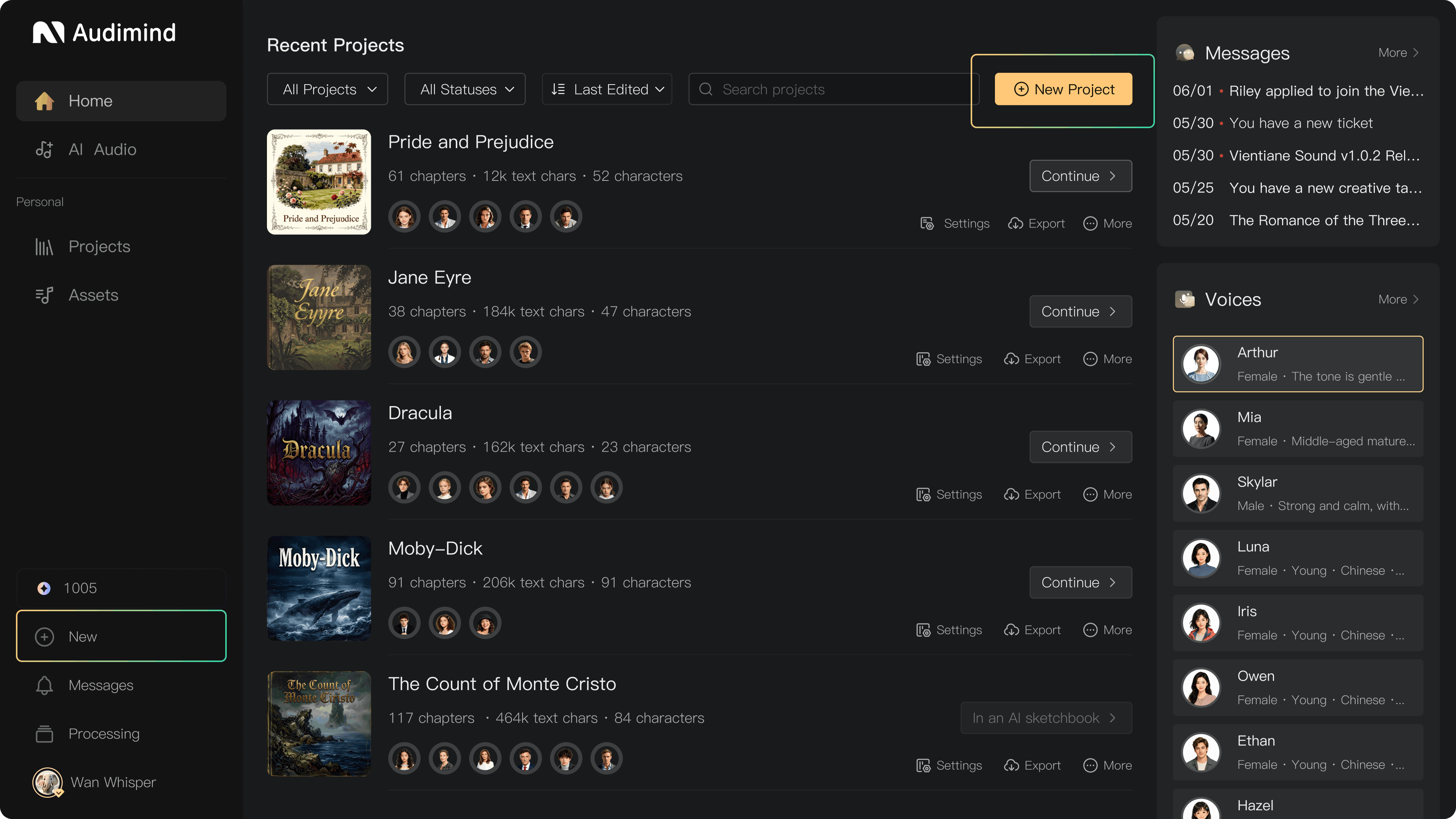
- Select New Project from the homepage or project list.
- Upload your manuscript in the Upload Document area.
- Enter Project Name and select Content Type.
- Select Submit and review the chapter analysis.
- Check the chapter structure before continuing to Smart Scripting.
The creation form accepts TXT, DOCX, and EPUB files up to 50 MB. The project name is limited to 50 characters. Follow any validation displayed in your current form.
Set project information
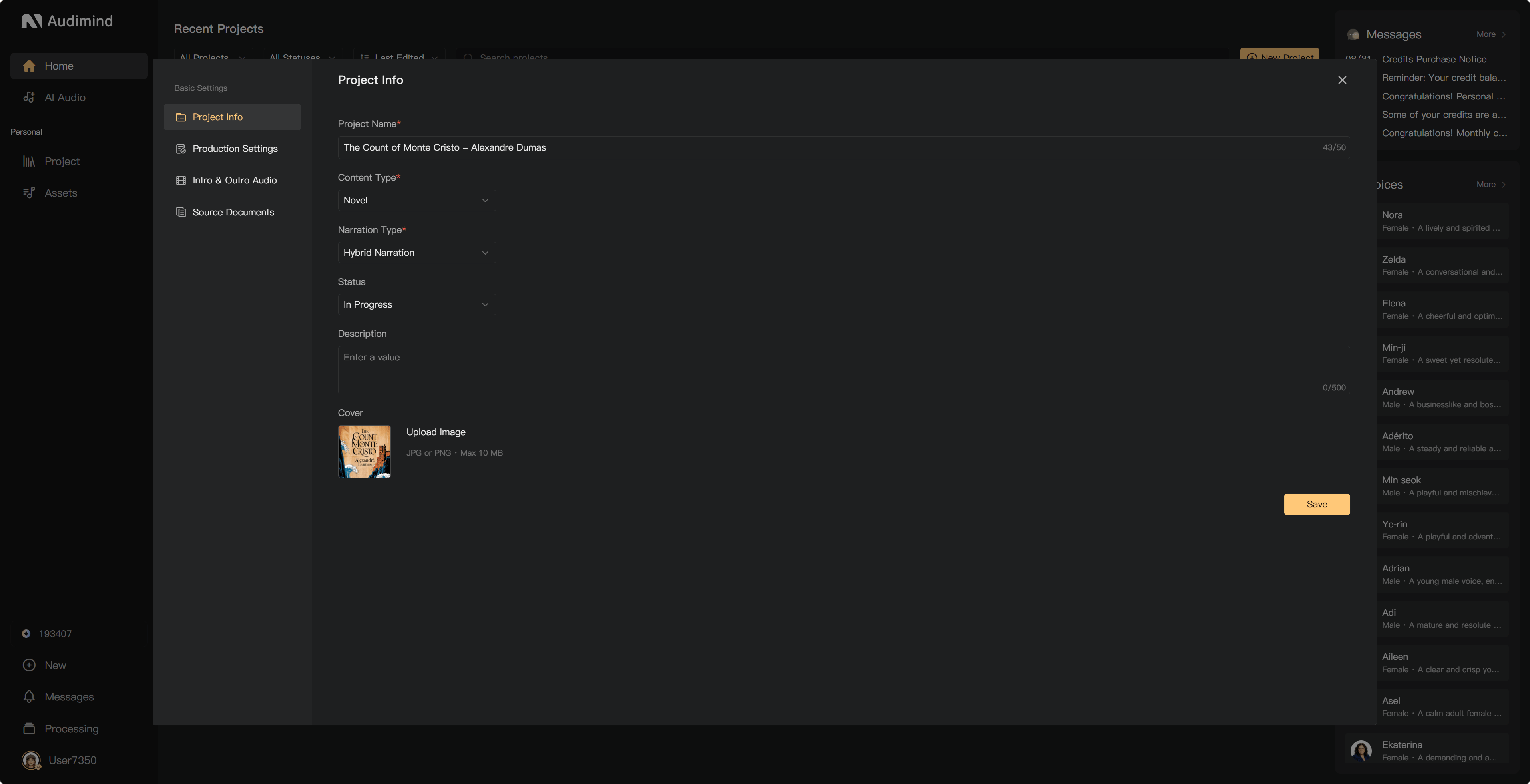
After creation, open Project Settings → Project Info to update the name, content type, narration type, description, status, and cover. Project Settings accepts JPG or PNG covers up to 10 MB; a square cover works well in project cards.
Use a clear title and version or season identifier when several productions use the same manuscript. A short description can explain the story and production requirements to the crew.
Choose the production mode
In Project Settings, use the project-mode controls on the Collaboration Mode page to work alone or enable collaborative production. Collaboration adds crew duties, task handoffs, and permissions and requires the relevant membership benefits.
Check the workspace and project ownership before inviting people. Returning from Collaborative to Solo Mode requires outstanding tasks to be resolved; read the mode-change prompt.
Creating a project does not consume a seat from a shared account pool. Seats set the participant limit within each collaborative project.
After creation
Your new chapters need script review and voice assignments before audio production. Smart Scripting and other AI processing can consume credits; read the displayed fee when continuing. Check Processing if scripting runs in the background.
See Upload and add documents, Chapter detection, Project Settings, and Create your first audiobook.