
Appearance
Mix chapter audio
Mixing combines the chapter's voices, music, and SFX into one audio file. Run it when you are ready to review the chapter or after edits that need to appear in the mixed audio.
Before mixing
- Check that every passage intended to be spoken has audio or an assigned AI voice that can generate it.
- Mark direction text as reference where it should not be spoken. Adding a reference mark to text that already has audio does not remove that audio; review the recording separately.
- Check clip timing, transitions, Voice Effects, track volume, and mute states.
- Ensure the project creator has enough credits if AI audio needs to be generated.
Mixing combines the edited tracks using the project's production settings. Intro and outro audio configured for final export are handled at export rather than included in the chapter mix used for review.
Mix one chapter
- Open Chapters on the creation page.
- Open the chapter's … menu and select Mixing.
- Resolve any missing-recording or credit warning, then submit the operation.
- When processing finishes, play the chapter and check the result.
Selecting Mixing creates a new mix even if the chapter already has mixed audio. Chapter playback can also generate missing or outdated AI audio and prepare a mix when necessary. Check the charge prompt before confirming; playing current audio does not require generating it again.
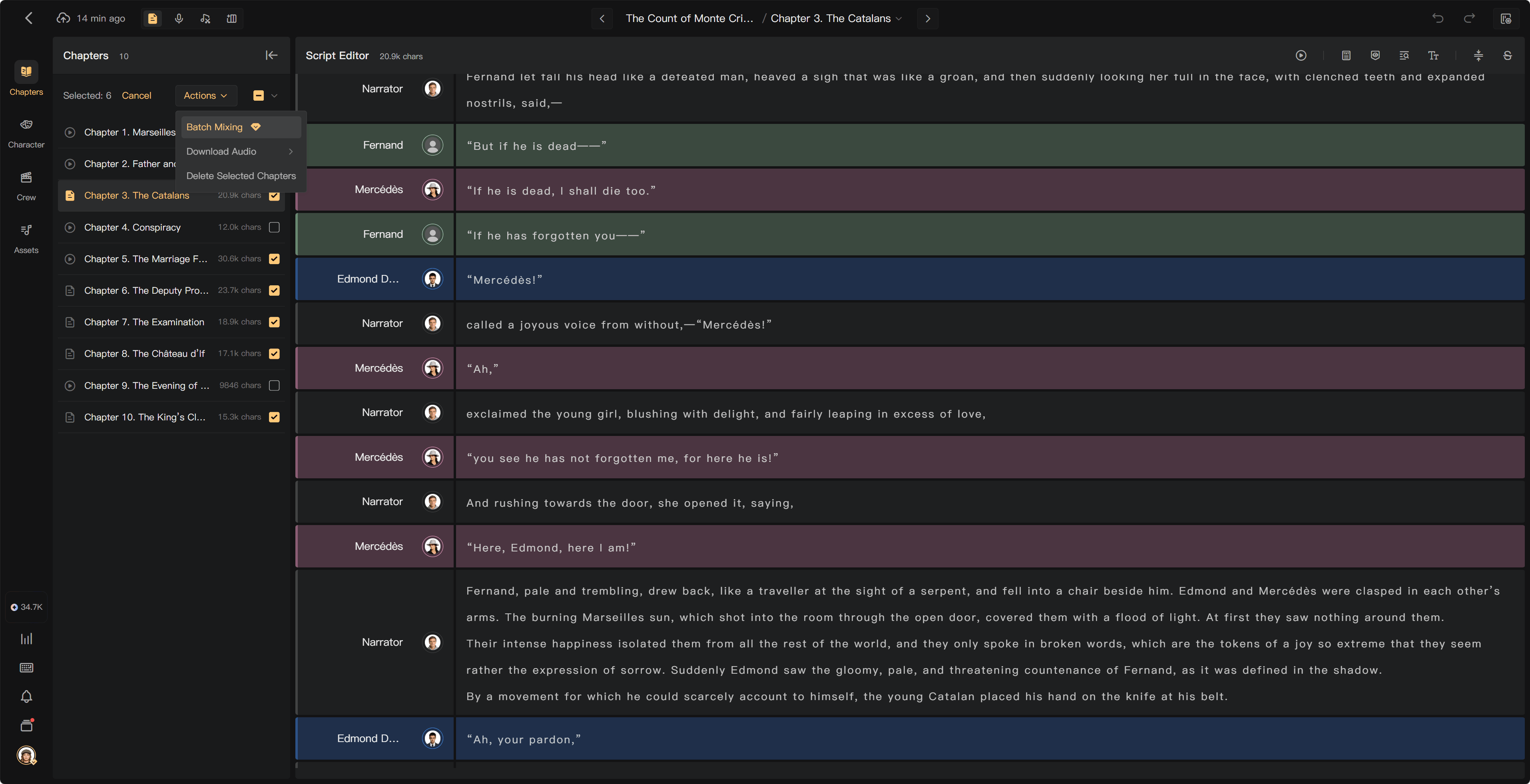
Mix several chapters
- Select the chapters in Chapters; use range selection where appropriate.
- Choose the batch mixing action.
- Review the selected scope and any warnings, then confirm.
- Track the background operation in Processing → Processing Tasks.
You can continue working while the task runs. Check the completion notification and preview the results before export.
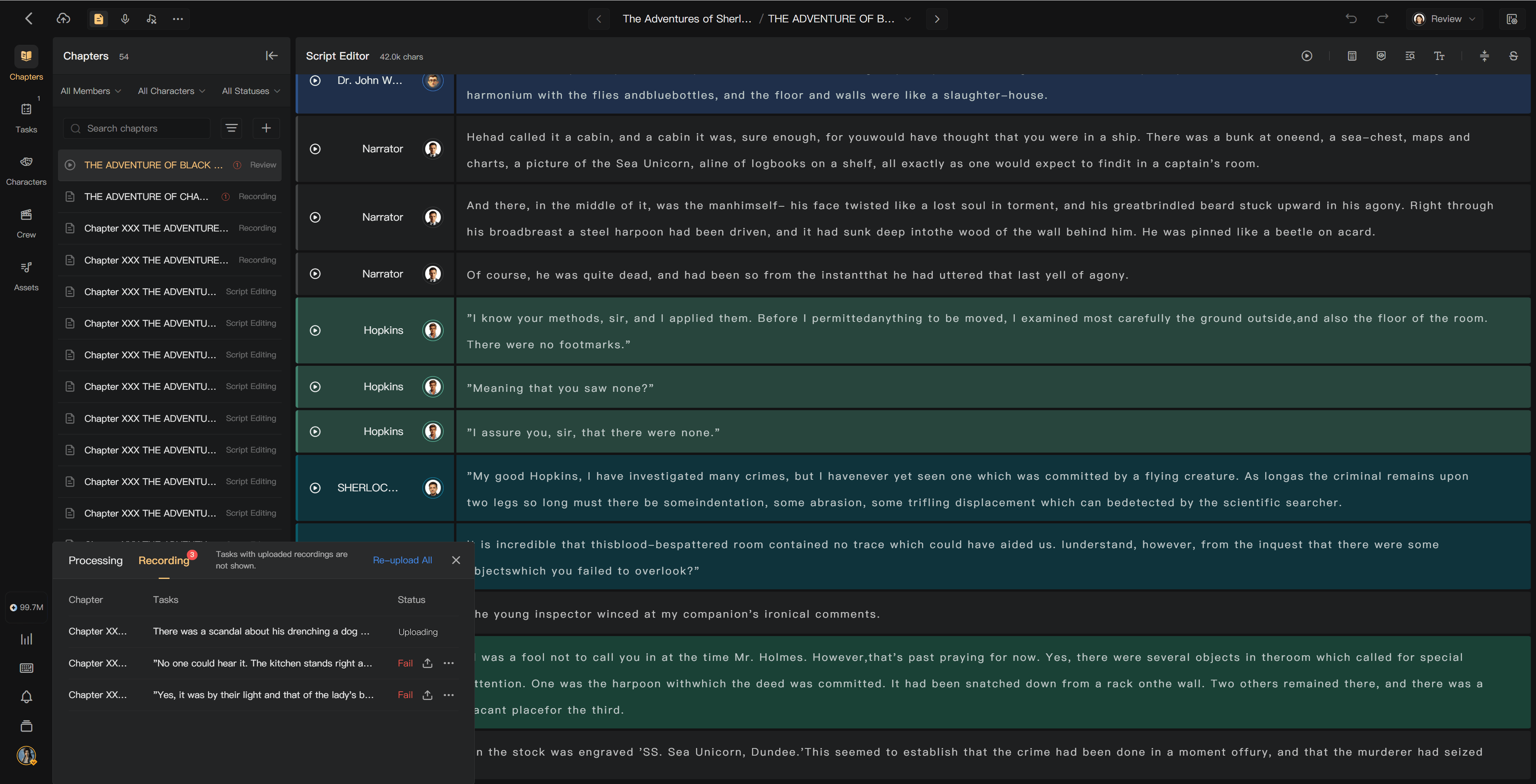
If mixing fails
| Problem | Action |
|---|---|
| Missing human recordings | Record or upload the missing passages |
| Unassigned voices | Assign the appropriate performer or AI voice |
| Insufficient credits | Ask the project creator to add credits, then retry |
| Unreadable audio | Check and replace the affected recording |
| Processing error | Check the task's error details and retry; contact support if it persists |
Changing text, clip timing, or sound settings after mixing can leave the mixed file out of date. Mix again and listen to the updated chapter before downloading it.