
Appearance
Edit manuscript and script text
Correct the text and segment structure before assigning voices and producing audio. After recording, check the effect of every text change on existing audio and downstream work.
Edit text
Open the project and chapter, then use the editable manuscript area during preparation or Script Editor during production. Select the relevant text and correct spelling, punctuation, names, or wording. Check the save state before leaving.
A document is the source manuscript; the script is its production structure. Editing one should not be assumed to update every other stored version automatically.
To correct a passage:
- Select the chapter, then click the text to enter editing.
- Make the correction without changing unrelated wording.
- Finish editing using the available save action or by leaving the text field.
- Check the save status and reread the sentence.
For extensive manuscript changes, edit the source file first and use the document replacement flow after reviewing its impact.
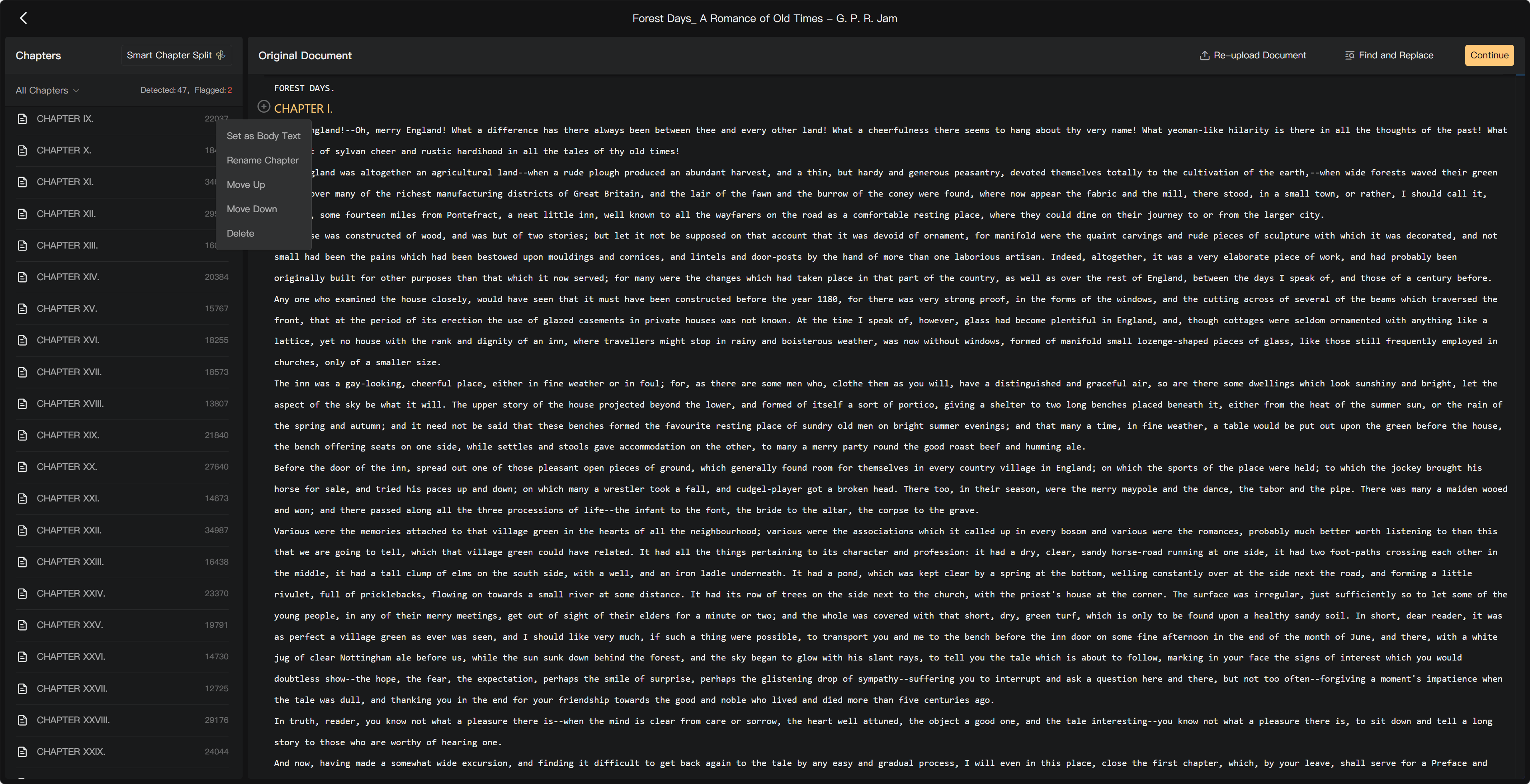
Find and Replace
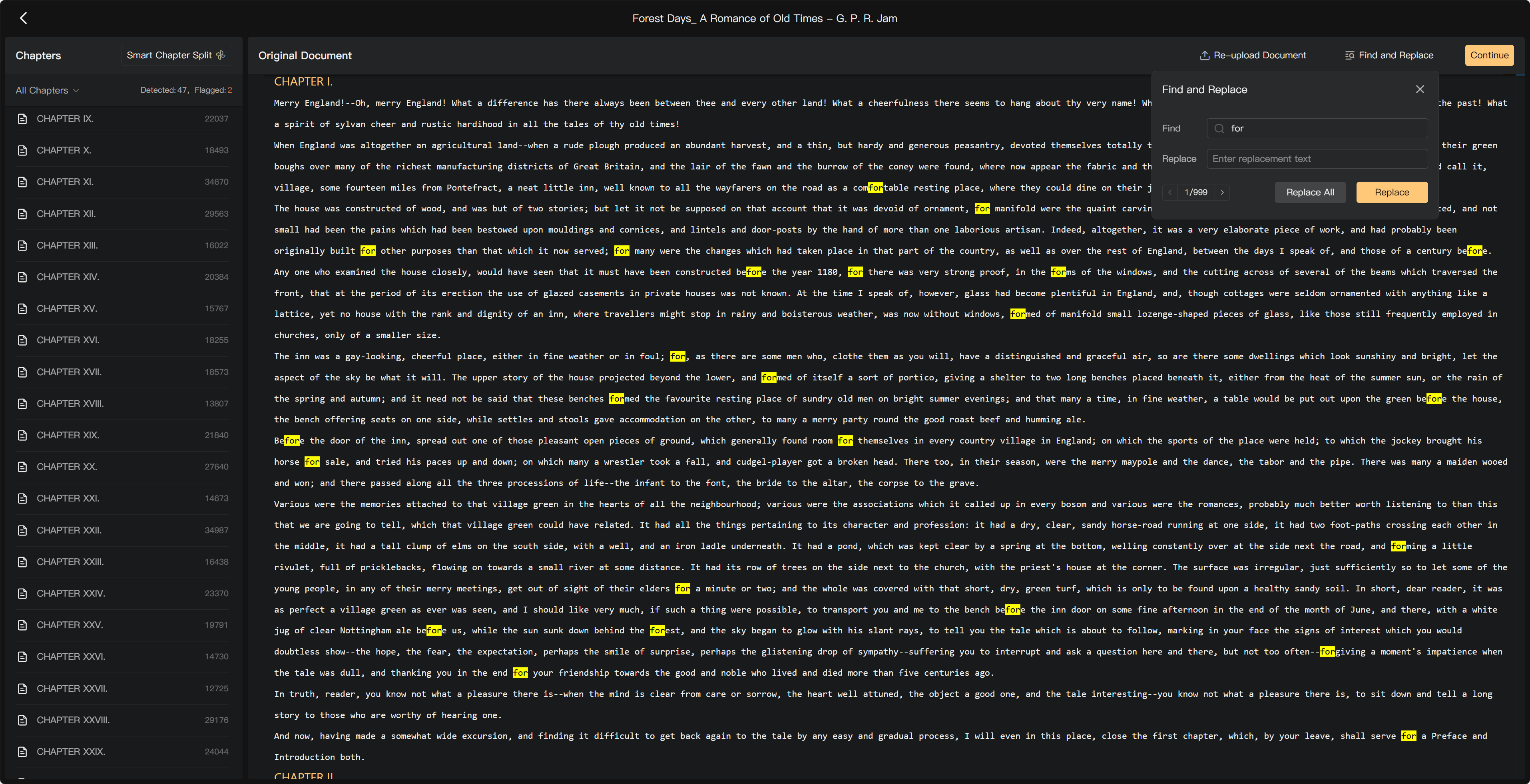
- Open Find and Replace.
- Enter the text to find and its replacement.
- Inspect matches and the current replacement scope.
- Replace one match, or use Replace All when the selection is correct.
- Review the changed text and character assignments.
Be careful with short words and names inside longer words. For example, replacing “Ann” indiscriminately can affect “Anna.”
Split or merge segments
A segment is an audio-production unit. Keep a natural passage together, and split where speakers or performance requirements differ.
Enter text editing, position the cursor at the desired break, and use the supported split or paragraph-break control. For an accidental break, use the available merge action, including Merge Up where shown. Check spaces and punctuation after merging.
Changes to recorded segments can leave audio missing or out of step with text. Check both the segment's recording and its task status after changing structure.
To split a passage, place the cursor at the break and press Enter or use the split action. To join an accidental break, use Merge Up or the available adjacent-segment merge action. A segment should contain a passage that can share one speaker and performance treatment; splitting every sentence is not always necessary.
Segments with existing audio cannot be merged. A merged segment must not exceed 1,500 text characters. If a merge is blocked, check those conditions before changing the selection.
Delete or rename
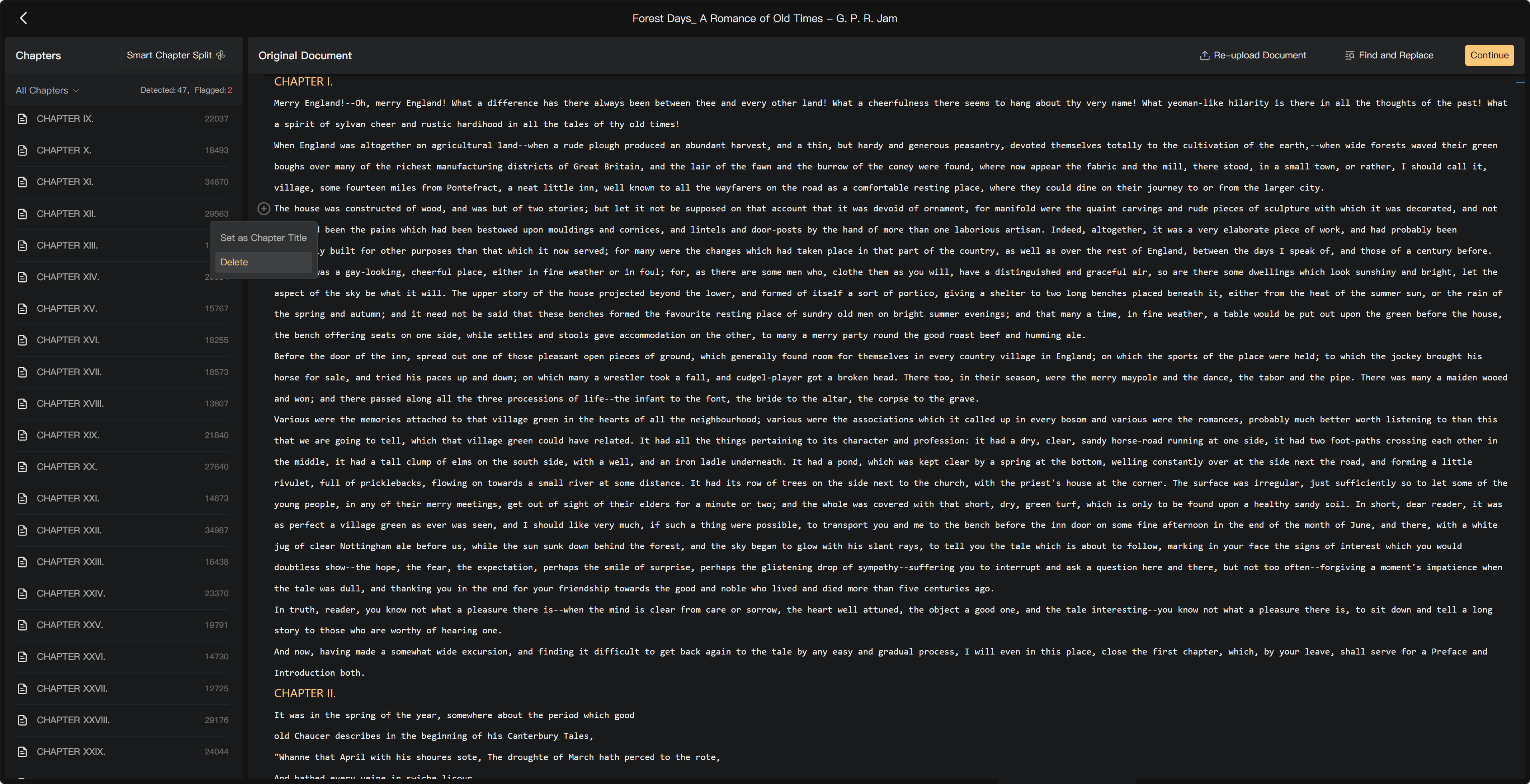
Delete only the selected irrelevant text or segments, and review the deletion warning. Website notes, duplicate material, and unwanted front matter should be removed only when they are outside the production's intended content.
Rename chapters through the chapter action; changing a title does not rewrite its body.
For batch deletion, enter segment selection, check only the unwanted passages, choose Delete, and confirm the scope. Check the remaining text afterward. Deletion removes content from the production; reference marking keeps directions visible while excluding them from speech.
Undo and shortcuts
Use the available Undo and Redo actions promptly after an accidental edit. Do not rely on undo across a closed page or a new editing session. In the creation page, open My to view or customize shortcuts.
After audio exists
A text correction does not repair a human recording. Regenerate the relevant AI audio or request a pickup when speech must change. Then refresh any affected transcript, edit, and mix before exporting again.
If a chapter exceeds the displayed length limit, return to chapter preparation and split it into manageable chapters. A chapter supports up to 80,000 text characters.
See Script Editor basics, Smart Chapter Split, and Recording history.