
Appearance
Adjust volume and speed
Choose the scope of the change before adjusting audio: one clip, one track in the current chapter, or a performer's recordings across the project.
Adjust a track's volume
In Post-Production, drag the track's Volume slider. This changes playback for that track in the current chapter immediately. It does not update an existing mixed file; run Mixing again to include the change in chapter audio.
For a single passage, use the clip's Volume or Speed setting instead.
Change a performer's Audio Settings
- Open Crew on the creation page.
- Select the human performer or AI voice.
- Open Audio Settings.
- Adjust volume and speed, preview the result, and save.
Your permission determines whether you can edit your own settings or another performer's settings. If the controls are unavailable, ask the project creator or a member who manages permissions.
You can also open Characters, select a character with an assigned voice, and access its Audio Settings. Settings shown through these two entry points stay in sync.
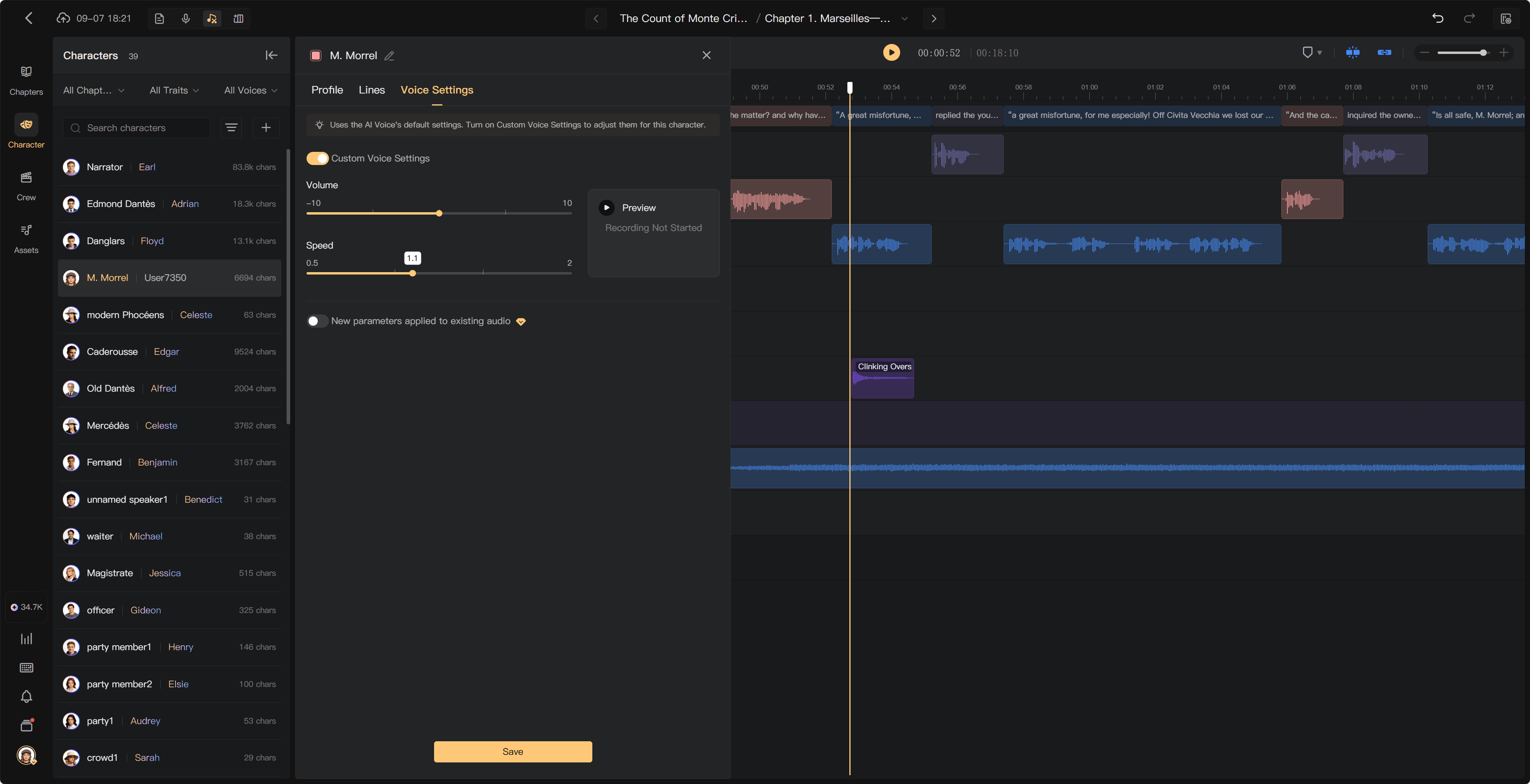
Preview before saving
Use the preview control to listen to the proposed settings. An AI voice preview generates a sample; a human performer's preview uses a suitable existing recording when available. Check any generation charge shown before confirming.
Apply changes to existing audio
Saving default settings does not automatically update every existing recording. To update recorded material, enable the option to apply the settings to existing audio, select the chapters, and save.
This batch operation requires the relevant membership benefit. It creates a background task; check Processing → Processing Tasks for progress and the completion or failure result.
Changing speed changes duration. The selected chapters may be temporarily unavailable for Post-Production editing while their audio and clip positions are updated. After processing, check timing, pauses, and music or SFX alignment.
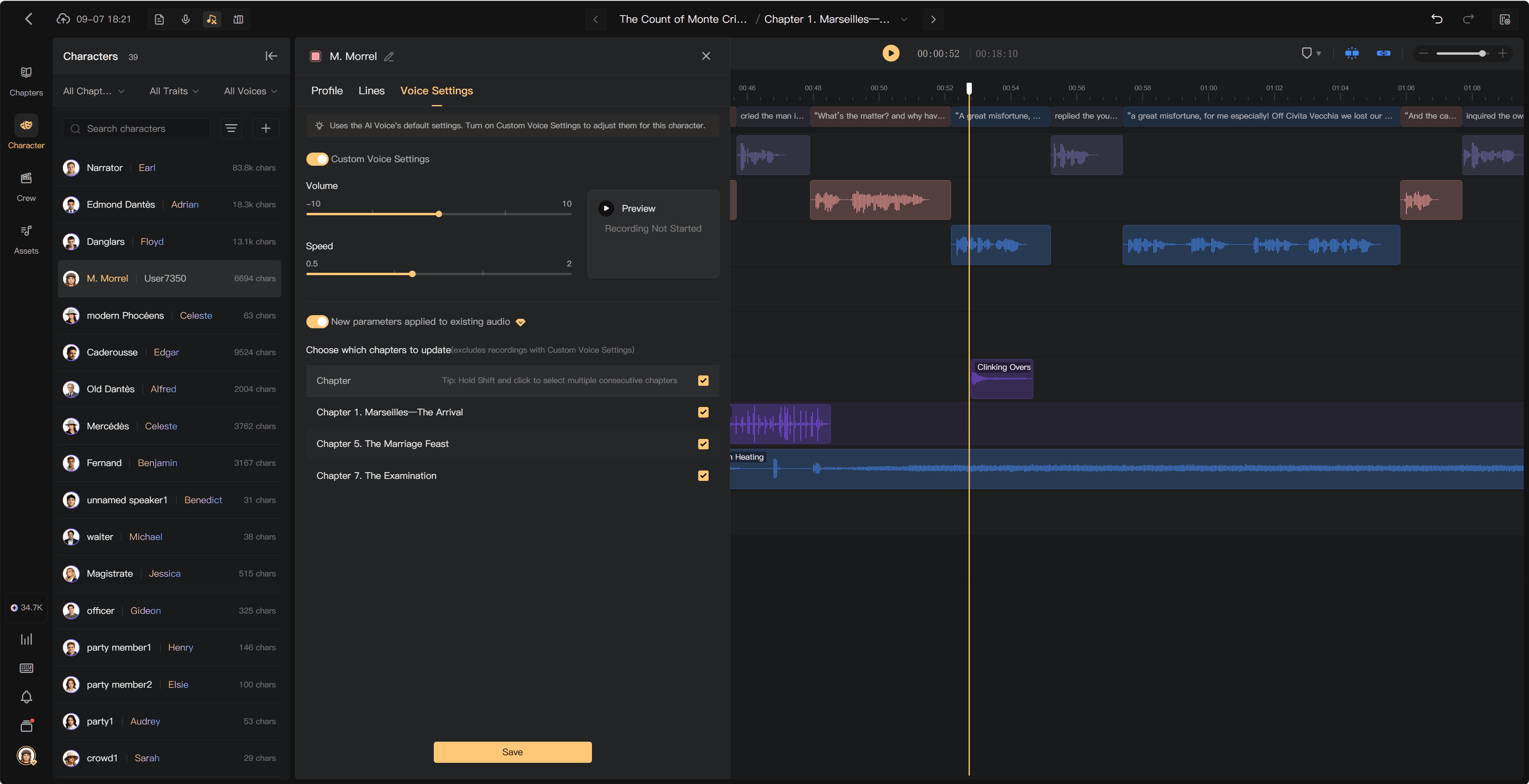
Give a character its own settings
If a performer voices several characters, select a character in Audio Settings and enable its individual settings. Adjust and save the character's volume and speed separately. Use this when the same performer needs a different delivery for different characters.
Check the final result
Track and clip volume changes can combine, so listen before increasing gain further. Once the changes are complete, check the mixed chapter audio before downloading it.