
Appearance
Team assets
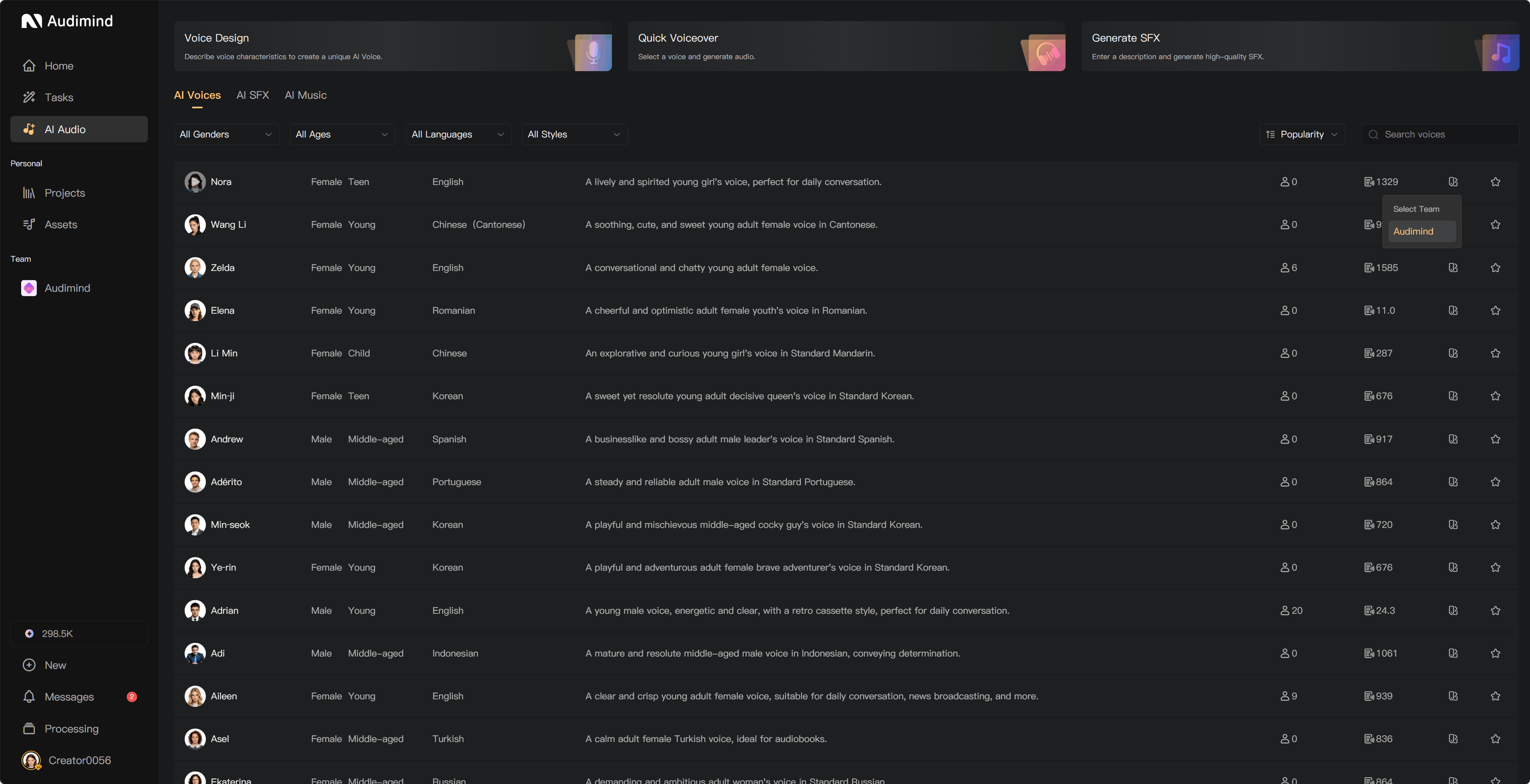
Team assets give collaborators a shared collection of voices, music, and SFX. Open the team's Assets area, or the Team Assets source in a project's Assets panel.
Add assets
Use either of these routes:
- Add an official asset to a team using the team action in its library.
- Use Sync to Team on an eligible personal or team asset and choose the destination team.
Synchronization copies the resource rather than moving the original. Check which team you selected and whether the destination has enough storage. If the asset already exists there, use the existing entry.
AI audio is generated outside Team Assets, then synchronized to the team. Team Assets does not provide direct AI generation.
Permissions
Available actions depend on your team permissions. For team AI voices, administrators can use Sync to Team, manage their favorites, and delete; regular members can synchronize and manage their favorites. Deleting shared audio also requires the appropriate management permission.
A personal favorite is different from deleting a shared team asset. Confirm what the selected action affects before proceeding.
Storage and membership
Shared files count toward the storage responsible for the team. If membership benefits end, storage is full, or your access is frozen, new additions and editing can be restricted. Existing assets may remain available to view and play according to access permissions.
Use storage management to review usage. Extra Storage adds capacity separately; Studio Bundle adds 500 GB and 35 project seats with active Team or Business membership.
Use and maintain the collection
Name assets clearly and agree on what the team should keep. Check with collaborators before deleting a resource used in active productions. Synchronizing to another team creates another destination to manage; it does not transfer team ownership.
See Use assets in a project, Manage full storage, and Roles and permissions.