
Appearance
Audimind overview
Audimind connects the work of preparing a manuscript, producing voices, editing audio, reviewing the recording, and delivering an audiobook. Use AI tools, human performances, or both within the same project.
What you can do
| Your goal | Where to start |
|---|---|
| Organize a manuscript into chapters | New Project and Smart Chapter Split |
| Prepare speakers and performance guidance | Smart Scripting and Script Editor |
| Generate narration or character dialogue | Assign AI voices and generate audio |
| Record performances yourself | Recording or segment audio upload |
| Connect a long recording to script lines | Smart Alignment |
| Edit voices, music, and effects | Post-Production |
| Compare recorded speech with the script | Smart Review |
| Download finished chapters and scripts | Export and chapter download actions |
| Coordinate production with other people | Teams, Crew, Tasks, Issues, and permissions |
| Review production work and compensation | Project statistics and work records |
| Generate a standalone voice or audio asset | AI Audio |
| Manage AI spending and resources | Credits, Membership, and Resources |
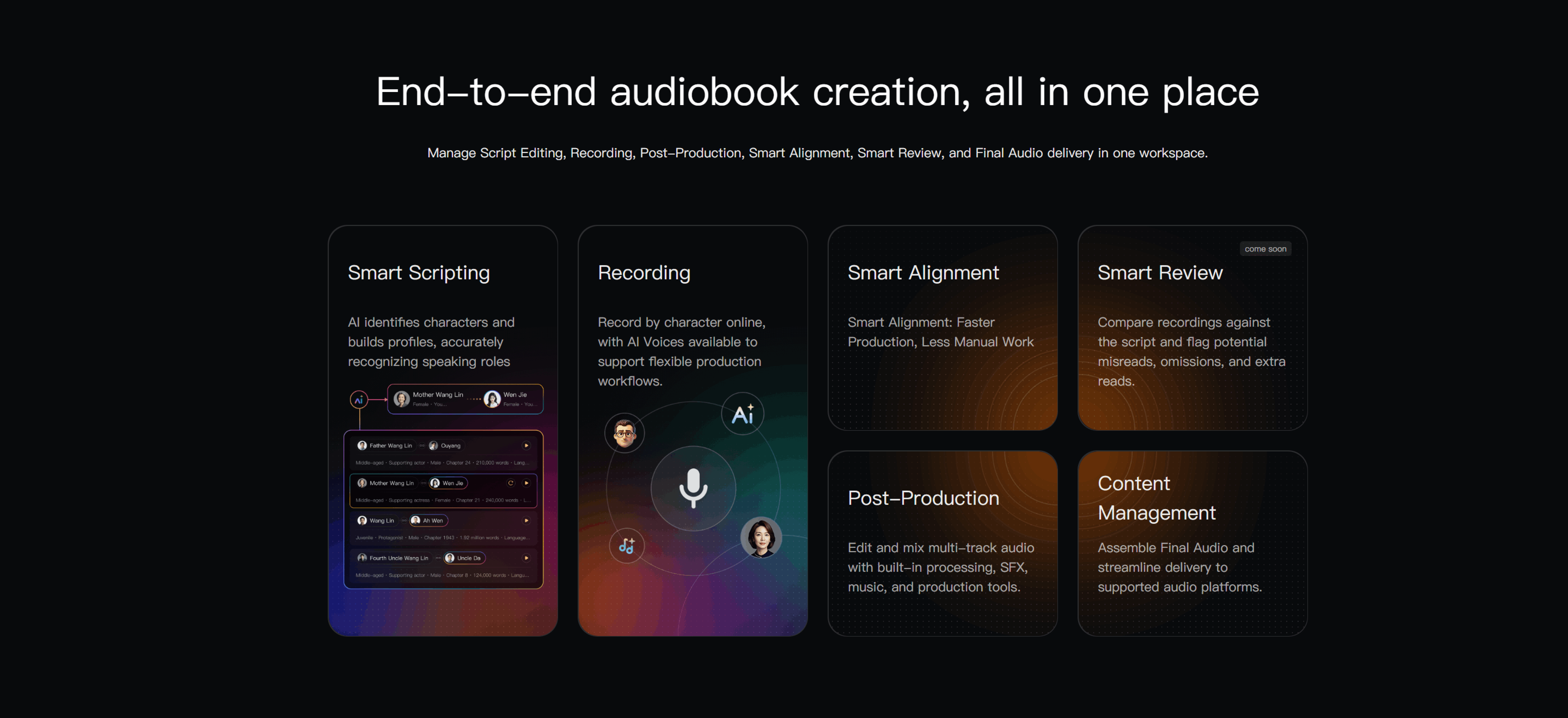
Who uses Audimind?
Independent creators can handle the complete production in solo mode without assigning tasks to other people.
Voice actors can view assigned passages, record online, upload takes, or use Smart Alignment for long recordings made in another tool.
Studios and production teams can divide work among directors, script editors, performers, audio editors, and reviewers. Team and Business memberships provide collaboration and project seats.
How a production moves forward
- Create a project: add the title and manuscript.
- Prepare chapters: inspect detected headings and correct boundaries.
- Prepare the script: review narration, dialogue, characters, voices, and directions.
- Produce the voices: generate AI audio or record and upload human performances.
- Align external recordings if needed: connect long audio to script segments.
- Edit and mix: refine timing and sound, then create the chapter audio.
- Review and deliver: resolve corrections, update the mix, and export.
Smart Alignment is needed for external audio that is not already associated with segments. Smart Review is an optional workflow step. See Creation workflow for production methods and demonstration videos.

Solo and collaborative projects
| Area | Solo | Collaborative |
|---|---|---|
| Production | You handle the work independently | Crew members handle assigned duties |
| Tasks and handoffs | No multi-person handoff is needed | Tasks follow the configured chapter workflow |
| Permissions | The creator manages the project | Roles control members' operations |
| Corrections | You make and verify changes | Issues track the handler and verification |
| Resources | Plan storage and AI credits | Also check each project's seat limit |
A Character is a speaker in the story. Crew members are production participants. A permission Role controls access, while a production Duty identifies the work someone handles.
Home and project lists
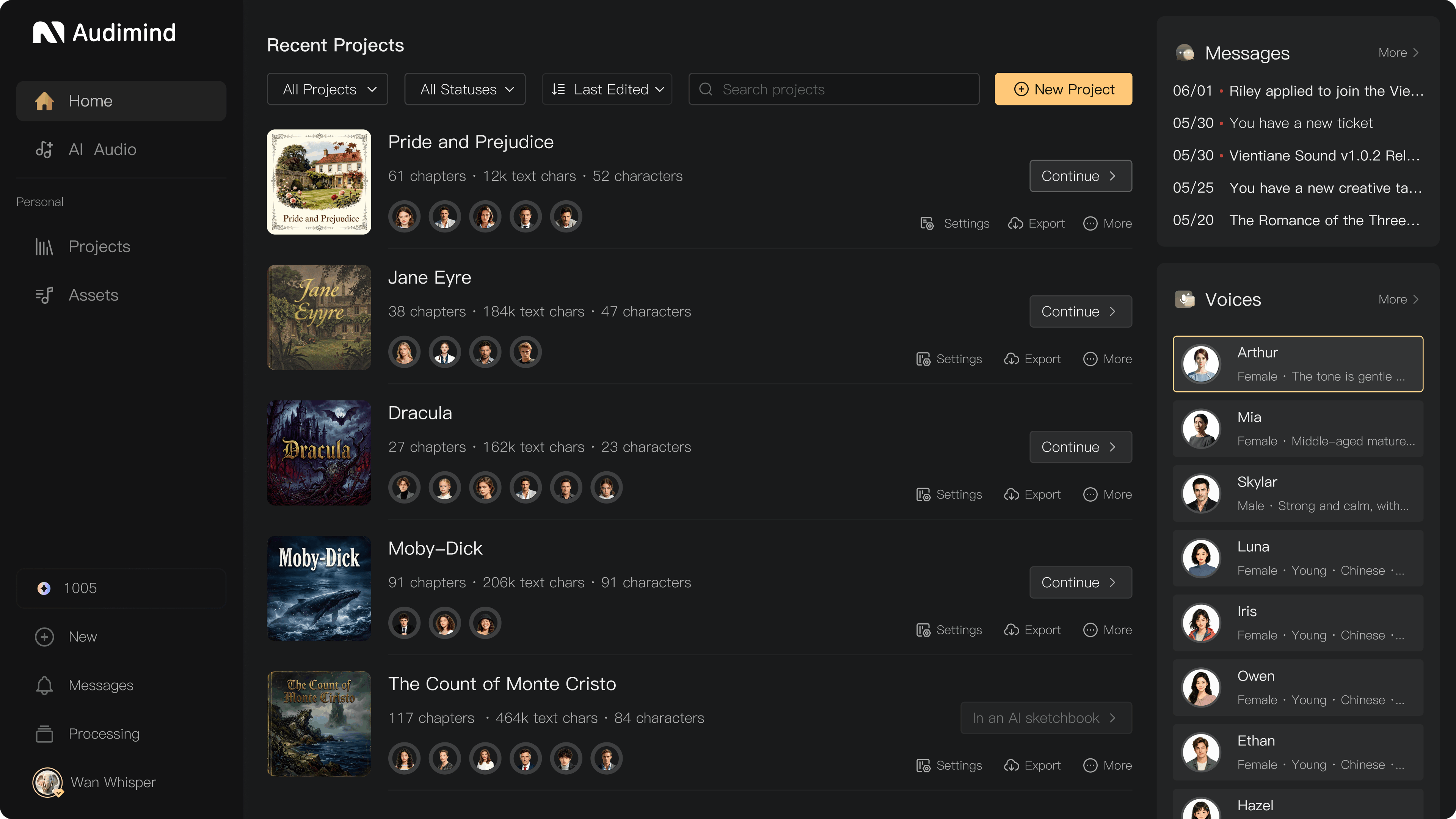
Use Home, Recent, and Projects to find and continue work. New Project starts a new production. Select the appropriate personal or team workspace before looking for its projects.
Project cards distinguish chapters, text characters in the manuscript, and story characters. These counts describe different things.
The creation workspace
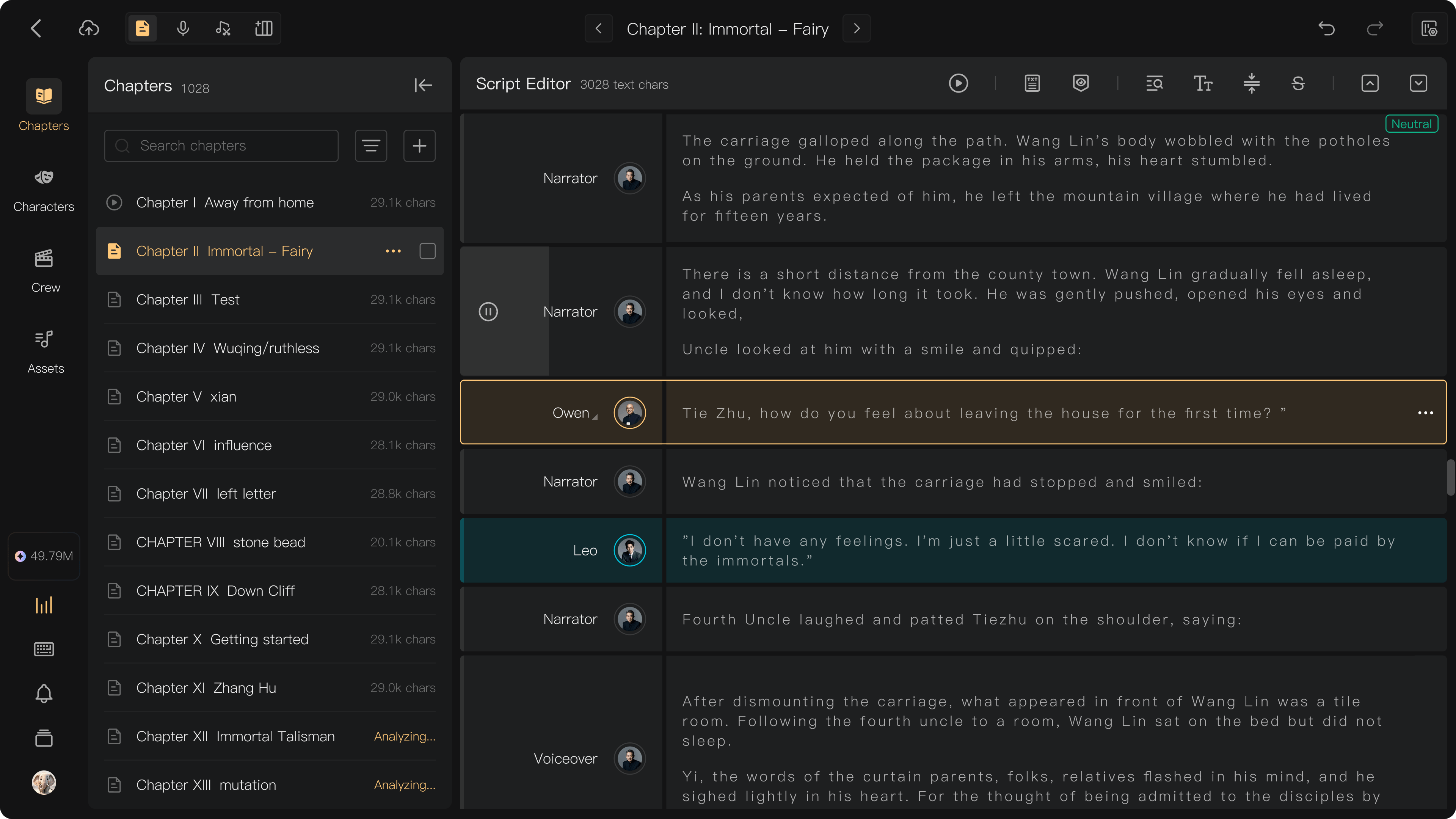
Select a chapter through Chapters, then choose Script Editor, Recording, Post-Production, Smart Alignment, or Smart Review.
The sidebars bring together Tasks, Characters, Crew, Assets, Playback, and Messages. In collaborative projects, check your active task when you need to know what to do next.
AI Audio
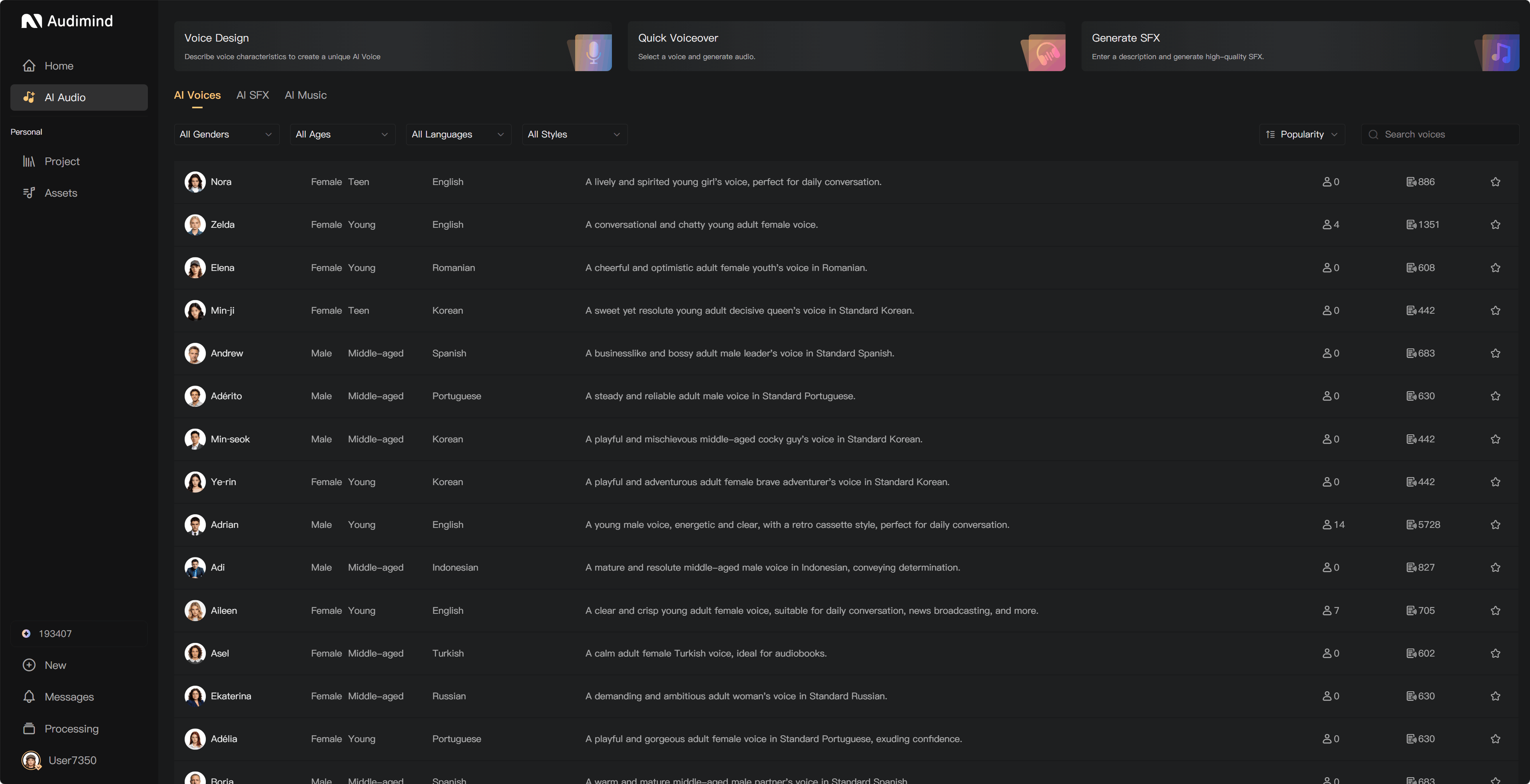
Use Voice Design, Quick Voiceover, and Generate SFX to create assets without starting an audiobook project. Generate Music is described separately with its availability status. Browse AI Voices, AI SFX, and AI Music, then use suitable results in a project.
Tasks and production progress
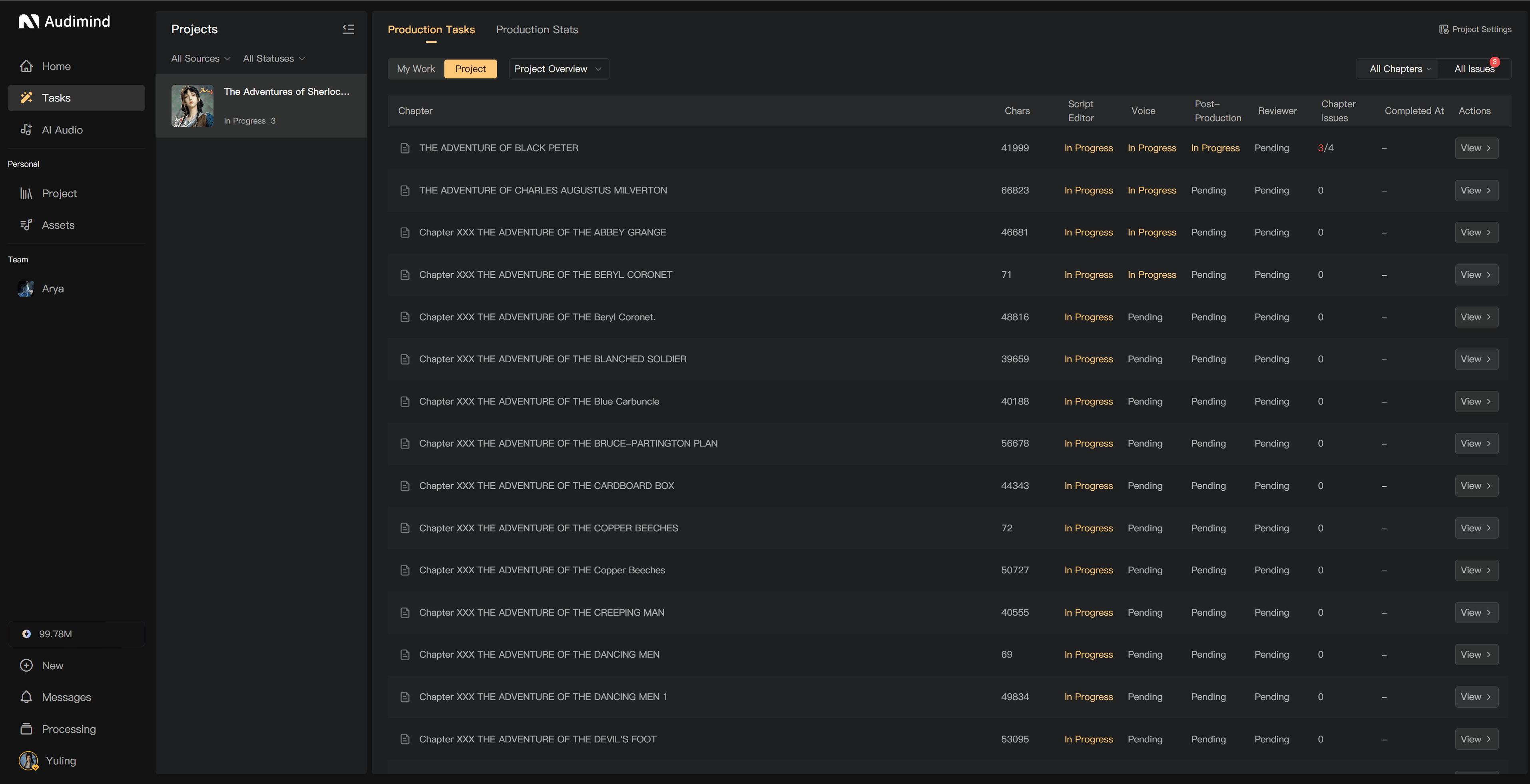
Use the task workspace to find assigned work across projects. Within a project, Tasks shows chapter assignments and their status. Directors and authorized members can inspect overall progress and work records.
Messages
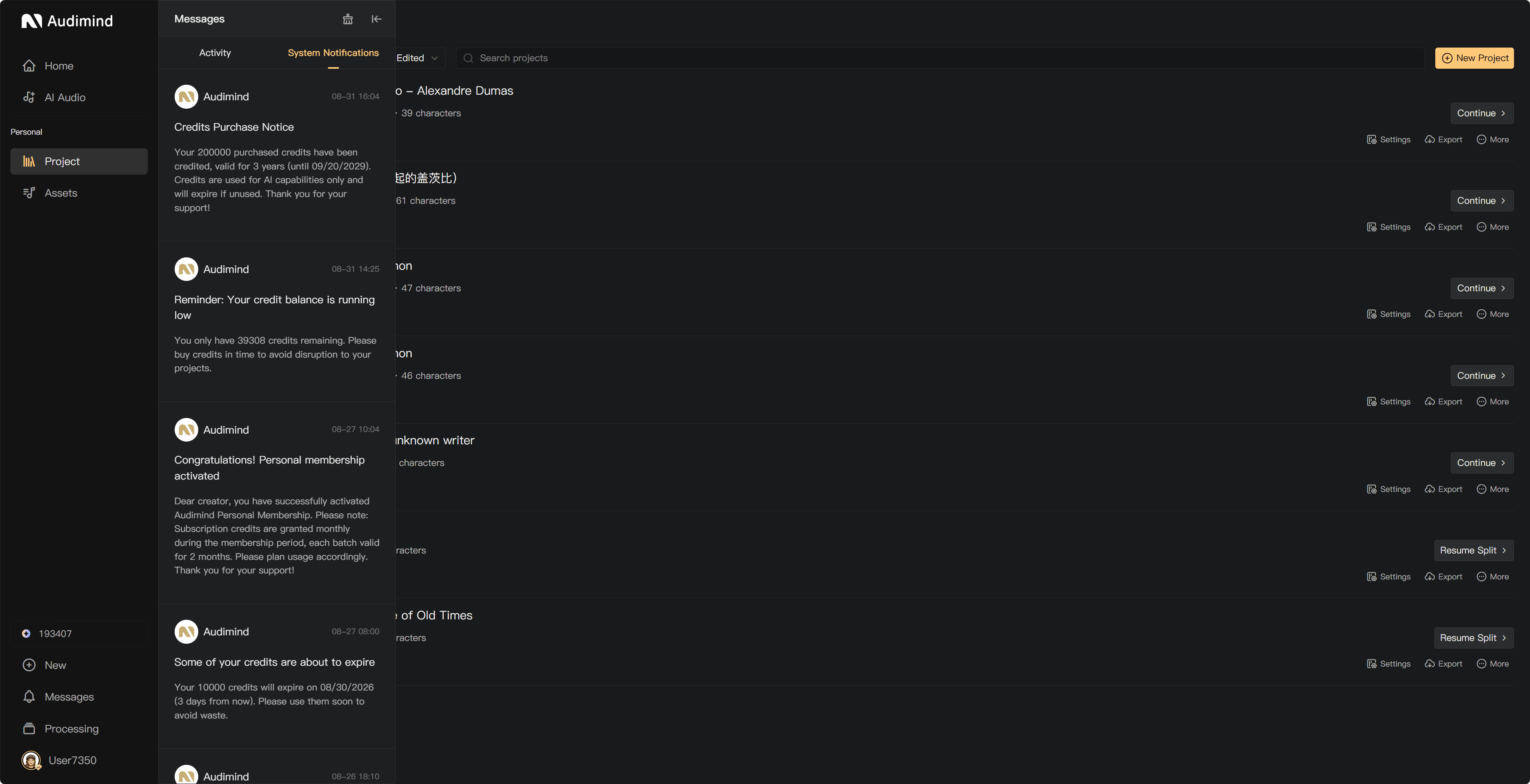
Use Messages for invitations, comments, task updates, and conversations. Follow a notification to the actual task or Issue when you need to act on it. Processing tracks background generation, alignment, mixing, and export tasks.
My account, credits, and resources
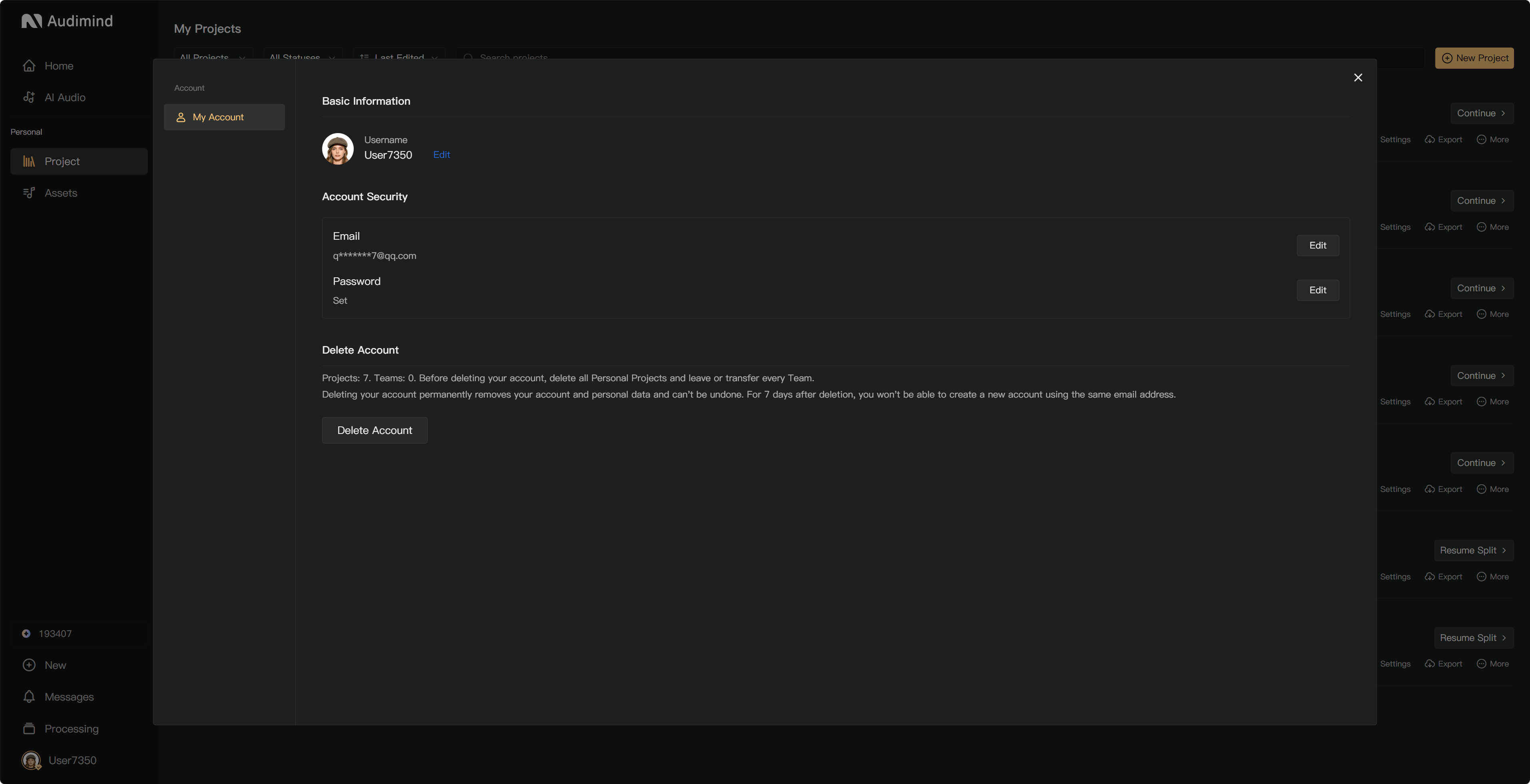
Open My through your avatar or display name to manage account settings and Profile. On the creation page, My also contains shortcut settings.
Hover over Credits in the sidebar for your balance and asset information. The purchase dialog separates Membership, Credits, and Resources. Memberships renew monthly or annually; credits and fixed-duration resources are separate purchases.
A good first project
Start with a short manuscript, inspect the chapter split, review the script and voices, and listen to one chapter before generating a larger production. See Create your first audiobook.
For a quick piece of single-voice audio, use Quick Voiceover. For chapters, character performances, editing, review, or collaboration, use a project.